What it does#
Video Stories shows a strip of round covers on the page. When a visitor taps a cover, the story opens full screen. As soon as a video ends, the next story plays, and the window closes after the last one. Visitors can tap the left or right side of the screen to go to the previous or next story.
You can add a button to each story. The button opens the address you enter in a new tab. Give stories a publish start and end, and stories for a sale period go live and come down on their own.
Good to know: video files are not uploaded to the panel. You enter the video's .mp4 address instead. If a story has no video address, its cover image is shown for 5 seconds. Every story needs a title and a cover image.
Setup#
- Open the widgetIn the panel, pick Video Stories from the Widget Gallery.
- Add a storyIn the "Story list" section, press "Add story". Type the title and upload the cover image (JPG or PNG). If you want to show a video, enter its .mp4 address.
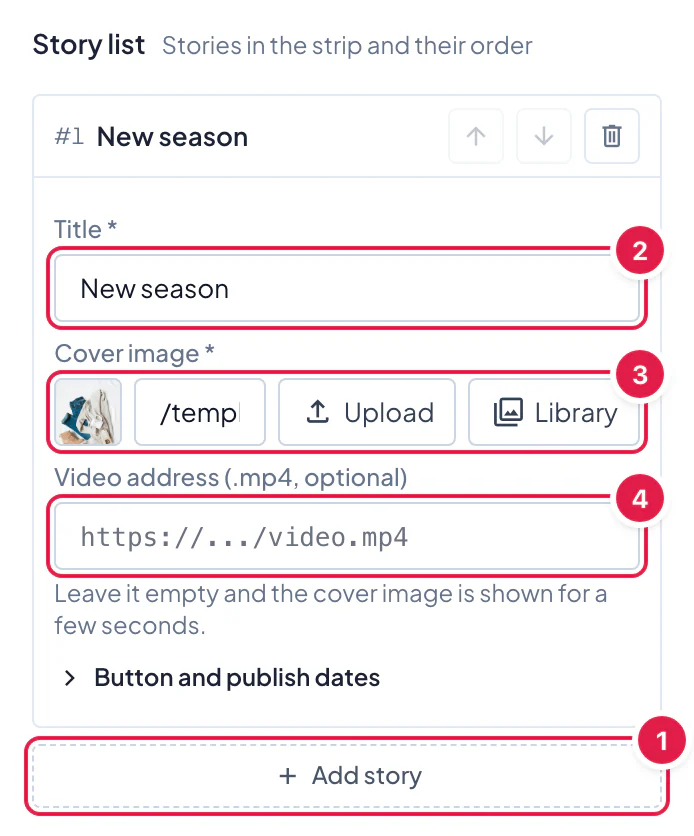
- Press this to add a new story.
- Type the story's title.
- Upload the cover image with the Upload button or pick one with the Library button.
- If you want to show a video, enter its .mp4 address. If you leave it empty, the cover image is shown for a few seconds.
- Enter the button and datesUnder "Button and publish dates", set the button text, address and colours. If the story should only show during a certain period, give it a publish start and end.
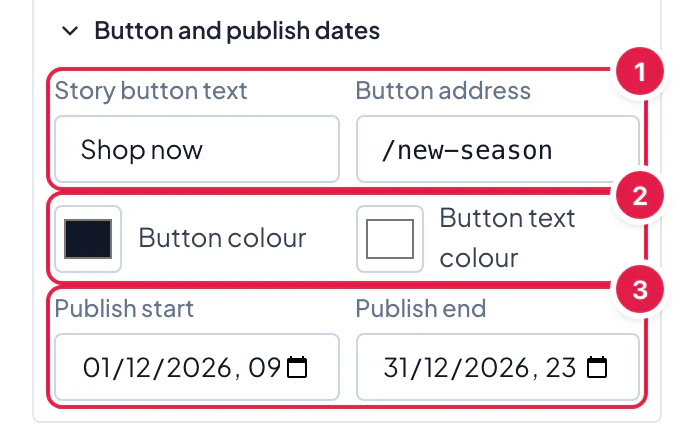
- Enter the button text and the address it opens.
- Pick the colours of the button and its text.
- If the story should only show during a certain period, pick the start and end.
- Choose the placementIn the "Placement" section, choose whether the strip sits at the top, at the bottom or in the page. For in the page, name the page element the strip is placed next to.
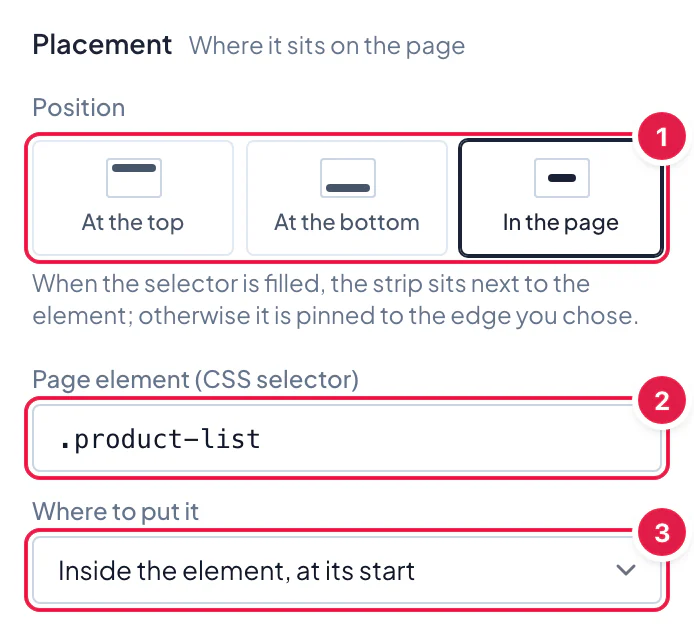
- Choose where the strip sits.
- For in the page, type the page element the strip is placed next to.
- Choose where the strip goes in relation to this element.
- Choose who sees itIn the "When it appears" and "Who sees it" sections, choose the timing, devices, pages and visitors.
- PublishWhen the "Checklist" section says "Ready to publish", save and turn the widget on.

- Switch it to "Active", then press the Save button at the top right. The widget starts showing in your store.
Settings#
| Setting | What it does |
|---|---|
| Story list | The stories in the strip and their order. Each story has a title, a cover image (both required) and an optional video address. |
| Button and publish dates | The text, address, colour and text colour of the button under the story, plus the story's publish start and end. If the button text is empty, no button is shown. |
| Position | Pinned at the top or bottom, or placed in the page next to an element you choose. |
| Page element (CSS selector) | The CSS selector of the element the strip is placed next to, and where it goes: just after the element, just before it, or inside it at its start or end. If the selector is filled, the strip sits next to the element. Otherwise it is pinned to the edge you chose. |
| On phones | The edge for the strip on phones while the page element field is empty: same as desktop, top or bottom. With bottom, the strip sits above the theme's bottom menu and the sticky add-to-cart bar. |
| When it appears | Whether the strip appears as soon as the page opens, a while after, or when the page is scrolled, and how often the same person sees it. |
| Who sees it | Separate on and off for desktop and mobile, page rules and visitor rules. |
Common situations#
The strip doesn't show in the store
The strip doesn't show if there are no stories. It also stays hidden if every story is outside its publish dates, or if both devices are switched off in the "Who sees it" section. The "Checklist" section points out these cases.
I can't save a story
A story without a title or cover image can't be saved. The | character can't be used in the fields either. Remove it and save again.
A story doesn't show in the store
A story whose publish start hasn't come yet, or whose publish end has passed, is not shown. If the end date is before the start date, the story never shows.
The strip sits at the top of the page instead of where I chose
If the page element is not a valid CSS selector, the strip is pinned to the top of the page. Fix the selector, or leave it empty and pick an edge as the position.
I chose At the top or At the bottom, but the strip shows in the page
If the page element field is filled, the store places the strip next to that element. Empty the page element field to pin it to an edge.
Tips#
Use short videos shot vertically. Stories move on when a video ends, so long videos delay the stories that come after them.
The cover image is shown in a small circle. Pick simple images with the product or face in the middle, and keep titles short.
Give sale stories a publish end. That way you don't have to remove the story by hand when the sale is over.
Works well with
Instagram Feed
All plansAdds an Instagram style image feed to your store. Products in the images can be tagged and bought.
Open guideInspiration Hotspots
Pro and aboveDots on a photo point to the products in it, and visitors go from a dot straight to the product.
Open guideBanner Studio
Advanced and aboveDesign campaign banners in the studio, target them, schedule them and compare variations.
Open guide