What it does#
Scratch Card opens a card on screen at the moment you choose. The visitor scratches the card with a finger or the mouse, and the prize is revealed once as much of the card as you set has been scratched. If the prize has a coupon code, the visitor sees the code and copies it. If the prize has no code, the visitor sees the losing screen.
When Ask for an email is on, the visitor's email address is collected before the card is scratched. You can see the collected addresses with the Collected emails button in the editor and download them as a CSV.
Good to know: the widget only shows the coupon code you typed for the prize. It doesn't apply the discount itself. You need to set up the same code in your store's coupon or promotion settings. Everyone who wins a prize gets the same code.
Setup#
- Open the widgetIn the panel, choose Scratch Card from the Widget Gallery.
- Enter the prizesIn the Prizes section, type each prize's name, chance and coupon code. Leave the coupon code empty for a prize that should lose.
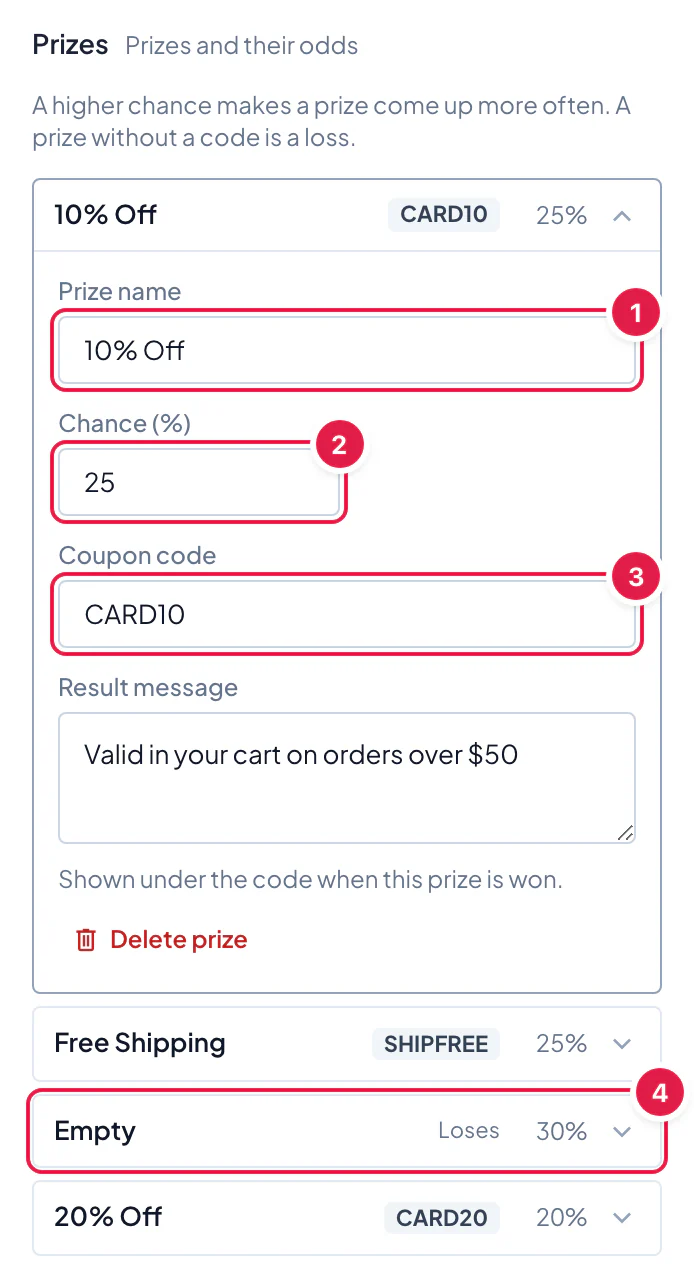
- Type the prize name.
- Enter the chance of this prize as a percentage.
- Type a coupon code that is set up in your store.
- A prize with an empty coupon code is a loss.
- Set up the coupons in your storeCreate every code you typed for the prizes in your store's coupon settings, spelled exactly the same way.
- Set up the card and the textsChoose the theme, where the card appears on screen, the scratch surface and the card colour. Check the texts of the Card, When they win and When they lose screens in the preview.
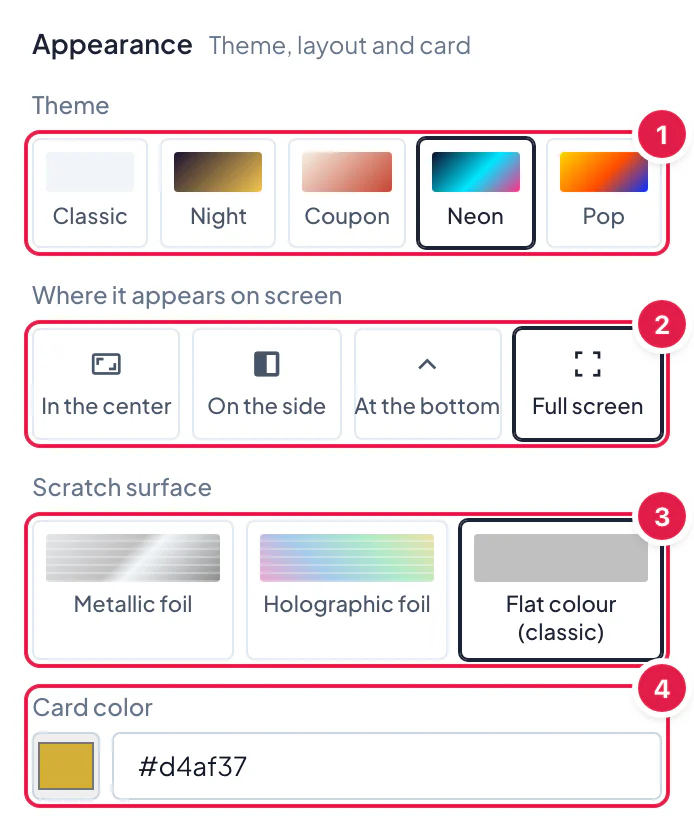
- Choose one of the five themes.
- Choose where the card appears on screen.
- Choose how the scratch surface looks.
- Enter the card colour.
- Choose when it opensIn the When it opens section, choose the moment the card appears and how often the same person sees it.
- Go liveWhen you see "Ready to publish" in the Checklist section, save and turn the widget on.

- Set the switch to "Active", then press the Save button at the top right. The widget starts showing in your store.
Settings#
| Setting | What it does |
|---|---|
| Appearance | The theme (Classic, Night, Coupon, Neon, Pop) and where the card appears on screen (in the center, on the side, at the bottom, full screen). |
| Scratch surface | Metallic foil, holographic foil or a flat colour. The card colour and the text on the card are also set here. |
| How much is scratched before it opens | What percentage of the card must be scratched before the prize is revealed. You can choose from 10 to 100 percent, and it starts at 60. |
| Texts | The title, subtitle and button text of the Card, When they win and When they lose screens. The "Ask for an email" switch is here too. |
| Prizes | For each prize, the prize name, chance, coupon code and the result message shown under the code when it is won. There must be at least 2 prizes. |
| When it opens | The moment it opens: when the visitor is about to leave, a while after the page opens, when the page is scrolled or as soon as the page opens. This is also where you choose how often the same person sees it. |
| Who sees it | Page rules (show on this page, hide on that page) and audience rules (such as device, total visits, visitors with an email or segment). |
| Code validity | If "Put a time limit on the code" is on, a countdown in minutes runs under the won code. |
Common situations#
Every card loses
If no prize has a coupon code, or the prizes with a code have a chance of 0, the card never wins. The Checklist section warns you that no prize on this card can be won. Type a coupon code for at least one prize and give it a chance above 0.
A prize with a coupon code still loses
If the prize name contains "empty", "pass" or a few Turkish words that mean "try again" or "lose", the prize counts as a loss even with a code. This also catches names like "Free pass". Give the winning prize a plain name such as "10% off" or "Free shipping".
The visitor can't use the code in the cart
The widget only shows the code. Check that the same code is set up in your store's coupon settings, is active and is spelled exactly the same way.
The prize opens too late or too early
Change the "How much is scratched before it opens" value. The higher the value, the more of the card the visitor has to scratch.
The card doesn't show again to the same person
The frequency setting in the When it opens section controls this. Use a private window for your own tests. A visitor who wins a code with a time limit sees a small tab with the time left instead of the card until the time runs out.
Tips#
The chances don't have to add up to 100. Each prize comes up as often as its share of the total.
Scratching on a phone takes more effort than on a desktop. Don't set the reveal threshold too high, or visitors may give up before they see the prize.
The code validity is only a countdown shown to the visitor and doesn't make the code expire in your store. Set the coupon's real validity period in your store's coupon settings.
Works well with
Spin to Win
All plansVisitors spin the wheel and get the coupon code of the slice they win. You can collect their email first.
Open guideGift Box
Pro and aboveVisitors open one of three gift boxes and get the coupon code of the prize inside. If you like, their email is collected first.
Open guideBalloon Pop
Pro and aboveThe visitor pops a balloon and gets the coupon code of the prize that comes out. If you want, an email is collected first.
Open guide