What it does#
Whatever page visitors are on, they can reach your social media accounts and contact channels in one click. Each link sits on the edge of the screen as a small tab with its own icon and colour, and opens in a new tab when clicked.
Besides WhatsApp, Instagram, Facebook, X (Twitter), TikTok, YouTube, Pinterest and LinkedIn, there are also phone, email, map and free link types.
Good to know: if you publish without adding any links, the store shows WhatsApp, Instagram and Call Us tabs by default. These tabs do not go to your accounts. Enter your own links before publishing.
Setup#
- Open the widgetIn the panel, choose Social Side Tabs from the Widget Gallery.
- Add your linksIn the "Links" section, use "Add link" to choose the network for each channel and enter the label and the link address. The order is the order of the tabs in the store.
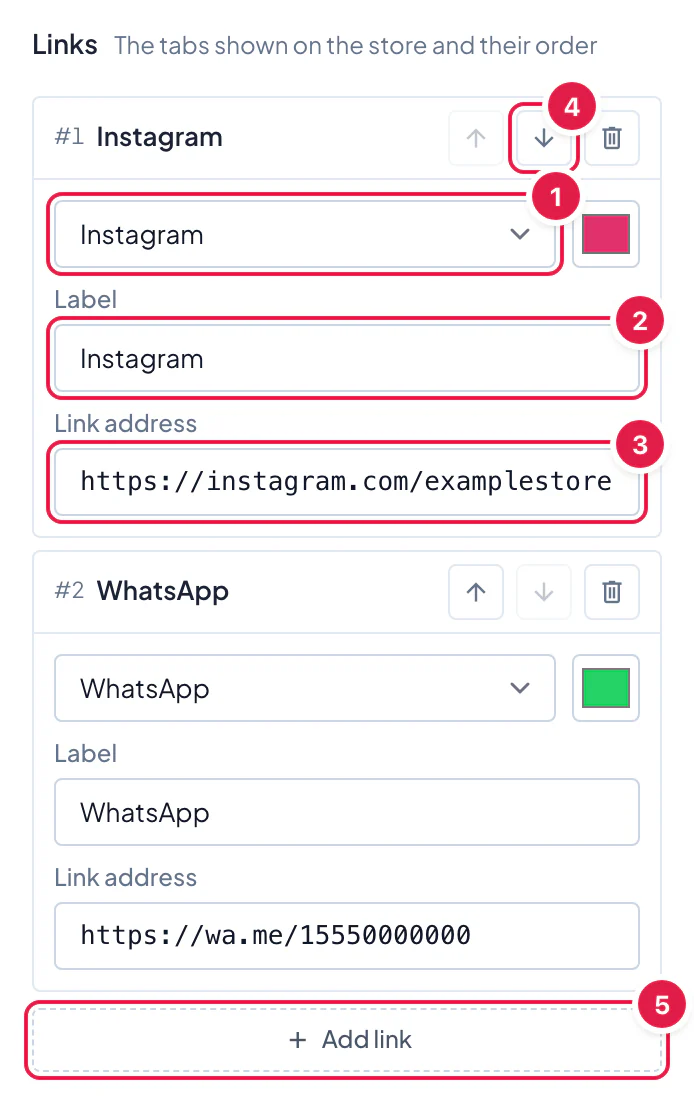
- Choose the network. You can change the tab colour with the box next to it.
- Enter the text shown on the tab.
- Enter the link address.
- Change the tab order with the arrows.
- Click to add a new channel.
- Choose the style and positionIn the "Appearance" section, choose one of the five styles and where the tabs sit on the screen: right center, left center, bottom right or bottom left.
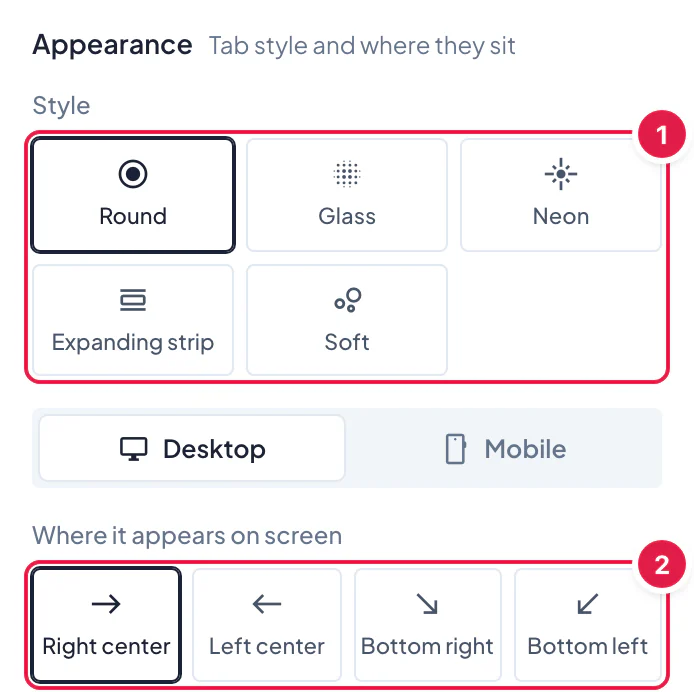
- Choose one of the five styles.
- Choose where the tabs sit on the screen.
- Set up mobileOn the Mobile tab, choose "Same as desktop" or "Its own layout". If you do not want the tabs on phones at all, turn off "Show on mobile" in the "Who sees it" section.
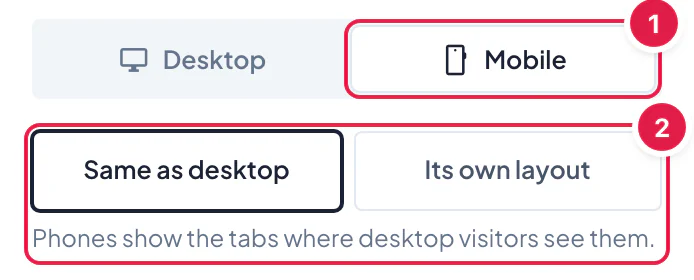
- Switch to the Mobile tab.
- Choose Same as desktop to use the desktop position on phones, or Its own layout to pick another one.
- Publish itWhen the "Checklist" section shows no warnings, switch the widget on.

- Turn the switch to "Active", then click Save in the top right. The widget starts showing in your store.
Settings#
| Setting | What it does |
|---|---|
| Style | How the tabs look: Round, Glass, Neon, Expanding strip or Soft. |
| Where it appears on screen | Right center, left center, bottom right or bottom left. You can choose separately for desktop and mobile. The bottom corners sit above the theme's bottom menu and the sticky add-to-cart bar. |
| Layer | Whether the tabs sit above or below other elements on the page. If they cover the mobile menu, choose "Below menus". |
| Links | Each tab's network, colour, label and link address. The label is the tab's text and, depending on the style, shows when the tab is hovered. |
| When it appears | As soon as the page opens, after a while or when the page is scrolled. Also how often it is shown to the same person. |
| Who sees it | The "Show on mobile" switch, plus which pages and which visitors the tabs show to. |
Common situations#
A tab I added does not show in the store
A tab with an empty link address is not shown in the store. The "Checklist" section shows how many links have an empty address. Use "Fix" to go to that row and enter the address.
The tabs do not show at all
If you deleted every link in the list, the tabs do not show in the store. Add at least one link. If they do not show on phones, "Show on mobile" may be off.
WhatsApp, Instagram and phone tabs I did not add are showing
If you have not saved any links yet, the store shows these three default tabs. Add your own links and save.
The tabs sit on top of the mobile menu
Choose "Below menus" in the "Layer" setting in the "Appearance" section. If space is tight on phones, try one of the bottom corners for mobile.
Some visitors do not see the tabs
If "How often for the same person" is set to anything other than "On every page view", the tabs are not shown to the same visitor on every page. If you want them to show all the time, choose "On every page view".
Tips#
Three or four links are enough. Many tabs fill the edge of the screen and can cover content on phones.
Enter the link address with tel: for phone, mailto: for email, and for WhatsApp https://wa.me/ followed by your number with the country code.
If you want a ready-made message, opening hours or a placement just for product pages on WhatsApp, the WhatsApp Button widget is a better fit, because this widget only opens a link.
Works well with
WhatsApp Button
All plansA WhatsApp button for one number. It can sit in a corner, in a strip, on the product page or in the cart.
Open guideInstagram Feed
All plansAdds an Instagram style image feed to your store. Products in the images can be tagged and bought.
Open guideBack to Top & Reading Progress
All plansA corner button that takes visitors back to the top of long pages in one tap and shows their reading progress.
Open guide