What it does#
When a visitor clicks the button, WhatsApp opens with the number you entered and the first message you set. The visitor can change the message before sending it. On product pages you can have the product's name and address added to the message, so you don't need to ask which product they mean.
The button doesn't have to be an icon floating in a corner. It can also be a side tab, a top or bottom strip, sit under the add-to-cart button on the product page, in a corner of the product image, on the cart and checkout pages, in the footer, or in a window that opens when the visitor is leaving. Each placement has designs that suit it.
Good to know: this widget goes to a single WhatsApp number, and the conversation happens in the visitor's own WhatsApp app. If you want visitors to choose between several teams, use the WhatsApp Chat widget.
Setup#
- Open the widgetIn the panel, pick WhatsApp Button (shown as WhatsApp CTA) from the Widget Gallery.
- Enter your number and messageIn the "Content" section, write your WhatsApp number with the country code first, digits only. In the "First WhatsApp message" field, enter the text that is written for the visitor.
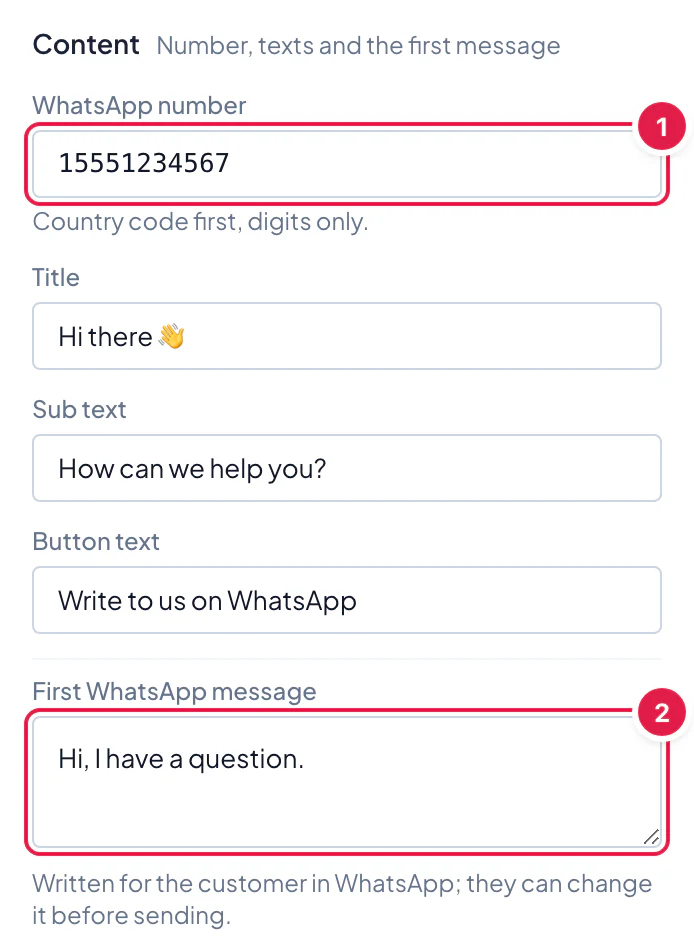
- Write your number with the country code first, digits only.
- Enter the first message written in WhatsApp for the visitor. They can change it before sending.
- Choose the placementIn the "Placement" section, choose where the button sits. On the Mobile tab you can pick a separate placement for phones or hide the button.
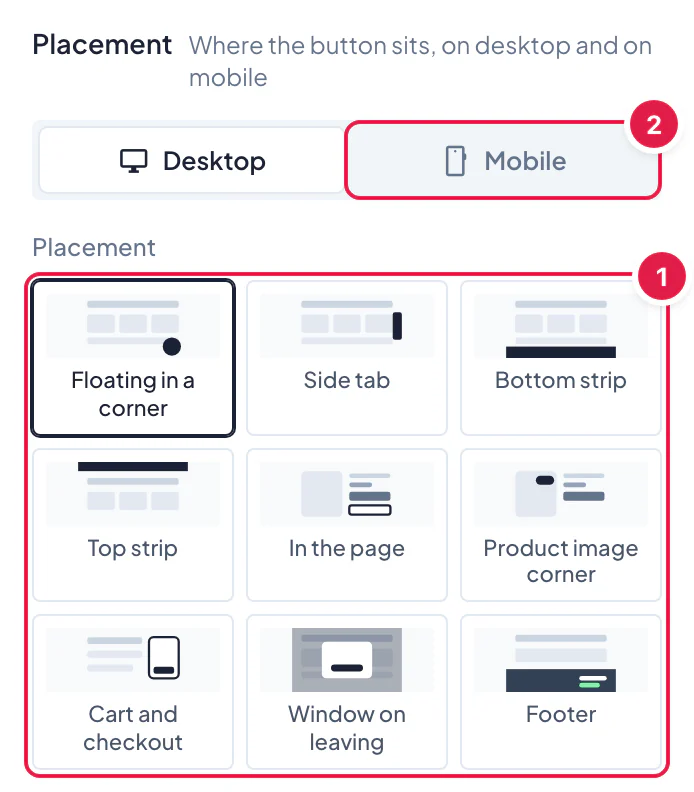
- Choose where the button sits.
- For phones, choose "Its own choice" or "Hidden" on this tab.
- Pick the design and coloursThe "Appearance" section lists the designs that fit the placement you chose. Depending on the design, extra fields such as a title, agent name, team or quick questions open in the "Content" section.
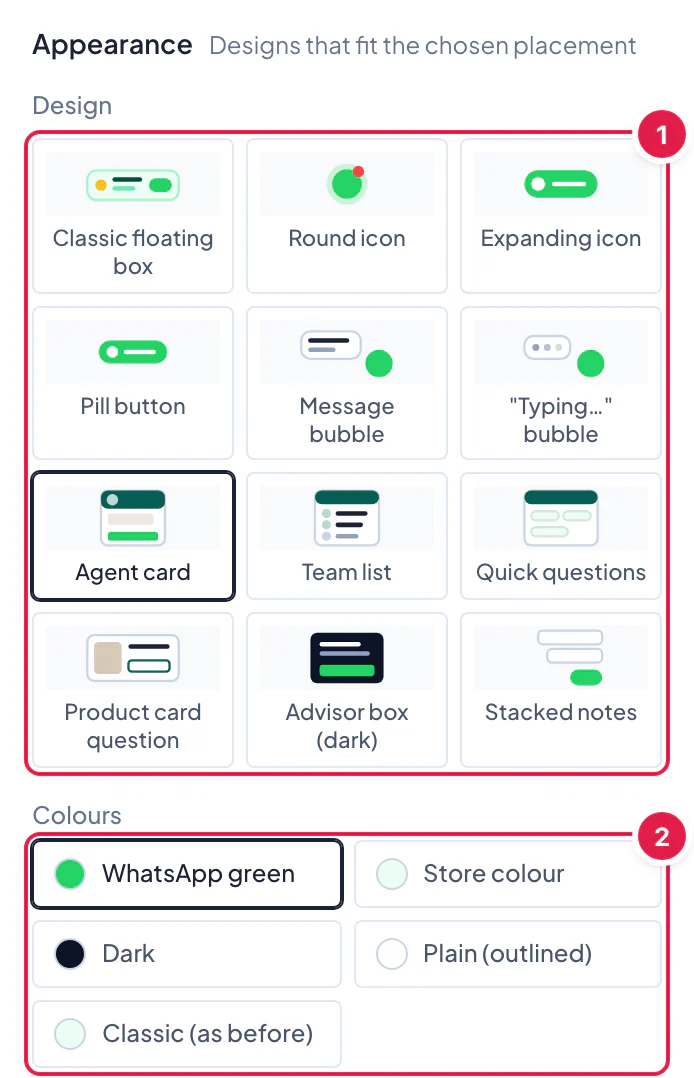
- Pick one of the designs that fit your placement.
- Choose the button's colours.
- Set your working hoursIf you like, turn on "Use working hours" in the "Working hours" section and enter your days and hours. Choose whether the button looks closed or is hidden outside working hours.
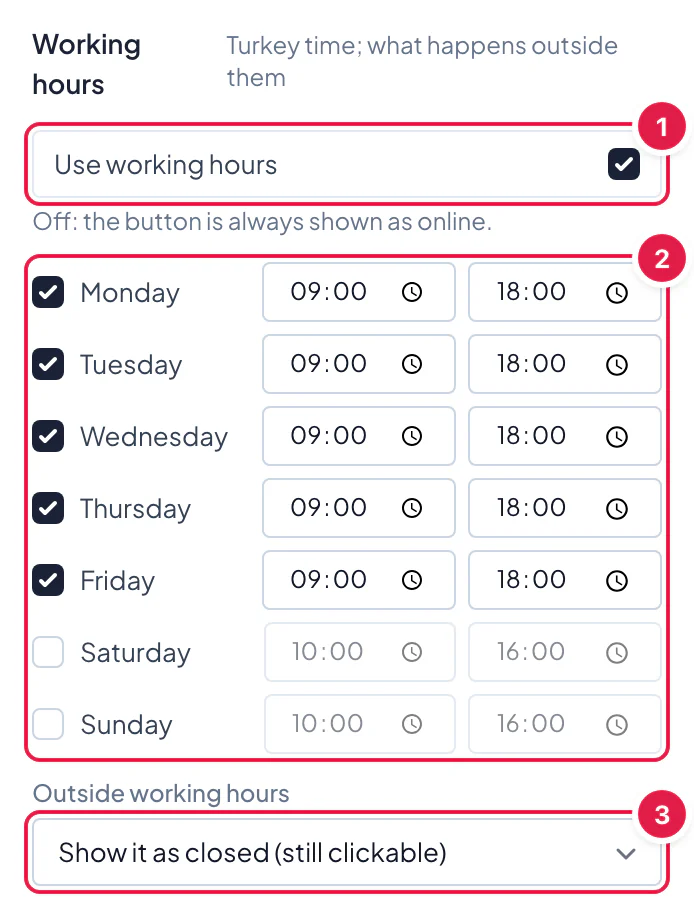
- Tick this to use working hours.
- Tick the days you are open and enter your opening and closing times. Times are in Turkey time.
- Choose whether the button looks closed or is hidden outside working hours.
- PublishWhen there are no warnings left in the "Checklist" section, turn the widget on.

- Switch it to "Active", then press the Save button at the top right. The widget starts showing in your store.
Settings#
| Setting | What it does |
|---|---|
| Placement | Floating in a corner, side tab, bottom strip, top strip, in the page, product image corner, next to the add-to-cart bar, cart and checkout, window on leaving, or footer. In the corner placement you set the position plus the side and vertical gap. |
| Where in the page | Where the button goes in the "In the page" placement: below the add-to-cart button, below the price, above the description, next to the summary on the cart page, the footer contact column, or a custom area you name with a CSS selector. |
| On mobile | "Same as desktop", "Its own choice" (its own placement and look for phones) or "Hidden". The vertical gap on mobile is set separately. |
| Design | Looks that fit the chosen placement: round icon, pill button, message bubble, agent card, team list, quick questions, product card question, strip and more. |
| Colours | WhatsApp green, store colour, dark or plain (outlined). The WhatsApp icon stays green unless you pick the store colour. The icon can show a "1" message badge. |
| Content | WhatsApp number, title, sub text, button text, first WhatsApp message and the message on product pages. Depending on the design, also the agent name, response time and photo, a team (1-3 people), quick questions (up to 6) and two short notes. |
| Working hours | Opening and closing times for each day (Turkey time). Outside working hours the button is shown as closed (still clickable) or hidden. You decide the text shown while it is closed. |
| When it appears | When and how often the same person sees the button. With "Drawing attention", a gentle pulse or a message bubble shows after the number of seconds you set. It is shown once and does not come back after the visitor closes or uses it. |
| Who sees it | Which pages and which visitors the button is shown to. |
Message variables#
When "On product pages, write the product into the message" is on, you can use the variables below in the "Message on product pages" field. The widget fills them in for the product the visitor is looking at.
| Variable | What it becomes |
|---|---|
{product} | The name of the product the visitor is looking at. |
{link} | The address of that product page. |
Common situations#
Clicking the button opens WhatsApp, but no chat opens
If the WhatsApp number is empty, the button opens WhatsApp with no recipient. The chat may also fail to open if the number contains anything other than digits, such as spaces, a plus sign or hyphens. Write the number with the country code first, digits only.
The button floats at the top of the page instead of where I chose
If no spot was chosen for the "In the page" placement, the store shows the box as floating. Pick a spot in the "Where in the page" field.
The button doesn't show on the product page
The product spots (below the add-to-cart button, below the price, above the description, product image corner) only show on product pages. If your theme doesn't have that spot, the button goes to the custom area. If the custom area is empty too, it is not shown on that page. Enter a CSS selector for the custom area.
The button always looks closed or never shows
If working hours are on but no day is ticked, the button always looks closed. If "Hide the button" is selected, it never shows. Tick your days or turn working hours off.
I saw the top strip or the leaving window once and it doesn't come back
Once a visitor closes the top strip, it doesn't show for that visitor again. The window that opens when leaving is shown to the same visitor only once. Use a private window when testing.
Tips#
Keep the product page message on and use the {product} and {link} variables. That way the message you receive says which product the visitor is asking about.
If the button covers the menu bar at the bottom on phones, increase "Vertical gap on mobile" on the Mobile tab.
WhatsApp Button is for one number and many placements. WhatsApp Chat is a corner panel where the visitor picks a department. If you have a single order line, choose this widget. If your teams have separate numbers, choose WhatsApp Chat. In the "Team list" design, every row currently opens the same number.
Works well with
WhatsApp Chat
Pro and aboveA corner chat button opens your department list, and visitors write to the team they pick on WhatsApp.
Open guideSticky Add-to-Cart
Pro and aboveKeeps the product name, price and add-to-cart button in a fixed bar on screen as the page scrolls.
Open guideProduct FAQ
All plansShows frequently asked questions on the product page. You link question groups to a category, a brand or products.
Open guide