What it does#
Product FAQ adds a list of questions and answers to the product page that opens when a question is clicked. Use it to answer what shoppers ask before they buy, such as shipping times, return conditions and payment options, right next to the product.
You don't have to write the questions for each product separately. You write them once in groups and link each group to every product, to certain categories or brands, or to products you choose. On a product page, all groups that match that product appear one after another in a single list. A question that appears in two groups shows only once.
Good to know: the questions only appear on product pages. A group needs at least one complete question (a question and an answer) to be shown. A group linked to categories, brands or products is not shown if no names or numbers have been entered for it.
Setup#
- Open the widgetIn the panel, choose Product FAQ from the Widget Gallery.
- Write the question groupsIn the "Questions" section, replace the sample questions with your own. Use "Add group" to create new groups for different products.
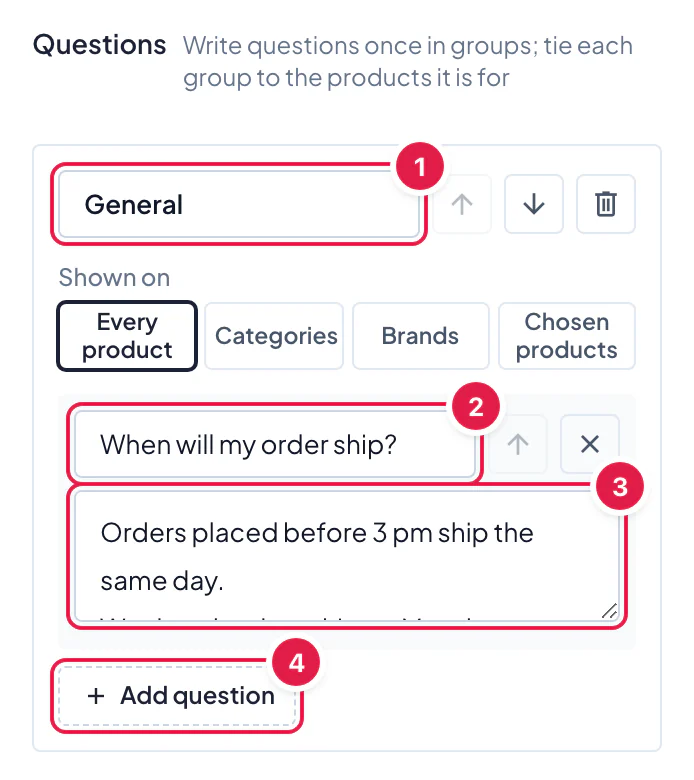
- Give the group a name, for example General.
- Type the question.
- Type the answer.
- Press Add question to add another question to the same group.
- Link the groups to productsFor each group, choose where it is "Shown on": Every product, Categories, Brands or Chosen products. Type the names or numbers separated by commas.
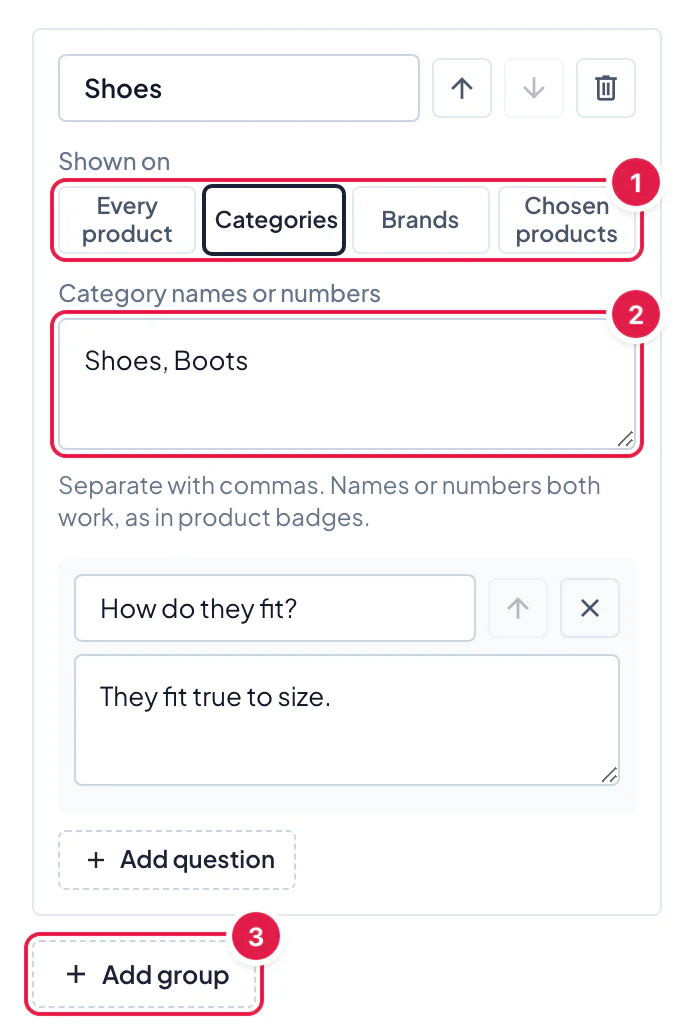
- Choose which products the group appears on.
- Type the category names or numbers, separated by commas.
- Add a new group for different products.
- Choose the spot on the pageIn the "Placement" section, choose where on the product page the questions appear.
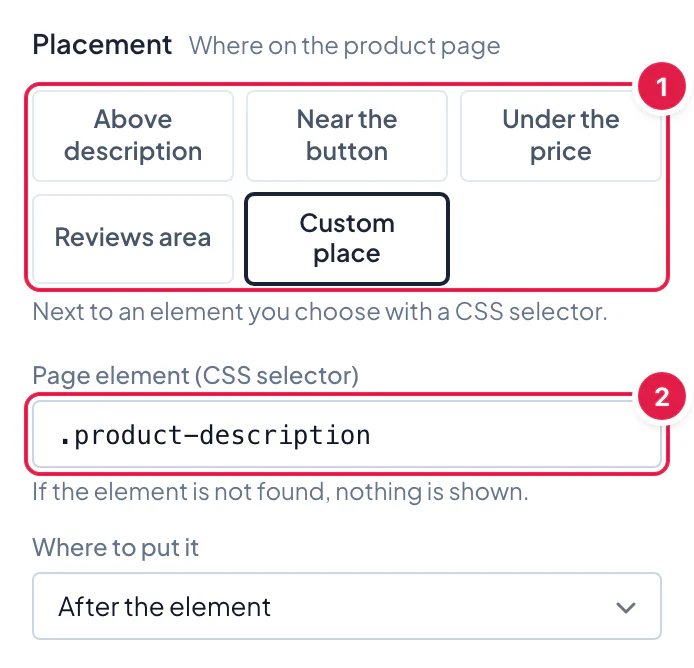
- Choose where the questions appear on the product page.
- If you chose Custom place, type the page element as a CSS selector.
- Set up the designIn the "Design" section, choose the template, icon, colours, text size and spacing. Check each group one by one in the preview.
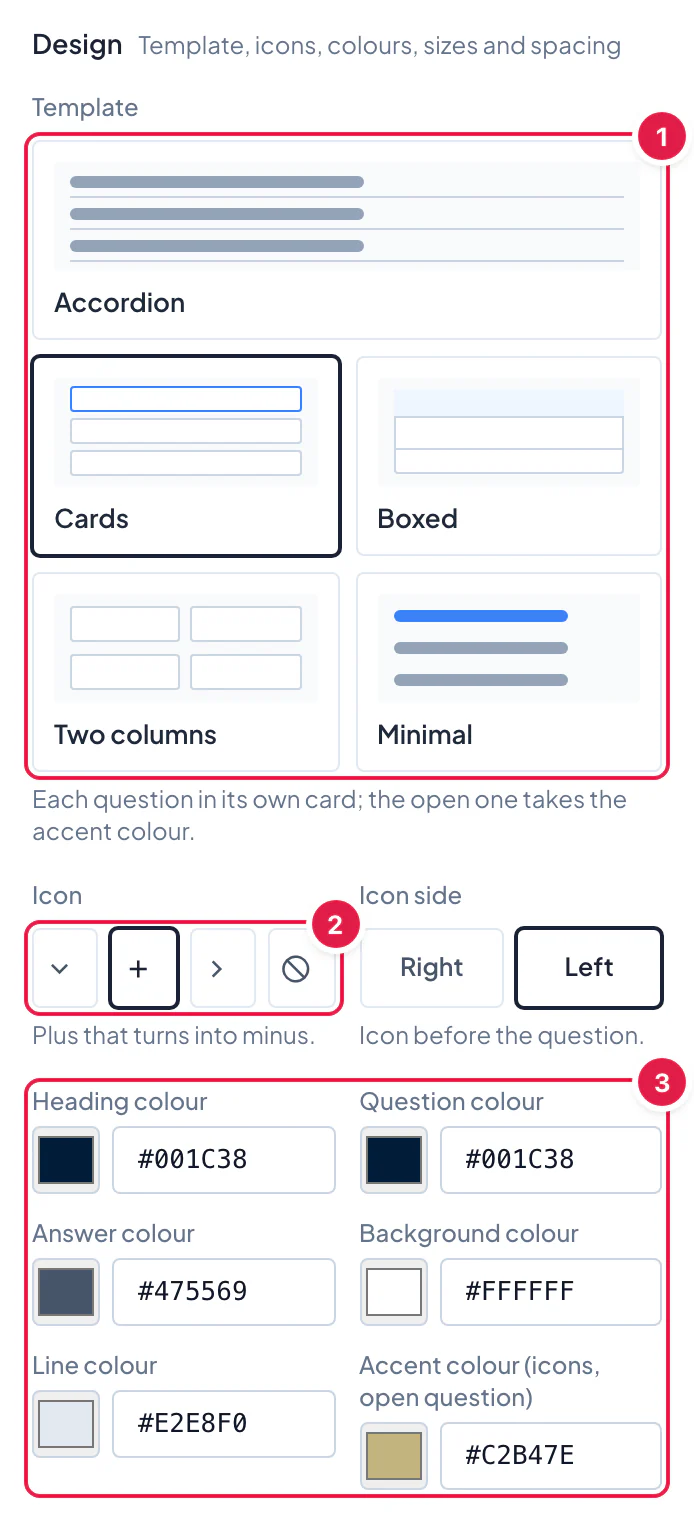
- Choose a template for how the questions look.
- Choose the icon next to each question.
- Enter the heading, question, answer, background, line and accent colours.
- Go liveWhen you see "Ready to publish" in the "Checklist" section, save and turn the widget on.

- Set the switch to "Active", then press the Save button at the top right. The widget starts showing in your store.
Settings#
| Setting | What it does |
|---|---|
| Questions | The question groups. Each group has a name, questions and answers. You can add up to 10 groups with up to 20 questions each. Move groups up and down to change their order. |
| Shown on | Which products the group appears on: Every product, Categories, Brands or Chosen products. For categories and brands type a name or number, for products type a product number or SKU. |
| Placement | Where on the product page: Above description, Near the button (just above the add to cart button), Under the price, Reviews area or Custom place (next to an element you pick with a CSS selector). |
| Template | Accordion, Cards, Boxed, Two columns (side by side on desktop, one column on phones) or Minimal. |
| Icon and Icon side | A chevron that turns, a plus that becomes a minus, an arrow that turns down, or no icon. The icon sits to the right or left of the question. |
| Colours, text size and spacing | Heading, question, answer, background, line and accent colour. Text size (Small, Medium, Large), spacing (Compact, Normal, Roomy), space above and below, and max width. |
| Heading | Turns the heading above the list on or off and sets its text. |
| First question open and One answer at a time | Whether the first answer is visible when the page opens, and whether opening a question closes the one that is open. |
| FAQ structured data | Adds the questions to the page as schema.org FAQPage, so search engines can show them. It is skipped when your theme already adds one. |
Common situations#
The questions don't appear in my store at all
The questions only appear on product pages. If there are no question groups, or no group matches that product, nothing is shown. For questions that should appear on every product, link a group to "Every product".
A group doesn't appear on any product
A group is not shown if it has no complete question (a question and an answer), or if it is linked to categories, brands or products but none have been entered. The "Checklist" section tells you when this happens.
A group linked to a category doesn't appear on products in that category
The category or brand name you type must be the same as the name in your store. If the name doesn't match, try typing the category or brand number instead. Separate several values with commas.
I chose "Custom place" and the questions don't show
If no element on the page matches your selector, nothing is shown. Check the selector or choose one of the ready-made placements. If no selector is entered, the questions are placed above the product description.
My questions don't show in search results
Structured data tells search engines about your questions, but the search engine decides whether to show them in results. If your theme already adds FAQ structured data to the page, the widget doesn't add a second one.
Tips#
Put questions that apply to every product, such as shipping, returns and payment, in one group linked to "Every product". Link product-specific questions (size, care, compatibility) to a category or brand in separate groups.
A product page shows up to 40 questions, but a long list is harder to read. Keep the number of questions per product low and put the most common one at the top.
Use the "Questions in the preview" buttons to see how each group looks on its own.
Works well with
Size Advisor
Pro and aboveShows your size chart on the product page and recommends a size from the visitor's measurements.
Open guideSticky Add-to-Cart
Pro and aboveKeeps the product name, price and add-to-cart button in a fixed bar on screen as the page scrolls.
Open guideSocial Proof Pro
All plansShows view, add-to-cart, sales and favourite counts and customer reviews on the product page.
Open guide