What it does#
It places a link on the product page, right below your store's size picker. When visitors click it, a window opens with that product's size chart. If "Recommend a size from measurements" is on, they enter their measurements and get the size that fits them, based on your chart.
You enter the size charts yourself. You can start from a ready-made general size standard and adjust it to your own measurements, paste it from a spreadsheet, or just upload your own size chart image. You assign each chart to specific products, categories or brands. Besides clothing, there are product types such as shoes, rings, belts and hats.
Good to know: the recommendation is calculated from the chart you enter. If the chart does not match your products, the recommendation will be wrong too. The ready-made templates are general size standards, not any brand's own sizes, so compare them with your products before publishing. The visitor's measurements are only processed on their own device.
Setup#
- Open the widgetIn the panel, choose Size Advisor from the Widget Gallery.
- Add a size chartIn the "Size charts" section, click "Add size chart". Start from a general size standard or an empty chart. Then choose the chart name, the product type and who it is for.
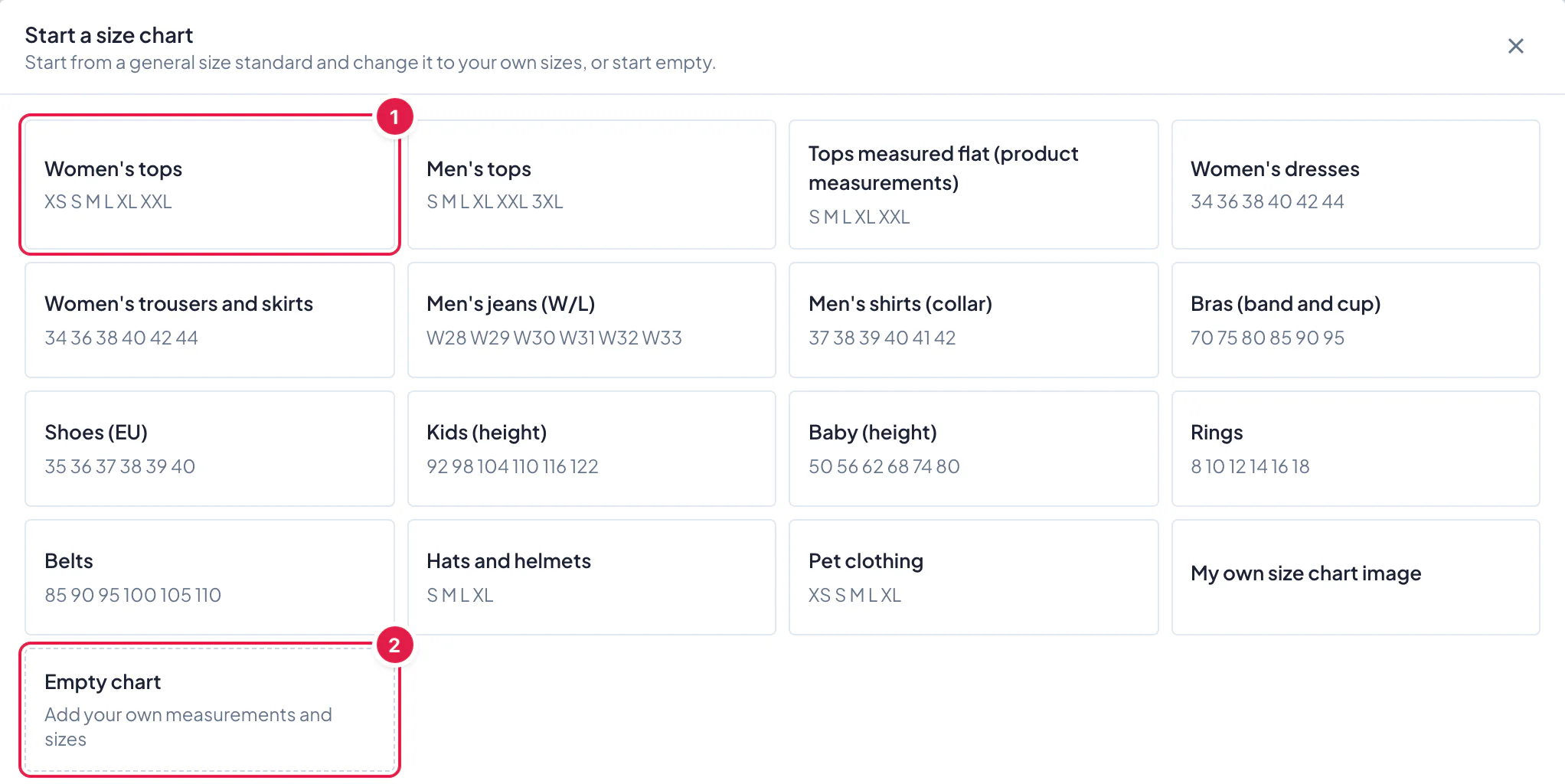
- Choose the standard closest to your product. You can adjust the sizes to your own later.
- Choose Empty chart to start from scratch with your own measurements.
- Enter sizes and measurementsFor each size, enter the measurements as a single value (98) or a range (96-100). If your chart is in a spreadsheet, copy the rows and paste them with "Paste from a spreadsheet".
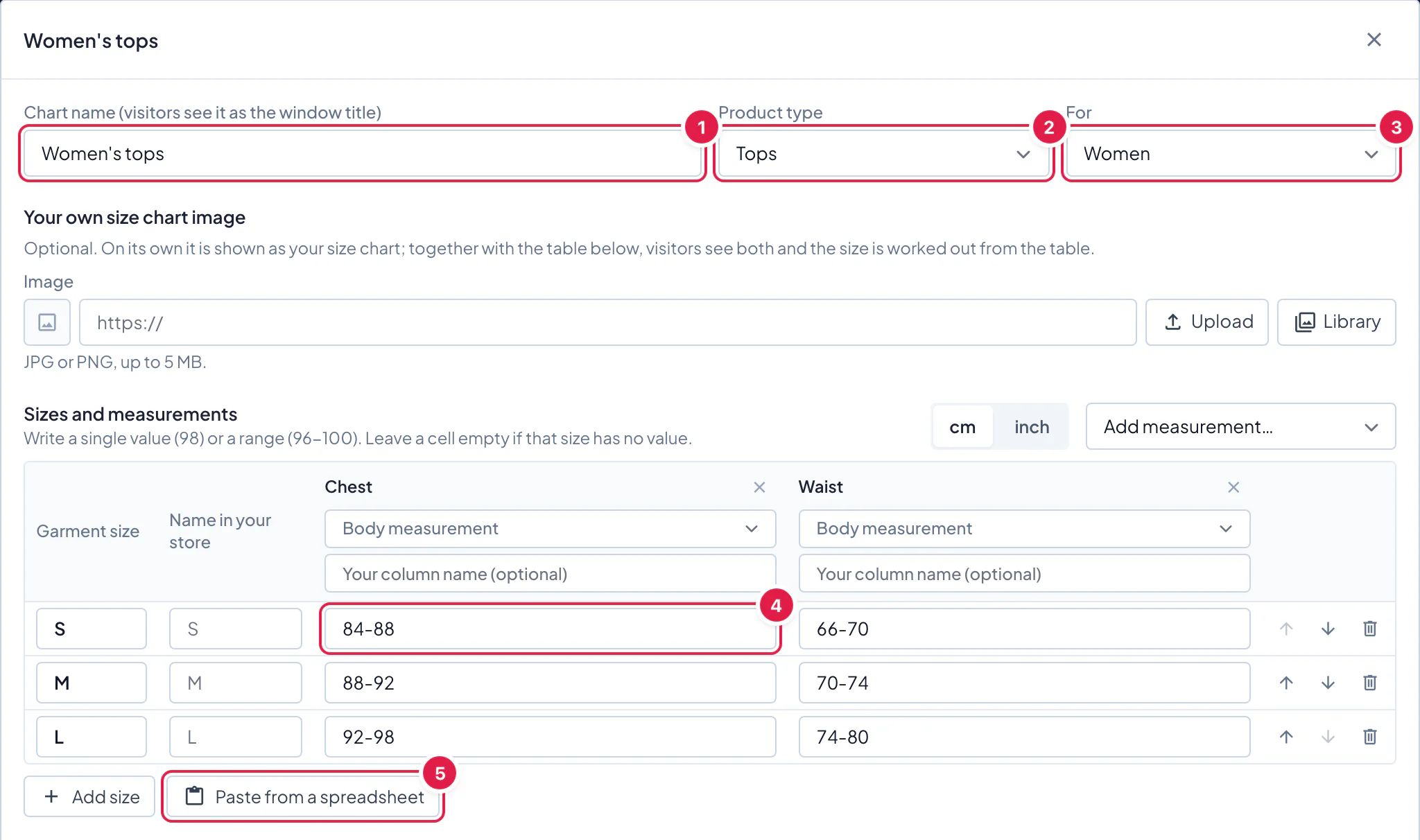
- Enter the chart name. Visitors see it as the window title.
- Choose the product type.
- Choose who it is for.
- Enter the measurement as a single value or a range, for example
84-88. - If your chart is in a spreadsheet, paste the rows here.
- Assign the chart to productsIn "Which products use this chart", enter categories, brands or product IDs, or mark the chart as the default chart.
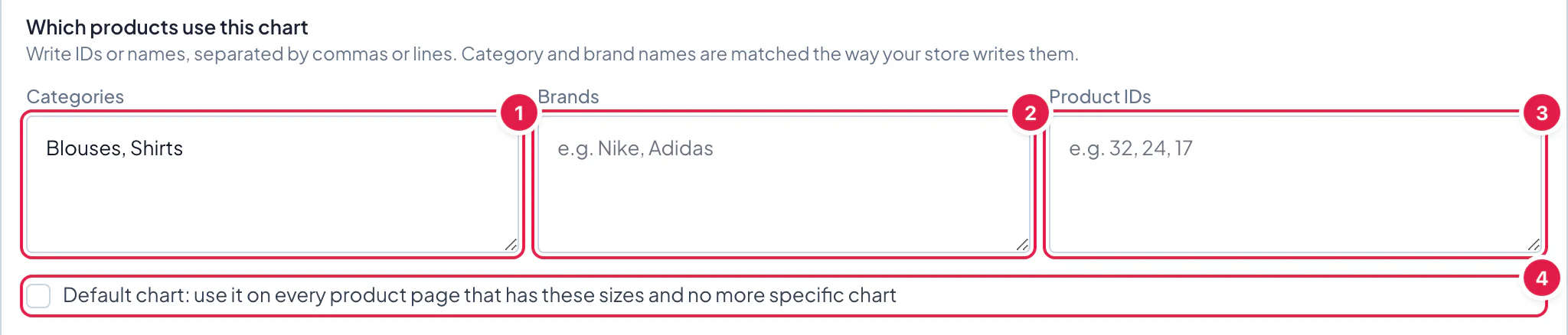
- Enter category names exactly as they are written in your store.
- Enter brand names.
- Enter product IDs for individual products.
- Tick this if you want products without a more specific chart to use this one.
- Set up the linkIn the "Appearance" section, choose the link text, style and colour. Turn the size recommendation from measurements on or off here.
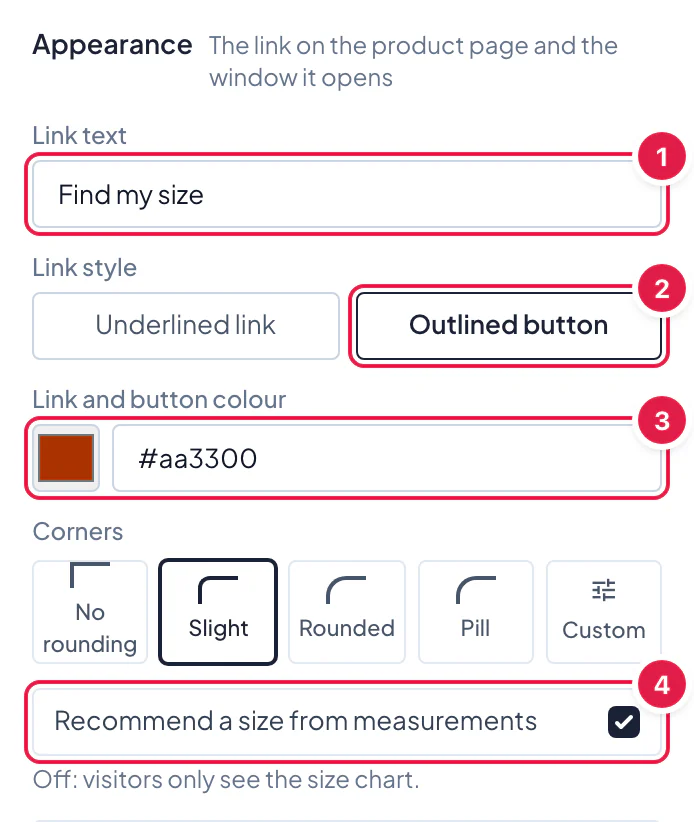
- Enter the text shown on the product page.
- Choose an underlined link or an outlined button.
- Choose the link colour.
- If you turn it off, visitors only see the size chart.
- Publish itWhen the "Checklist" section shows no warnings, switch the widget on.

- Turn the switch to "Active", then click Save in the top right. The widget starts showing in your store.
Settings#
| Setting | What it does |
|---|---|
| Size charts | The list of your charts. Each chart's name is shown to visitors as the window title. You choose the product type and who it is for (women, men, unisex, kids). |
| Sizes and measurements | Sizes, measurement columns and the unit. For each measurement you choose what is measured: a body measurement, a garment measurement (all around) or the garment laid flat (width). If sizes have two parts (like W30 L32 or 75B), you can add the second part. |
| Your own size chart image | An optional image (JPG or PNG, up to 5 MB). On its own, it is shown as your size chart. If you add it together with a chart, visitors see both and the size is calculated from the chart. |
| Fit and recommendation | The product's fit (slim, regular, loose), whether it runs small or large (recommends one size up or down), the deciding measurement, ease allowance, a stretch fabric option and a note to visitors. |
| Which products use this chart | Categories, brands and product IDs, plus the default chart mark. Each product page shows the most specific matching chart: product first, then brand and category together, then category, then brand, and finally the default chart. |
| Appearance | Link text, link style (underlined link or outlined button), colour and corner rounding. |
| Recommend a size from measurements | When it is off, visitors only see the size chart. |
| Let visitors remember their measurements | Measurements are kept only on the visitor's own device, and only if they tick the box. Their size then shows next to the link on other products. |
| Placement | The link goes under the store's size picker automatically. If your theme needs it, you can name the size picker element or a fallback element with a CSS selector. |
Common situations#
The link does not show on the product page
If there is no size chart at all, nothing shows in the store. If a chart is not assigned to any product, category or brand and is not the default chart either, it never shows. If the size picker cannot be found, name the size picker element or the fallback element in the "Placement" section.
The chart shows but no size is recommended
If the chart has sizes but no measurements, visitors see the chart but no size can be recommended from measurements. Fill in the measurement columns and check that "Recommend a size from measurements" is on.
The "Checklist" shows errors in the cells
Cells can only hold a number or a range: 96 or 96-100. Do not write units or notes. Choose the unit in the chart's unit setting.
The wrong chart opens on the product page
The most specific matching chart is used: a product assignment comes before a category, and a category before a brand. If more than one chart is marked as default, only the first one is used. Enter category and brand names exactly as your store writes them.
A chart with only an image is not where I expected
A chart made only of an image has no sizes to look for, so the link does not go under the size picker. It goes to the fallback element, or above the add-to-cart button if there is none.
Tips#
Start with the chart for your best-selling category and assign it to that category. Work category by category instead of putting one default chart on everything.
Enter size names exactly as they appear in your store's size picker, because the size picker the link goes under is found from the sizes in your chart.
Put model details in the "Note to visitors" field (e.g. "Model is 5'10" and wears size M"). That way visitors can compare the product photo with their own size.
Works well with
Product FAQ
All plansShows frequently asked questions on the product page. You link question groups to a category, a brand or products.
Open guideSticky Add-to-Cart
Pro and aboveKeeps the product name, price and add-to-cart button in a fixed bar on screen as the page scrolls.
Open guideInspiration Hotspots
Pro and aboveDots on a photo point to the products in it, and visitors go from a dot straight to the product.
Open guide