What it does#
On long product pages, the add-to-cart button scrolls off screen while visitors read the description or the reviews. Sticky Add-to-Cart opens a bar once the visitor has scrolled the page as far as you set. The bar has the product image, name, price and an add-to-cart button.
The price on the bar updates together with the price on the page. If the price changes when the visitor picks a different option, the bar changes too. For discounted products, the old price is shown as well.
Good to know: the button on the bar does not add to the cart by itself, it clicks the add-to-cart button on the page. That button is found automatically from your store theme. If a choice like size or colour is needed, the result is whatever your theme's own button does.
Setup#
- Open the widgetIn the panel, choose Sticky Add-to-Cart from the Widget Gallery.
- Choose the positionIn the "Appearance" section, choose whether the bar sits at the very bottom or the very top of the page. If you want a different edge on phones, set it separately on the Mobile tab.
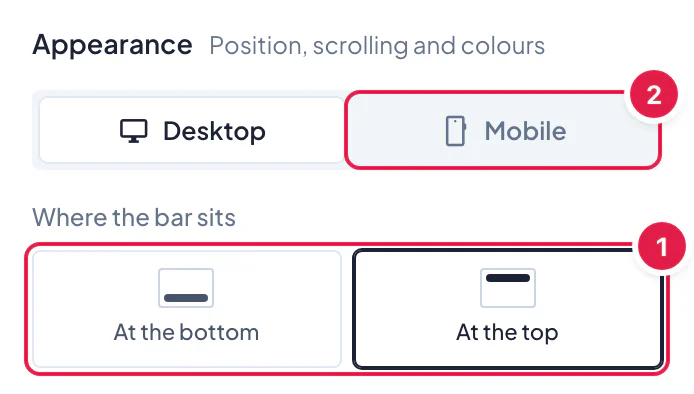
- Choose whether the bar sits at the bottom or the top.
- If you want a different edge on phones, choose it separately on the Mobile tab.
- Enter the scroll distanceIn "Show after scrolling this many pixels", enter the distance at which the bar opens.
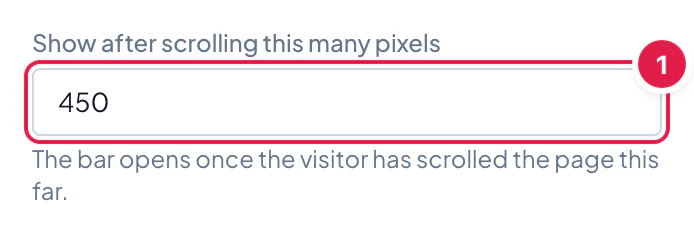
- The bar opens once the visitor has scrolled the page this far.
- Set the coloursChoose the button colour, button label colour, bar background and text colour to match your store.
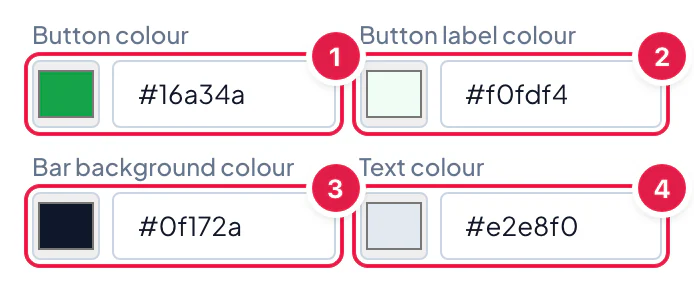
- The button colour.
- The colour of the text on the button.
- The bar background.
- The colour of the texts on the bar.
- Limit the pagesIn the "Pages" section, enter the path your product addresses start with, so the bar only works on your product pages.
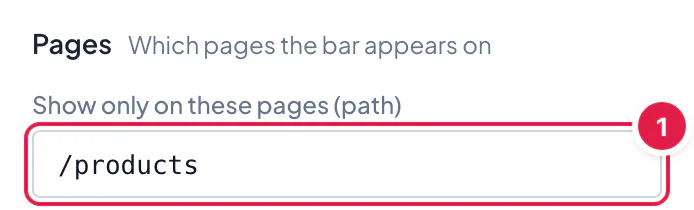
- Enter the path your product addresses start with, for example
/products. Separate several paths with commas.
- Enter the path your product addresses start with, for example
- Publish itWhen the "Checklist" section says "Ready to publish", switch the widget on.

- Turn the switch to "Active", then click Save in the top right. The widget starts showing in your store.
Settings#
| Setting | What it does |
|---|---|
| Appearance: Where the bar sits | At the very bottom or the very top of the page. With "Where the bar sits on phones" on the Mobile tab, you can choose a different edge for phones. |
| Appearance: Show after scrolling this many pixels | The bar opens once the visitor has scrolled the page this far, and closes when they scroll back up. |
| Appearance: Colours | Button colour, button label colour, bar background colour and text colour. |
| Pages: Show only on these pages (path) | Optional. Separate several paths with commas. If you enter /products, it shows on every page whose address starts with /products. If you leave it empty, the bar works on every page. |
| Pages: Pages where it is not shown | Address paths where you do not want the bar. Write one per line. |
| When it appears | As soon as the page opens, a while after the page opens or when the page is scrolled. |
| Who sees it | Device choice with the Desktop and Mobile switches. You can also add audience rules if you like. |
Common situations#
The bar does not show on any device
If both the Desktop and Mobile switches in the "Who sees it" section are off, the bar does not show on any device. Turn on at least one.
I entered a path but the bar does not show on those pages
The path in "Show only on these pages" must start with /. The store compares it with the start of the page address, so enter /products instead of products.
I opened the page and there is no bar
The bar only opens once the page has been scrolled as many pixels as you set. If it never opens on short pages, lower the scroll distance.
The bar's button is clicked but the product is not added to the cart
The bar clicks the add-to-cart button on the page. If the product needs a choice, that choice must be made on the page first. If it does not work on any product, your theme's button may not be found. In that case, write to us.
The bar shows outside product pages too
If "Show only on these pages" is empty, the bar works on every page. Enter the path of your product pages, or add the pages you do not want to "Pages where it is not shown".
Tips#
Keep the scroll distance close to the point where the page's own add-to-cart button leaves the screen. That way the two buttons are not visible at the same time.
If your theme has a bottom menu on phones, the bar sits above it. If you want to leave the bottom of the screen to the menu and chat buttons, choose "At the top" for phones.
Make the button colour the same as your page's add-to-cart button. That way visitors see right away that both buttons do the same thing.
Works well with
Added to Cart Panel
All plansOpens when a product is added to the cart and shows the added product, what is left for free shipping and the products you suggest.
Open guideFree Shipping Bar
All plansShows how much is left for free shipping with a progress bar at the top or bottom of the page.
Open guideStock Counter & Alert
All plansShows how many are left on the product page and on product cards when stock runs low.
Open guide