What it does#
The Added to Cart Panel opens the moment a visitor adds a product to the cart. It shows the added product's image, name and price, the amount left for free shipping if you want, the products you suggest and two buttons: go to the cart and keep shopping.
You pick the products to suggest from your catalog in groups. Each group can be linked to every product, to certain categories, to brands or to products you choose. For example, when shoes are added, care products are suggested. A visitor who clicks a suggestion goes to that product's page.
Good to know: "Automatic suggestions" only works on the Enterprise plan. On other plans you choose the products yourself with groups. The free shipping line only informs the visitor, you still need to set up the shipping rule in your store. The panel never opens on the cart and checkout pages.
Setup#
- Open the widgetIn the panel, choose Added to Cart Panel from the Widget Gallery.
- Create product groupsIn the "Products" section, start a group with "Add group", choose which products trigger it and use "Add product" to add the products to suggest from your catalog.
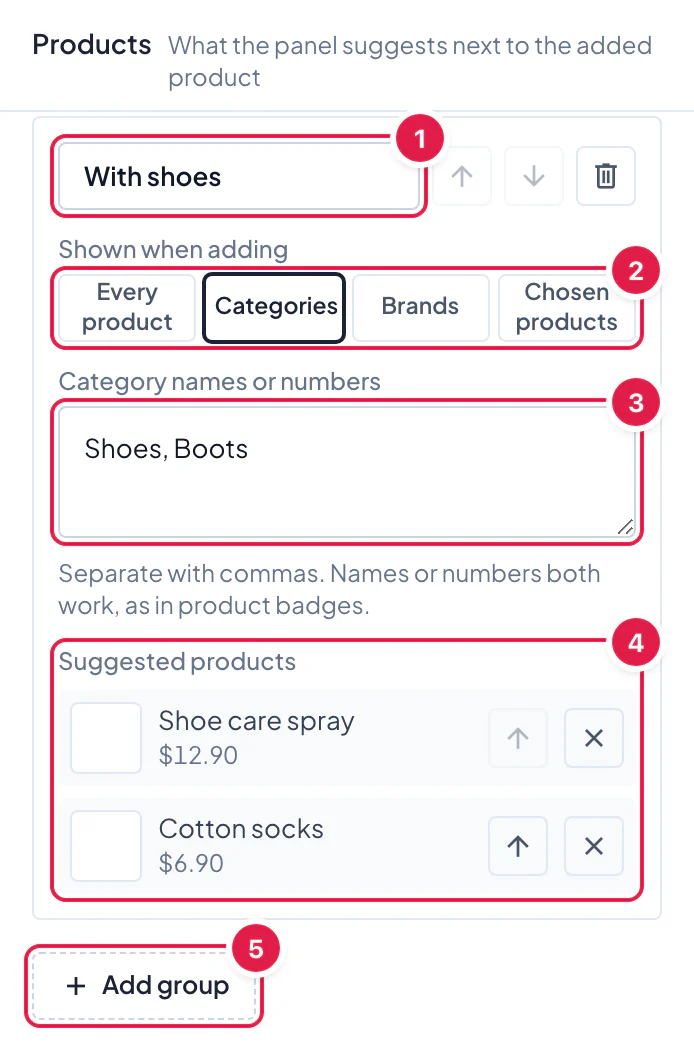
- Give the group a name.
- Choose which products, when added to the cart, show this group.
- Type category names or numbers, separated by commas.
- The products this group suggests are listed here.
- Press Add group for a new group.
- Edit the textsCheck the title, the products heading, the button texts and the cart page address.
- Set up the free shipping lineIf you want to show it, type the amount in the "Free shipping threshold" field. If not, leave it at 0.
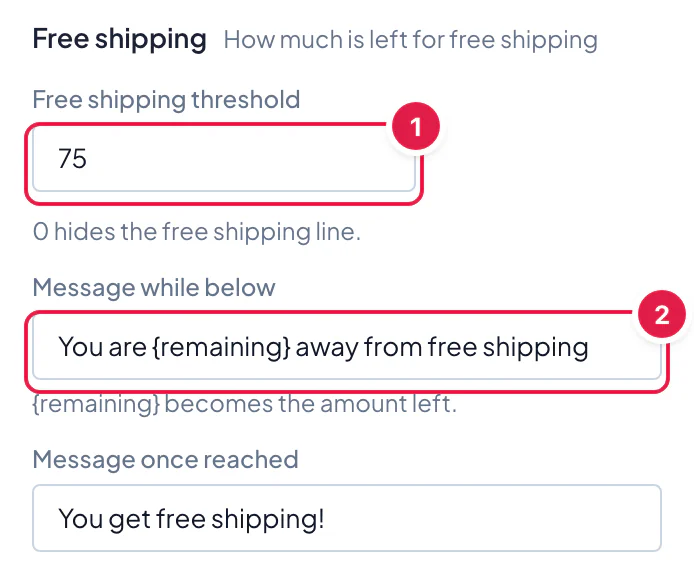
- Type the cart amount needed for free shipping. With 0 the line is hidden.
- The message shown while the cart is below the threshold.
{remaining}turns into the amount left.
- Pick the templateChoose side panel, bottom sheet or centre window. Adjust the colours and corner roundness to match your store.
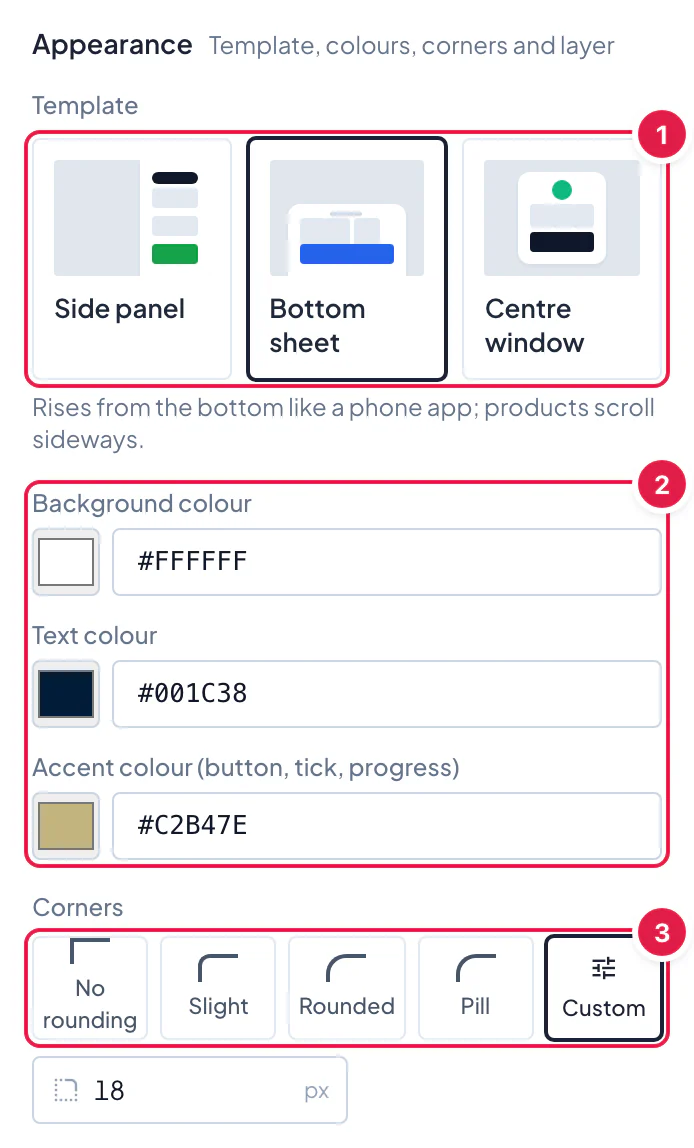
- Choose side panel, bottom sheet or centre window.
- Set the background, text and accent colours to match your store.
- Choose how rounded the corners are.
- Go liveWhen the "Checklist" section says "Ready to publish", turn the widget on.

- Switch it to "Active", then press the Save button at the top right. The widget starts showing in your store.
Settings#
| Setting | What it does |
|---|---|
| Products: Suggest products | When it is off, the panel only shows the added product, free shipping and the buttons. |
| Products: Automatic suggestions | On the Enterprise plan the recommendation algorithm fills the panel for every product, and your own groups come first. Suggestion kind: bought together, similar or best sellers. |
| Products: Groups | Up to 8 groups, with up to 6 products in each. A group is linked to every product, to categories, to brands or to selected products. You type categories, brands and products separated by commas. |
| Products: Products shown at most | How many suggestions the panel shows at once (1 to 6). |
| Texts | Title, products heading, cart button, keep shopping button and cart page address. To hide the keep shopping button, leave its text empty. |
| Texts: Show the added product | Shows the added product's image, name and price at the top of the panel. |
| Texts: Close by itself after | After how many seconds the panel closes (up to 60). 0 keeps it open until the visitor closes it. |
| Free shipping | The threshold amount and the messages shown below the threshold and once it is reached. 0 hides the free shipping line. |
| Appearance | Template (side panel, bottom sheet, centre window), background, text and accent colour, corner roundness and layer. |
Message variables#
If you type the variable below in the "Message while below" field, the panel fills it in from the visitor's cart.
| Variable | Replaced with |
|---|---|
{remaining} | The amount left to reach the free shipping threshold. |
Common situations#
No suggested products show in the panel
If there are no product groups and no automatic suggestions, the panel only shows the added product and the buttons. A group with no products is skipped. A group linked to categories, brands or products where none are typed is not shown either. The added product itself and repeated products are also removed from the list.
I can't add products to groups
Products are picked from your catalog. If your catalog is not connected yet, a warning appears in the "Products" section. Follow the "Check the connection" link there.
I can't turn on automatic suggestions
This option is only on the Enterprise plan. On other plans you set the suggestions yourself with groups.
The add to cart button was pressed but the panel did not open
The panel opens when the cart really changes. For example, if the product could not be added because no size was picked, it does not open. It also does not open on the cart and checkout pages or while another popup is open.
The free shipping line doesn't show the amount left
If the free shipping message has no {remaining}, the visitor doesn't see how much is left. Add the variable to the message.
Tips#
Start with a general group linked to "Every product", then add separate groups for your best selling categories. Groups that match the added product are shown in list order, so move the most important group to the top.
If the panel covers the mobile menu or an important part of your store, choose "Below menus" in the layer setting of the "Appearance" section.
For visitors shopping on a phone, the "Bottom sheet" template opens from the bottom and the products scroll sideways.
Works well with
Cart Goals
All plansShows tiered rewards based on the cart total, so visitors see how much is left to each step.
Open guideFree Shipping Bar
All plansShows how much is left for free shipping with a progress bar at the top or bottom of the page.
Open guideCart Reminder
All plansShows returning visitors a card that reminds them of the products left in their cart, with a coupon if you want.
Open guide