Try it live#
This is the widget itself, as it runs in stores. Move the cart total and change the layout to see how the message and progress change.
Amounts and texts are the widget's default settings. You can change all of them in the panel.
What it does#
As visitors add products to their cart, they see how much is left to the next reward. A shopper who thinks "a little more and I get a discount" adds more to the cart. That is why it is used to raise the average order value.
Good to know: the widget shows the reward, it does not apply the discount itself. You need to set up the discount or free shipping with the same amounts in your store's promotion settings.
Four layouts#
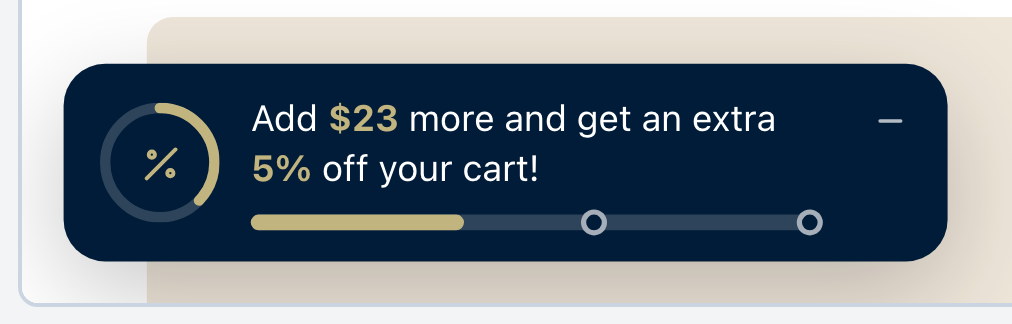
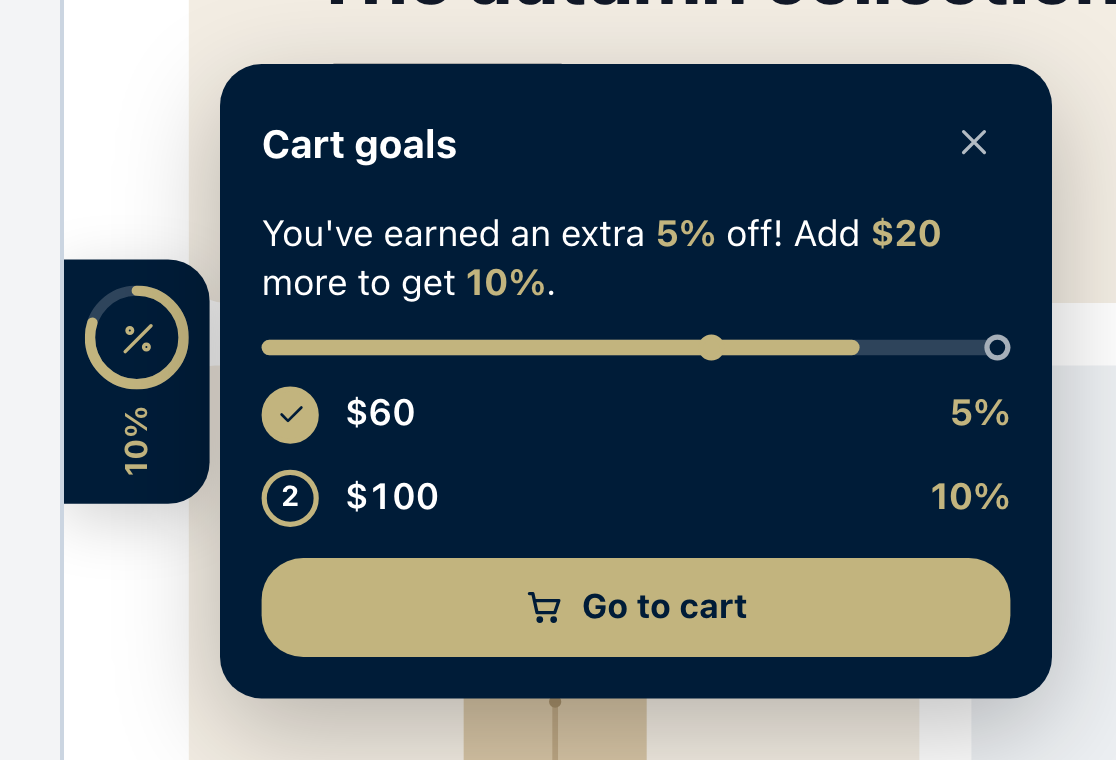
The same goals can be shown in four different ways. You can pick a separate layout for desktop and mobile.


Setup#
- Open the widgetIn the panel, choose Cart Goals from the Widget Gallery.
- Enter your goalsChoose the number of steps (1, 2 or 3). For each step, enter the cart amount, the reward and the message shown until that step.
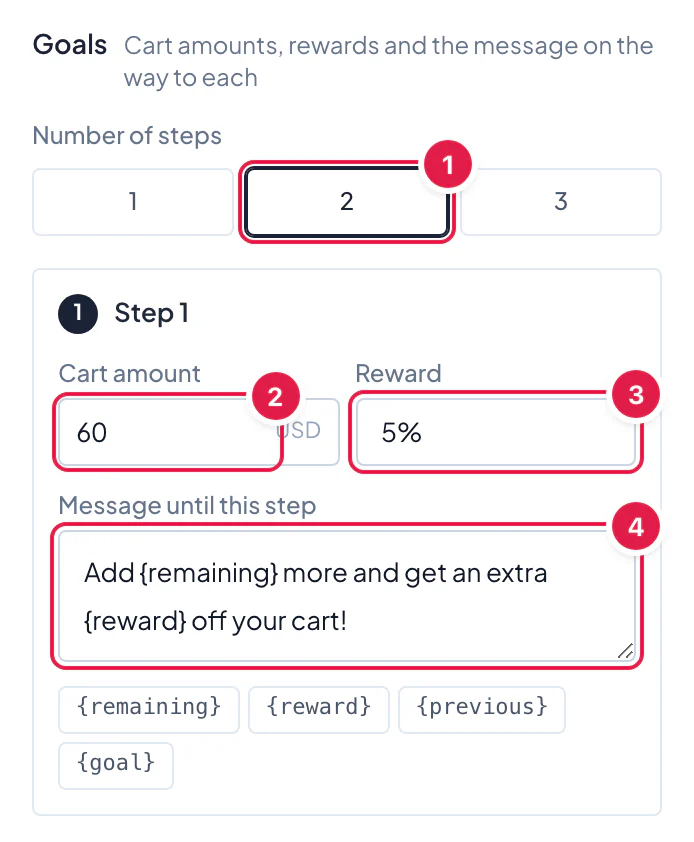
- Choose how many steps there are.
- Enter the cart amount for the step.
- Enter the reward, for example 5%.
- The message shown until this step. Tags like
{remaining}are filled in with the real amount in your store.
- Choose the layoutBar, in the page, floating card or side tab. If you want a different layout on mobile, choose it separately on the Mobile tab.
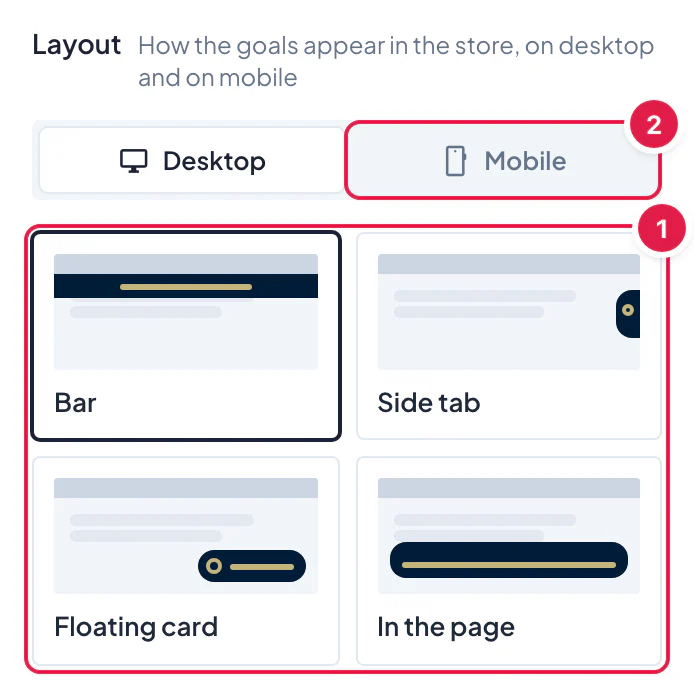
- Choose one of the four layouts.
- If you want a different layout on mobile, choose it separately on this tab.
- Try it in the previewUse the "Cart in the preview" buttons to see an empty cart, a cart on the way and the finished state.
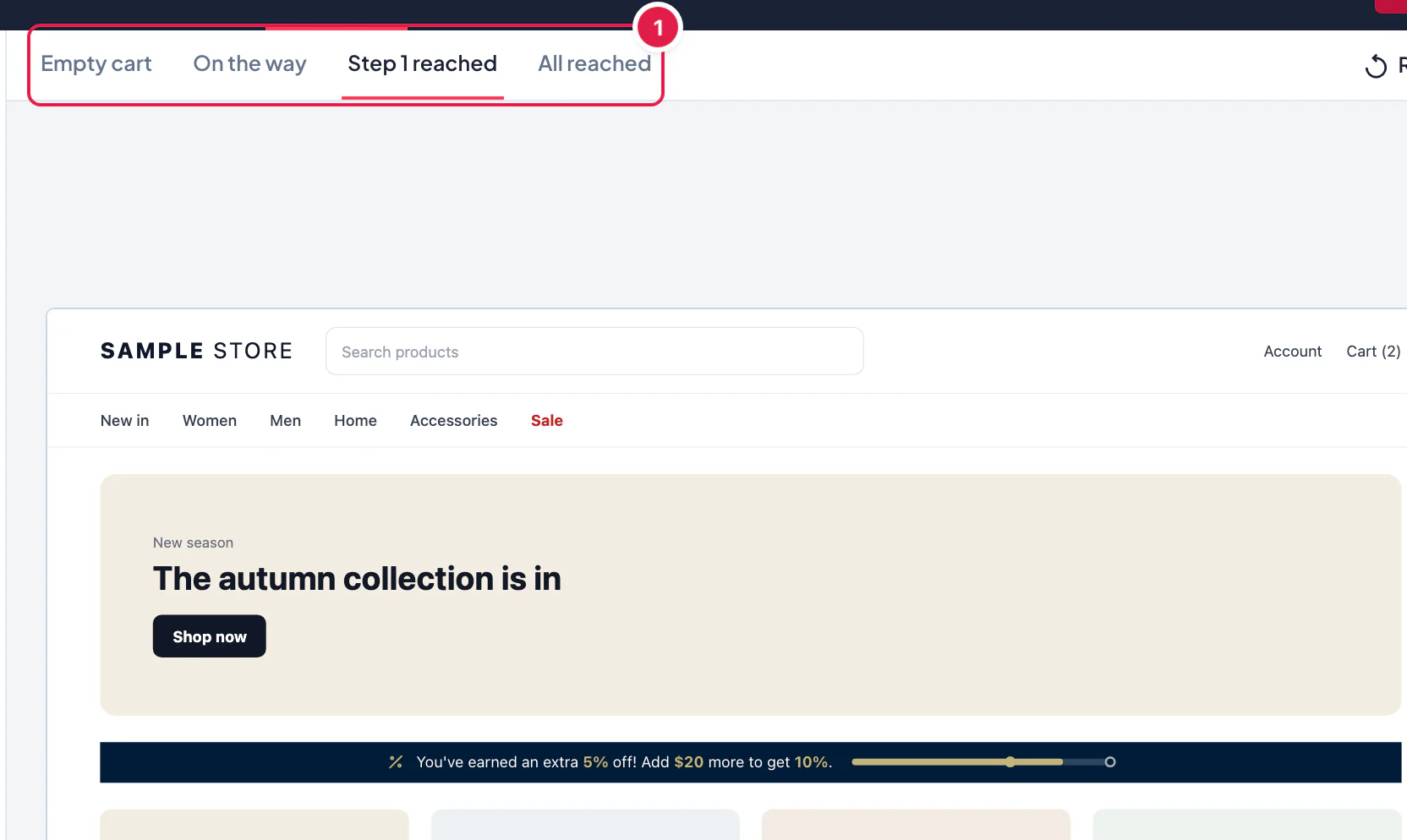
- Change the cart state here. In the image, the first step is reached and $20 is left to the second reward.
- Set up the discount in your storeCreate the discount or free shipping for the same amounts in your store's promotion settings.
- Publish itWhen the "Checklist" section shows no warnings, switch the widget on.

- Turn the switch to "Active", then click Save in the top right. The widget starts showing in your store.
Settings#
| Setting | What it does |
|---|---|
| Goals | The number of steps, and each step's cart amount, reward and message. |
| Layout | One of four layouts. For the bar you choose the position (at the very top, below the menu, at the bottom). For the tab and the card you choose the screen side (left, right), and for in the page you choose which element it sits next to. |
| Texts | The empty cart message, the message shown once every step is reached, the panel title, and the text and address of the go-to-cart button. |
| Appearance | Background, text and accent colour, icon (percent, gift, shipping, star or no icon), corner rounding and the close button. |
| Dates | Start and end. If both are empty, it shows until you switch it off. Times are in Turkey time. |
| Pages and visitors | Which pages it shows on, who sees it and how long after the page opens it appears. |
Message variables#
If you put the variables below in your messages, the widget fills them in based on the visitor's cart.
| Variable | What it becomes |
|---|---|
{remaining} | The amount left to the next step (e.g. $20). |
{reward} | The reward of the step being worked towards (e.g. 5%). |
{previous} | The reward already earned. |
{goal} | The cart amount of the step being worked towards. |
Common situations#
The widget does not show in the store
If you chose the "In the page" layout without naming the element it sits next to, the widget does not show. It also does not show once the end date has passed. The "Checklist" section in the editor points out both.
A step does not show in the store
A step without a cart amount is not shown in the store.
The messages do not match the steps
If the step amounts are not in increasing order, the store sorts them by amount and a message can end up on the wrong step. Enter the amounts from smallest to largest.
A visitor closed the bar and cannot see it again
A closed bar stays closed until that visit ends and shows again on the next visit.
The discount is not applied in the cart
The widget only shows progress. Check that the discount is set up in your store's promotion settings and that the amounts are the same.
Tips#
Show it only on product, category and cart pages. That way it does not interrupt visitors reading your blog or company pages.
Set the first step a little above your average cart total, because a goal that looks reachable works better.
On mobile, a floating card or a side tab takes up less space than a bar.
Works well with
Added to Cart Panel
All plansOpens when a product is added to the cart and shows the added product, what is left for free shipping and the products you suggest.
Open guideCart Reminder
All plansShows returning visitors a card that reminds them of the products left in their cart, with a coupon if you want.
Open guideDeals Corner
All plansLists your current campaigns and coupon codes in a panel that opens from a tab on the edge of the screen.
Open guide