What it does#
Cart Reminder remembers the products a visitor added to the cart in their own browser. When the visitor has stayed away from your store for the time you set and then comes back, and there are still products in the cart, a card appears in the corner of the screen: a title, a message, images of the products in the cart and a button that takes them to the cart.
You can add a coupon code to the card if you want. Visitors copy the code with one tap. The card shows once per return visit, never on the cart and checkout pages, and resets once an order is placed.
Good to know: the card is only shown to visitors who come back to your store. It doesn't send emails or text messages. The widget doesn't create the coupon code, you need to set up the code in your store admin first.
Setup#
- Open the widgetIn the panel, choose Cart Reminder from the Widget Gallery.
- Edit the textsType the title, the message and the button text. Check that the cart address points to your store's cart page.
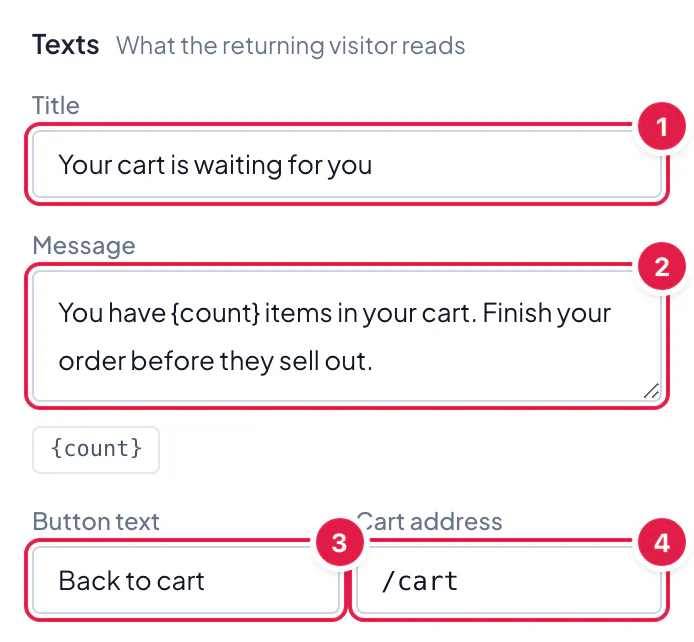
- Type the card's title.
- Type the message.
{count}turns into the number of items in the cart. - Type the text on the button.
- The address of your store's cart page.
- Add a coupon if you likeType the code you created in your store admin into the "Coupon code" field. If you don't want to show a coupon, leave it empty.
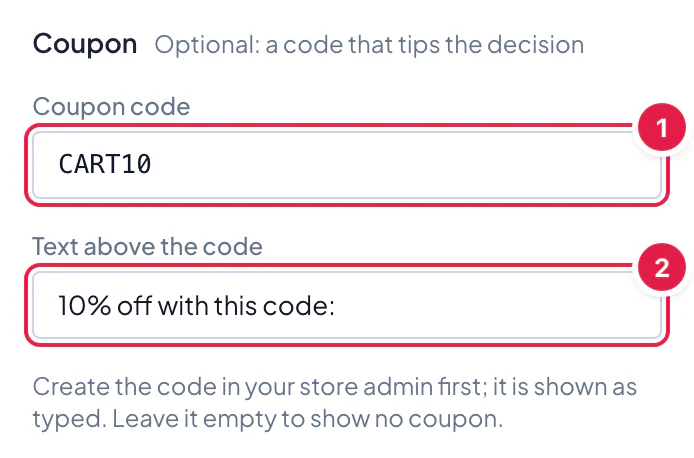
- Type the code you created in your store. If you don't want a coupon, leave it empty.
- Type the short text shown above the code.
- Set the timingDecide how long the visitor must have been away at least, how many days old the cart can be at most and how many seconds after the page opens the card appears.
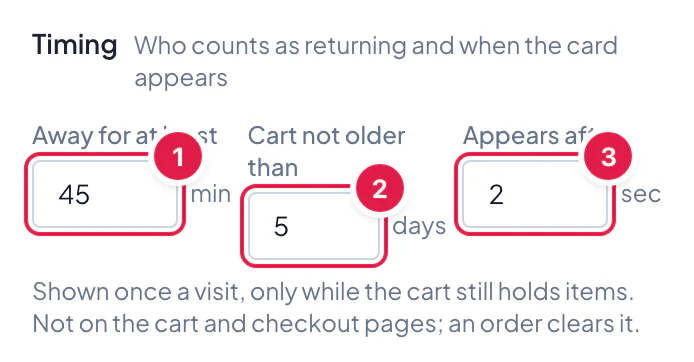
- Type how many minutes the visitor must have been away at least.
- Type how many days old the cart can be at most.
- Type how many seconds after the page opens the card appears.
- Pick the template and positionChoose one of the five templates. In the "Position" section, choose the corner on desktop and whether the card sits at the bottom or top on mobile.
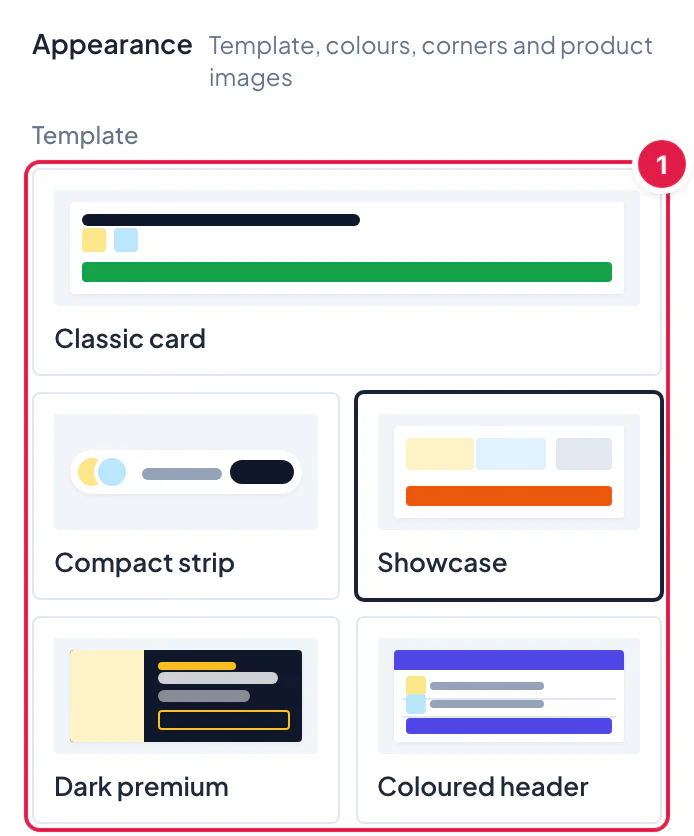
- Choose one of the five templates.
- Go liveWhen the "Checklist" section says "Ready to publish", turn the widget on.

- Switch it to "Active", then press the Save button at the top right. The widget starts showing in your store.
Settings#
| Setting | What it does |
|---|---|
| Texts | Title, message, button text and cart address. |
| Coupon | The coupon code and the text above it. If the code is empty, the card shows no coupon area. |
| Timing: Away for at least | How many minutes the visitor must have been away from your store to count as returning (up to 1440 minutes). |
| Timing: Cart not older than | No card is shown for carts older than this many days (1 to 30 days). |
| Timing: Appears after | How many seconds after the page opens the card appears (up to 60 seconds). |
| Appearance | Template (Classic card, Compact strip, Showcase, Dark premium, Coloured header), background, text and button colour, corner roundness. |
| Appearance: Product images | When it is on, images of up to three products from the cart are shown. |
| Position | Bottom left or bottom right corner on desktop, full width at the bottom or top on mobile. The layer setting decides whether the card sits above or below your store's menus. |
| Who sees it | Which pages and which visitors it is shown to. |
Message variables#
If you type the variable below in the "Message" field, the card fills it in from the visitor's cart.
| Variable | Replaced with |
|---|---|
{count} | The number of items in the cart. |
Common situations#
The card doesn't appear when I test it
The card is shown to visitors who stayed away from your store for the time in the "Away for at least" field and then came back. If you add a product to the cart and refresh the page right away, you won't see it. To test, lower the time to 1 minute for a while, wait and come back to your store.
The card showed once and doesn't appear again
The card shows once per return visit. When the visitor stays away again and comes back, it shows again.
The card doesn't show on the cart page
The card is left out of the cart and checkout pages on purpose, because the visitor is already in their cart. It also doesn't show if the cart has been emptied or an order has been placed.
There is a warning in the "Checklist" section
The button text and the cart address must not be empty, and the coupon code may only contain letters, numbers, - and _. Once you fix these, it says "Ready to publish".
The visitor can't use the coupon
The widget only shows the code. Check that the code is set up in your store admin, still valid and spelled exactly as it is here.
Tips#
The template that takes the least space on phones is "Compact strip". On mobile, the "Bottom" position keeps the card above your theme's bottom menu and the sticky add to cart bar. The "Top" position never touches the bars at the bottom.
Don't make the time away too short. The default is 30 minutes. If the card appears after breaks of a few minutes, it interrupts visitors who are still shopping.
Use the {count} variable in the message. That way visitors see at a glance how many items are waiting in their cart.
Works well with
Added to Cart Panel
All plansOpens when a product is added to the cart and shows the added product, what is left for free shipping and the products you suggest.
Open guideCart Goals
All plansShows tiered rewards based on the cart total, so visitors see how much is left to each step.
Open guideDeals Corner
All plansLists your current campaigns and coupon codes in a panel that opens from a tab on the edge of the screen.
Open guide