What it does#
Deals Corner gathers your store's campaigns in one place. A small tab sits on the edge of the screen. When a visitor clicks it, a panel opens showing each campaign's title, description, badge, coupon code if there is one, and link. The button next to the coupon code copies the code.
You can give each campaign a start and end date. A campaign that hasn't started doesn't show in the list, and one that has ended goes away by itself. For campaigns with an end date, the time left is written in days or hours. When you add a new campaign or change an existing one, a small dot appears on the tab.
Good to know: the widget only announces campaigns. It doesn't apply discounts or create coupon codes. You need to set up the coupon codes and campaign rules in your store admin first.
Setup#
- Open the widgetIn the panel, choose Deals Corner from the Widget Gallery.
- Enter the campaignsIn the "Campaigns" section, use "Add campaign" and type a title, description, badge, coupon code and link for each campaign. Replace the two sample campaigns with your own.
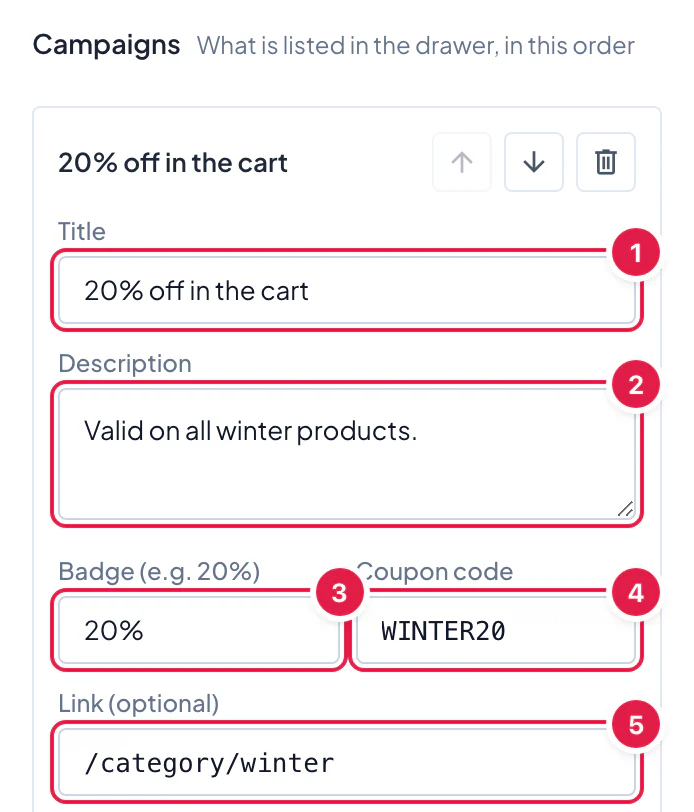
- Type the campaign title.
- Type a short description.
- A short text shown on the badge, for example 20%.
- Type the coupon code. Create the code in your store admin first.
- If you like, type the address of the page the campaign leads to.
- Set the datesGive timed campaigns a start and end date. If the dates are empty, the campaign shows until you delete it.
- Set up the tab and panelType the tab text, choose the icon, and type the panel title and link text. Choose whether the tab shows the number of campaigns and whether the time left is shown.
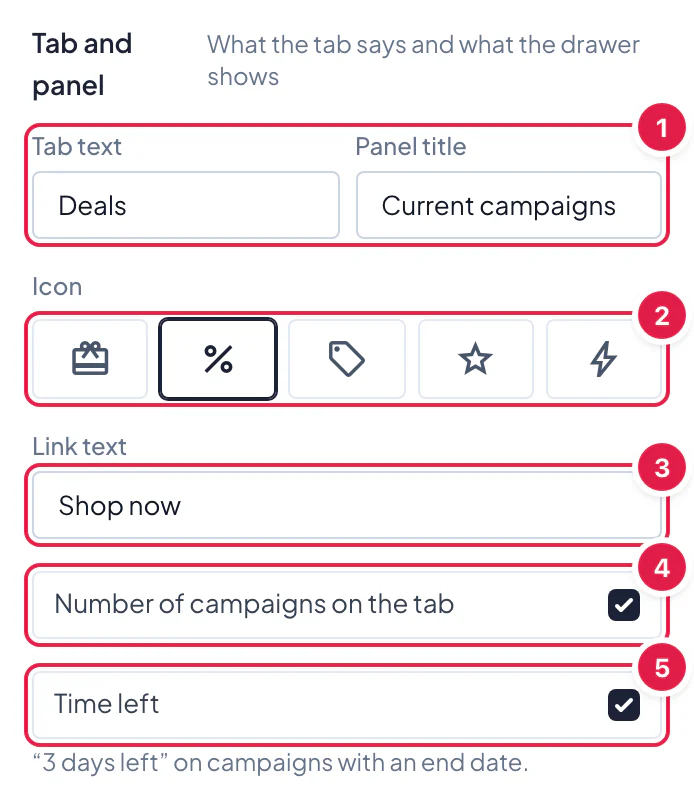
- Type the text on the tab and the title of the drawer.
- Choose the tab's icon.
- The text of the link in the campaigns.
- When it is on, the tab shows the number of campaigns.
- When it is on, campaigns with an end date show the time left.
- Choose the position and templateOn desktop, set the tab's side and height. On mobile, set how it looks. Adjust the template and colours to match your store.
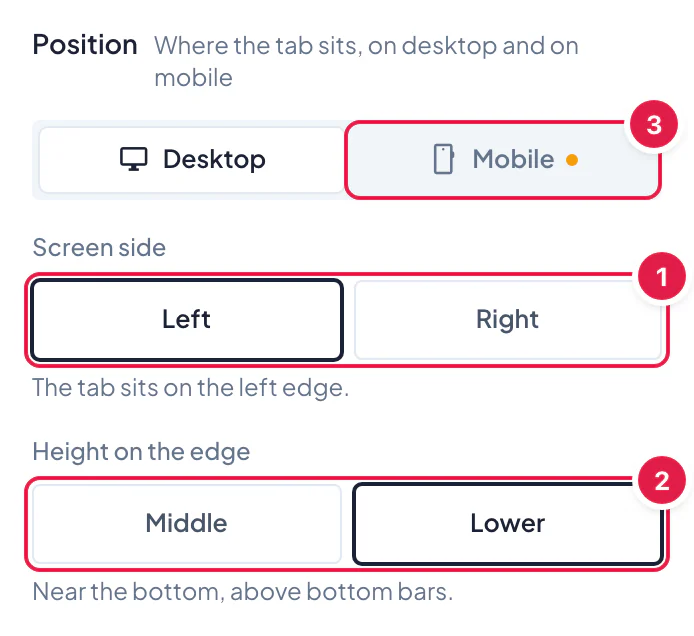
- Choose which side of the screen the tab sits on.
- Choose how high the tab sits on the edge.
- Use this tab to choose how it looks on mobile.
- Go liveWhen the "Checklist" section says "Ready to publish", turn the widget on.

- Switch it to "Active", then press the Save button at the top right. The widget starts showing in your store.
Settings#
| Setting | What it does |
|---|---|
| Campaigns | Up to 10 campaigns, each with a title, description, badge (for example 20%), coupon code, link, start and end. They are listed in the panel in the order you set, and you can change the order with the arrows. |
| Tab and panel: Tab text, Icon | The text shown on the edge tab and one of five icons. |
| Tab and panel: Panel title, Link text | The title of the panel that opens and the text of the link shown under campaigns that have a link. |
| Tab and panel: Number of campaigns on the tab | Shows the number of currently valid campaigns on the tab. |
| Tab and panel: Time left | For campaigns with an end date, shows the time left, such as "3 days left". |
| Position: Desktop | Which side of the screen (left, right) and the height on the edge (middle, lower). |
| Position: Mobile | Round button (sits in a bottom corner, and the panel opens from the bottom on tap), edge tab (like on desktop) or hidden. With the round button you choose the corner (bottom left, bottom right). |
| Appearance | One of five templates. Also the tab colour, tab text colour, panel background, text colour, accent colour (badge, code, link) and corner roundness. |
| Who sees it | Which pages and which visitors it is shown to. |
Common situations#
The tab doesn't show in the store
If there are no campaigns, or none is valid at the moment, the tab doesn't show and stays hidden until one starts. If "Hidden" is chosen for mobile, it isn't shown on phones either.
A campaign doesn't show in the list
A campaign without a title isn't shown in the list. A campaign whose start date hasn't come yet or whose end date has passed doesn't show either. Check that the end date isn't before the start date.
A campaign didn't start or end at the time I expected
Dates follow Turkey time (GMT+3). Enter the start and end fields with that in mind.
The coupon code isn't saved
A coupon code can only contain letters, numbers, - and _. Don't use spaces or accented letters.
The visitor typed the code but no discount was applied
The widget only shows the code. Check that the code is set up in your store admin and spelled exactly as it is here.
Tips#
Put your most important campaign at the top of the list, so it is the first thing visitors see when the panel opens.
If you have a chat or WhatsApp button in the bottom right corner on mobile, choose the "Bottom left" corner for the round button, so the two buttons don't overlap.
Always give timed campaigns an end date. When the campaign ends it leaves the list by itself, so even if you forget to delete it, visitors don't see an expired code.
Works well with
Cart Goals
All plansShows tiered rewards based on the cart total, so visitors see how much is left to each step.
Open guideCart Reminder
All plansShows returning visitors a card that reminds them of the products left in their cart, with a coupon if you want.
Open guideFree Shipping Bar
All plansShows how much is left for free shipping with a progress bar at the top or bottom of the page.
Open guide