What it does#
Free Shipping Bar compares the visitor's cart total with the free shipping goal you set. When the cart is empty it shows an invitation, below the goal it shows the amount left and a progress bar, and once the goal is reached it shows a celebration message.
The bar updates by itself as the visitor adds products to the cart.
Good to know: the bar only informs. It does not make shipping free by itself. You need to set up the free shipping rule with the same amount in your store's shipping settings.
Setup#
- Open the widgetIn the panel, choose Free Shipping Bar from the Widget Gallery.
- Enter the goalIn the "Cart" section, type the cart total at which shipping becomes free into the "Free shipping goal" field.
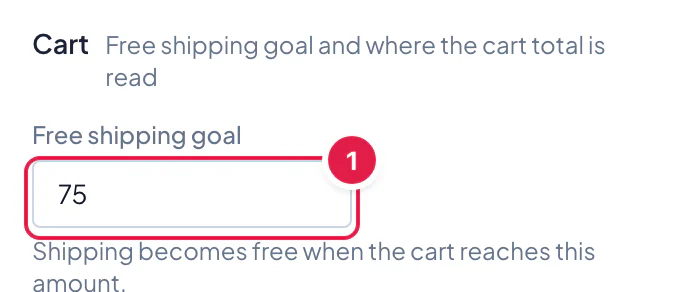
- Type the cart total at which shipping becomes free.
- Edit the textsIn the "Texts" section, write the three messages shown when the cart is empty, while an amount is left to the goal and once the goal is reached. Keep the {remaining} variable in the amount left message.
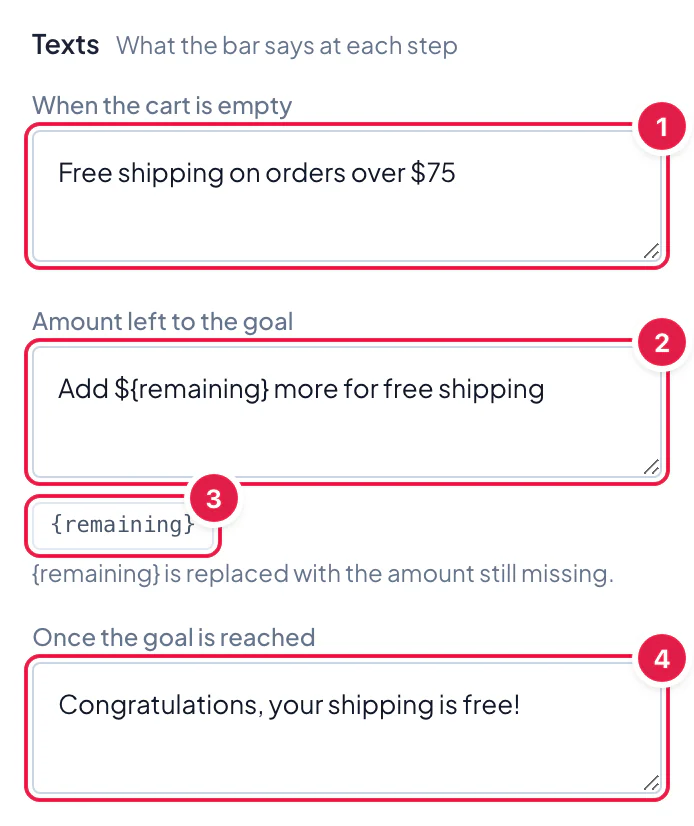
- Write the message shown when the cart is empty.
- Write the message shown while an amount is left to the goal.
{remaining}becomes the amount left in your store. If you delete it, add it back with this button.- Write the message shown once the goal is reached.
- Choose the lookPick the theme and the colours, whether the bar sits at the top or the bottom, and whether it stays on screen while the page scrolls.
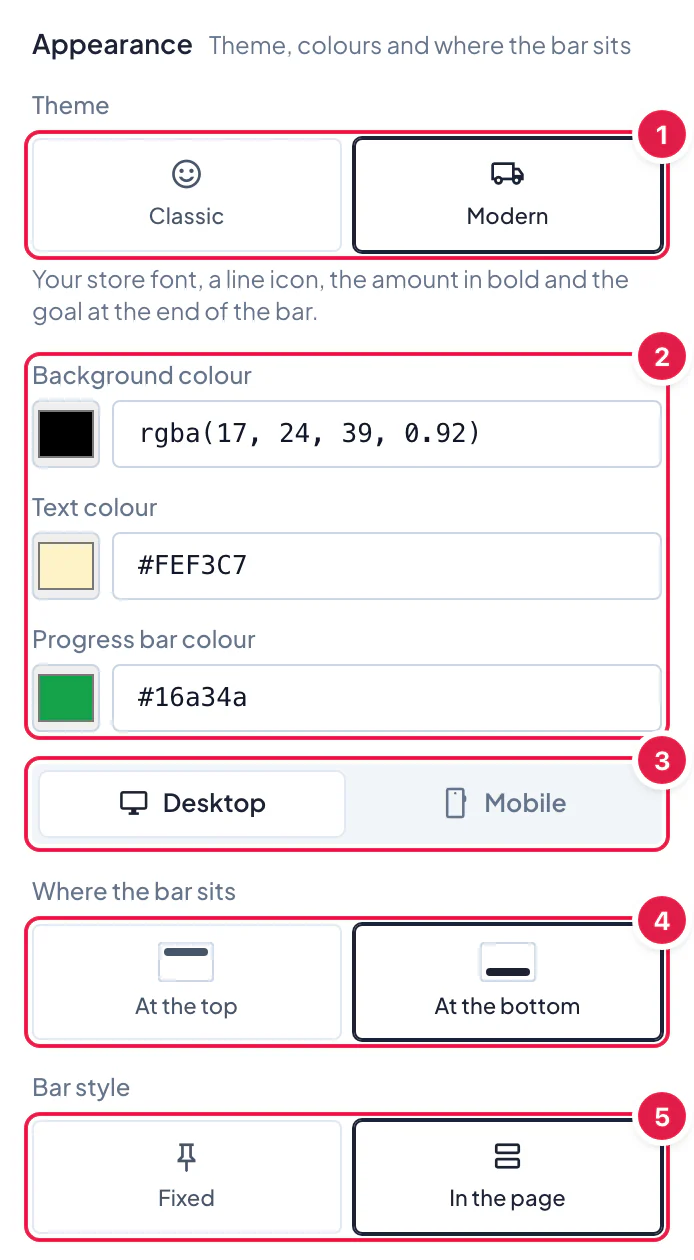
- Choose the Classic or Modern theme.
- Set the background, text and progress bar colours.
- If you want a different position on phones, choose it in the Mobile tab.
- Choose whether the bar sits at the top or the bottom of the page.
- "Fixed" keeps the bar on screen while the page scrolls. "In the page" scrolls with the page.
- Try it in the previewUse the "Cart in the preview" buttons to see the empty cart, the halfway state and the goal reached.
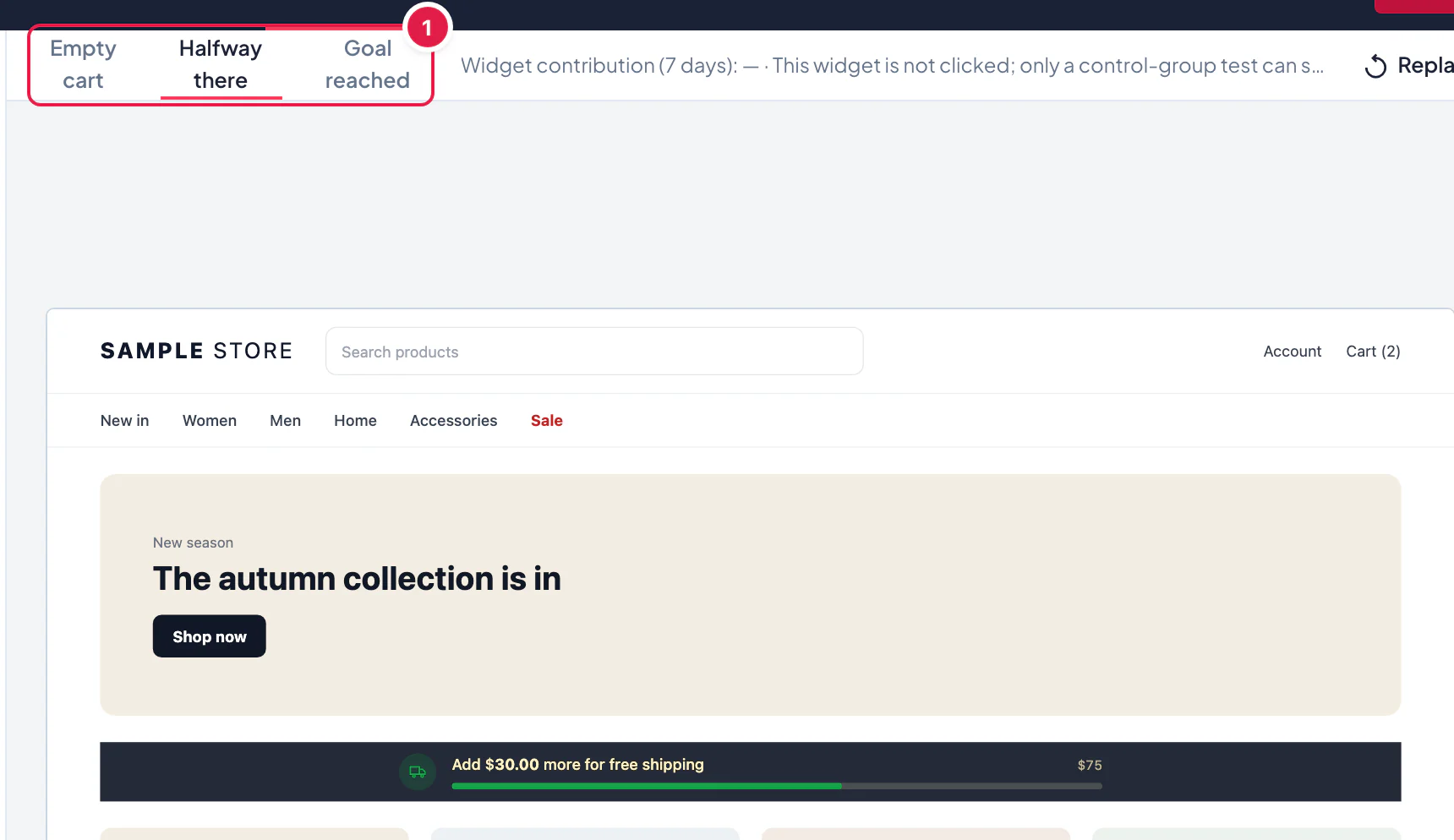
- Change the cart state here. In the image the cart is halfway there, with $30.00 left for free shipping.
- Go liveWhen the "Checklist" section says "Ready to publish", turn the widget on.

- Switch it to "Active", then press the Save button at the top right. The widget starts showing in your store.
Settings#
| Setting | What it does |
|---|---|
| Appearance: Theme | Classic or Modern. The Modern theme uses your store font and a line icon, shows the amount left in bold and the goal at the end of the bar. |
| Appearance: Colours | Background colour, text colour and progress bar colour. |
| Appearance: Where the bar sits | At the very top or the very bottom of the page. In the Mobile tab you can choose a different edge for phones. |
| Appearance: Bar style | With "Fixed" the bar stays on screen while the page scrolls. With "In the page" it scrolls with the page. |
| Texts | Three messages: when the cart is empty, the amount left to the goal and once the goal is reached. |
| Cart: Free shipping goal | When the cart reaches this amount, the bar fills up and the goal reached message is shown. |
| Cart: Cart total element (CSS selector) | If left empty, the store's cart total is read automatically. You only need to fill it in if the total cannot be read. |
| When it appears | As soon as the page opens, a while after the page opens or when the page is scrolled. |
| Who sees it | Which pages and which visitors it is shown to. |
Message variables#
If you put the variable below in the "Amount left to the goal" message, the bar fills it in from the visitor's cart.
| Variable | What it becomes |
|---|---|
{remaining} | The amount left for free shipping, as a number (e.g. 21.00). Write your currency sign next to it in the message, as in "${remaining}". |
Common situations#
The bar does not move
If the free shipping goal is empty or zero, the bar cannot show how far the cart has come. Enter the goal amount in the "Cart" section.
The message does not show the amount left
If the "Amount left to the goal" text has no {remaining}, visitors cannot see how much is left. Add the variable back to the message.
Products are added to the cart but the amount does not change
The bar reads the cart total from your store automatically and updates within a few seconds. If the amount never changes, enter the element where your theme shows the cart total in the "Cart total element (CSS selector)" field.
The bar says shipping is free but checkout charges shipping
The bar does not apply free shipping, it only shows it. Check that the free shipping amount in your store's shipping settings is the same as the goal here.
On phones the bar covers another area
In the Mobile tab, choose the other edge for the bar on phones. When it sits at the top, the bottom of the screen stays free for your theme's menu and buy buttons.
Tips#
Keep the goal exactly the same as the free shipping rule in your store. When you change the rule, update the amount here too.
Keep the messages short. Long messages get cut off on desktop when they do not fit on one line.
If you have more than one reward, such as a discount based on the cart total, you can use the Cart Goals widget instead of this bar, because showing both at the top makes the page crowded.
Works well with
Cart Goals
All plansShows tiered rewards based on the cart total, so visitors see how much is left to each step.
Open guideAdded to Cart Panel
All plansOpens when a product is added to the cart and shows the added product, what is left for free shipping and the products you suggest.
Open guideSticky Add-to-Cart
Pro and aboveKeeps the product name, price and add-to-cart button in a fixed bar on screen as the page scrolls.
Open guide