What it does#
Stock Counter & Alert lets visitors know when a product's stock drops to the threshold you set. On the product page it shows a message such as "Only 3 left" and, if you like, a stock bar. On list pages such as categories and search, it shows a badge in the corner of the product card. Sold-out products get a sold-out message and badge.
The stock count is read from your store's page. You set the threshold and the text separately for the product page and for list pages.
Good to know: the widget reads the stock count from the value your theme writes on the page. If your theme doesn't put the stock count on the page, no alert or badge appears. The number in the "Show the visitor count when stock is high" option is not the real visitor count. It is a random number between 15 and 45, it is off by default, and the legal responsibility for showing it is yours.
Setup#
- Open the widgetIn the panel, choose Stock Counter & Alert from the Widget Gallery.
- Set up the product page alertIn the "Product page" section, choose a template, enter the critical stock threshold and write the low stock and out of stock messages.
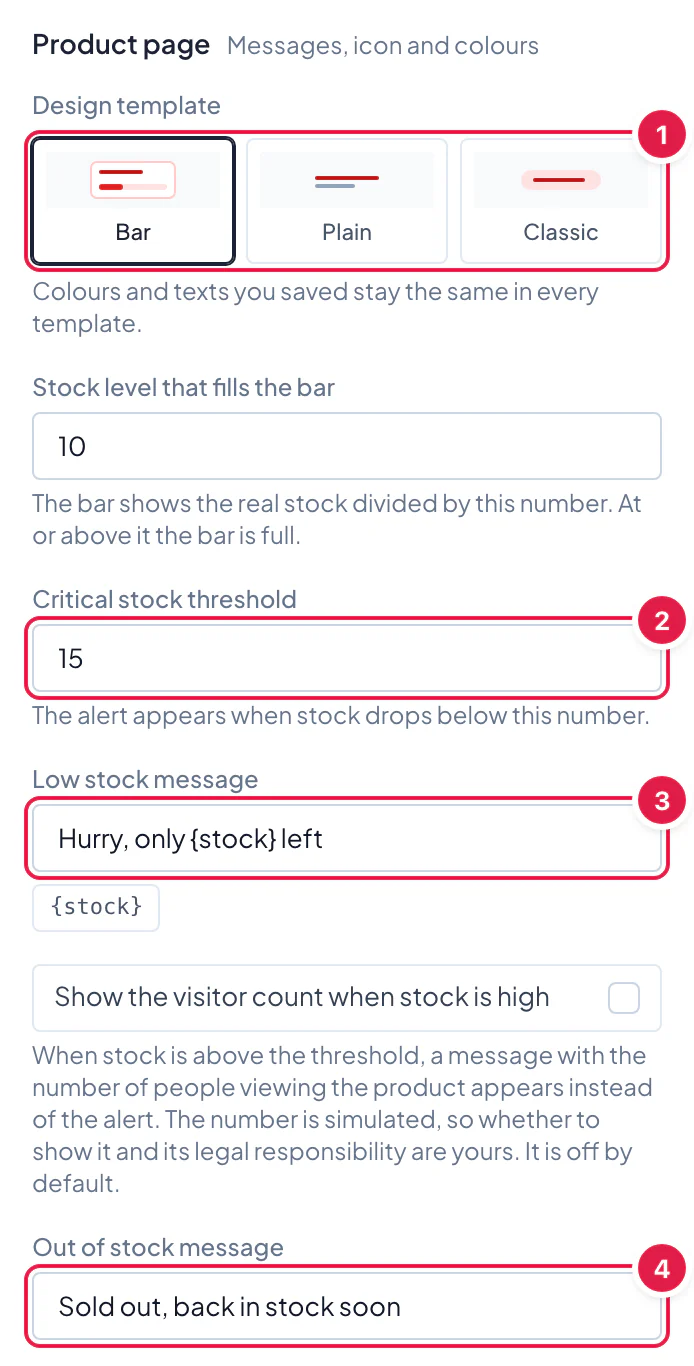
- Choose the Bar, Plain or Classic template.
- Enter the stock number below which the alert appears.
- Write the low stock message.
{stock}is filled with the number left in your store. - Write the message shown when the product is sold out.
- Set up the list badgeIn the "List pages" section, set the badge's threshold, text, colours and the corner of the product card it sits in.
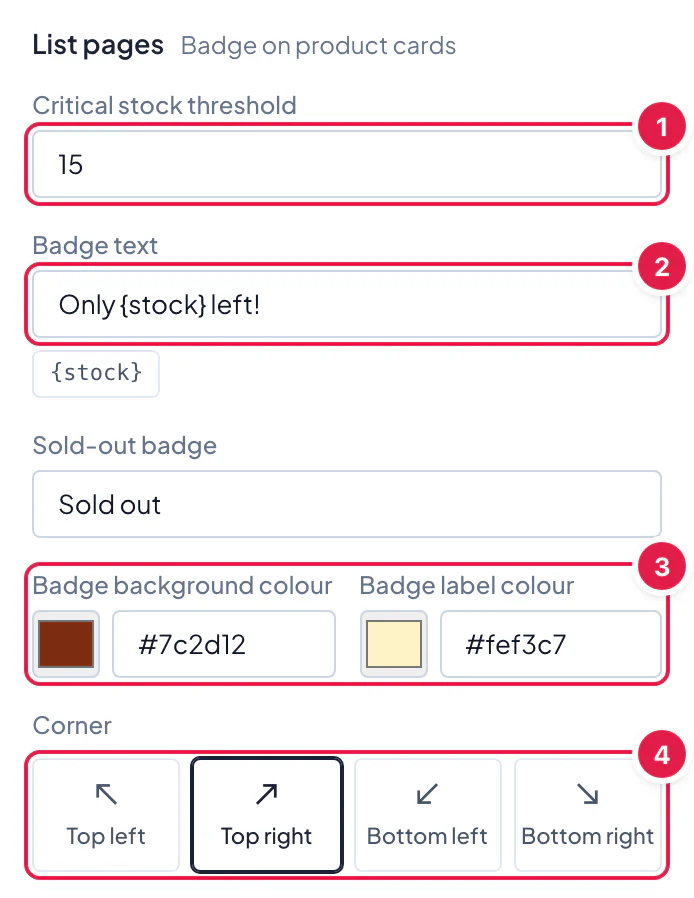
- Enter the stock number below which the badge appears.
- Write the badge text.
{stock}is filled with the number left. - Choose the badge's background and text colour.
- Choose which corner of the product card the badge sits in.
- Check the placementThe elements in the "Placement" section come preset for your theme. If the alert or badge shows in the wrong spot, adjust the CSS selectors here to match your theme.
- Try it in the previewUse the "Preview stock" buttons to see the low stock, high stock and sold out states.
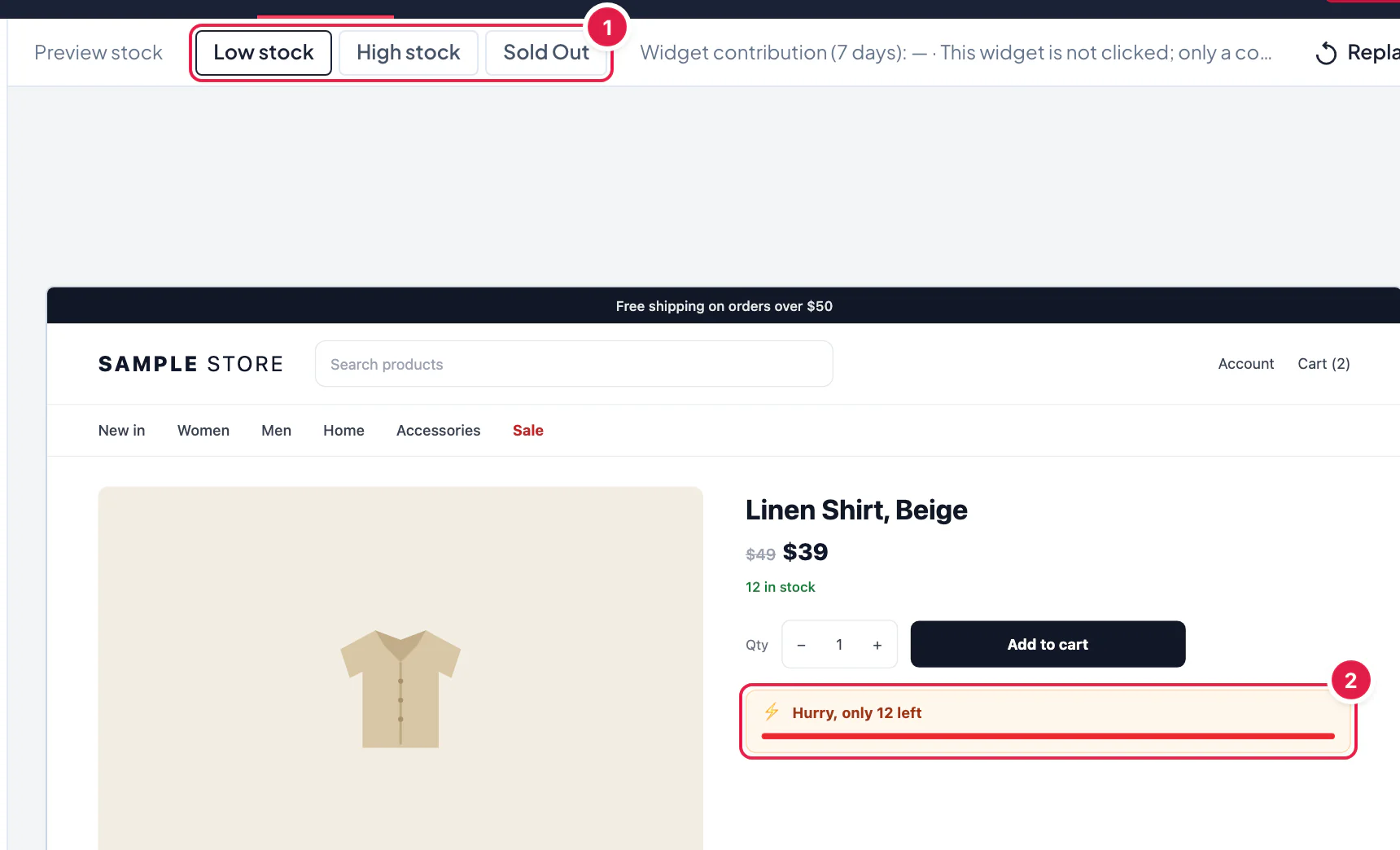
- Change the stock state in the preview here.
- This is how the low stock alert looks on the product page. In the image, 12 items are in stock.
- Go liveWhen the "Checklist" section says "Ready to publish", turn the widget on.

- Set the switch to "Active", then press the Save button at the top right. The widget starts showing in your store.
Settings#
| Setting | What it does |
|---|---|
| Product page: Template | Bar, Plain or Classic. In the Bar template, the "Stock level that fills the bar" field sets at what count the bar looks full. The bar shows the real stock divided by this number. |
| Product page: Critical stock threshold | When stock drops below this number, the low stock alert appears. |
| Product page: Messages | The low stock message, the out of stock message and, if turned on, the high stock message. |
| Product page: Show the visitor count when stock is high | When stock is above the threshold, the number of people viewing the product is shown instead of the alert. The number is simulated. When it's off, nothing shows on products with plenty of stock. |
| Product page: Icon and colours | The icon at the start of the message and the background, text and border colour. |
| List pages | The badge on product cards: critical stock threshold, badge text, sold-out badge, badge background and text colour, and the corner of the card it sits in. |
| Placement: Product page | The element the alert is placed at (CSS selector), where it goes, and the element the stock count is read from. |
| Placement: List pages | The product card, the stock element inside the card and the image area the badge is placed in. |
| When it appears, Who sees it | How long after the page opens the alert appears, on which pages and to which visitors. |
Message variables#
If you type the variables below in your messages, the widget fills them in for each product.
| Variable | What it becomes |
|---|---|
{stock} | The number of items left. Used in the low stock message and the badge text. |
{visitors} | A random number between 15 and 45, not the real visitor count. Only used in the high stock message. |
Common situations#
The alert never shows on the product page
If the product page element in the "Placement" section is empty, the alert isn't placed on the page. If it's filled in, check that "Element the stock count is read from" points to the element that holds the stock number in your theme.
Nothing shows on products with plenty of stock
That's expected. The alert only appears when stock drops to the threshold. When the visitor message is off, nothing shows on products with plenty of stock.
The low stock message never shows on any product
If the critical stock threshold is below 1, the low stock message never appears. Set the threshold to at least 1.
The badge doesn't show on list pages
If the product card selector is empty, no badge appears. Check the product card, the stock element inside the card and the image area selectors for your theme in the "Placement" section.
The "Checklist" section says the selectors are not valid
The listed selectors are not valid CSS and won't match any element in your store. Fix the typo or replace the field with a selector that fits your theme.
Tips#
Choose the threshold based on your products' usual stock levels. If it's too high, the alert shows on almost every product and loses its effect.
Keep the threshold for list pages lower than the one for the product page. That way the badge only shows on products that really have their last few items left.
If you also use the Product Badge widget, choose different corners so the two badges don't overlap.
Works well with
Shipping Countdown
All plansCounts down to the same-day shipping cut-off and skips weekends and holidays by itself.
Open guideUrgency Timer
All plansShows your sale message in a bar with a countdown. The time is per visitor or ends on a fixed date.
Open guideSocial Proof Pro
All plansShows view, add-to-cart, sales and favourite counts and customer reviews on the product page.
Open guide