What it does#
Urgency Timer shows the message you write in a bar together with a countdown. The bar can sit at the very top of the page, at the very bottom, or next to an element you choose on the page. You can make the whole bar a link or add a button to it.
There are two countdown types. With Visitor-specific, each visitor sees the time you set, starting from the moment they first open the page. With Fixed date, everyone counts down to the same end date.
Good to know: when the time runs out, the bar disappears from the store. With the visitor-specific type, the countdown does not restart for that visitor for 7 days, and refreshing the page does not reset the time. With the fixed date type, the bar is shown to no one once the end date has passed. The widget only shows the countdown. You still need to set up the sale itself in your store.
Setup#
- Open the widgetIn the panel, pick Urgency Timer from the Widget Gallery.
- Set the message and countdown typeIn the "Text and timer" section, write the message and choose the icon and countdown look. For the visitor-specific type, set the duration (1-120 min). For the fixed date type, enter the end date.
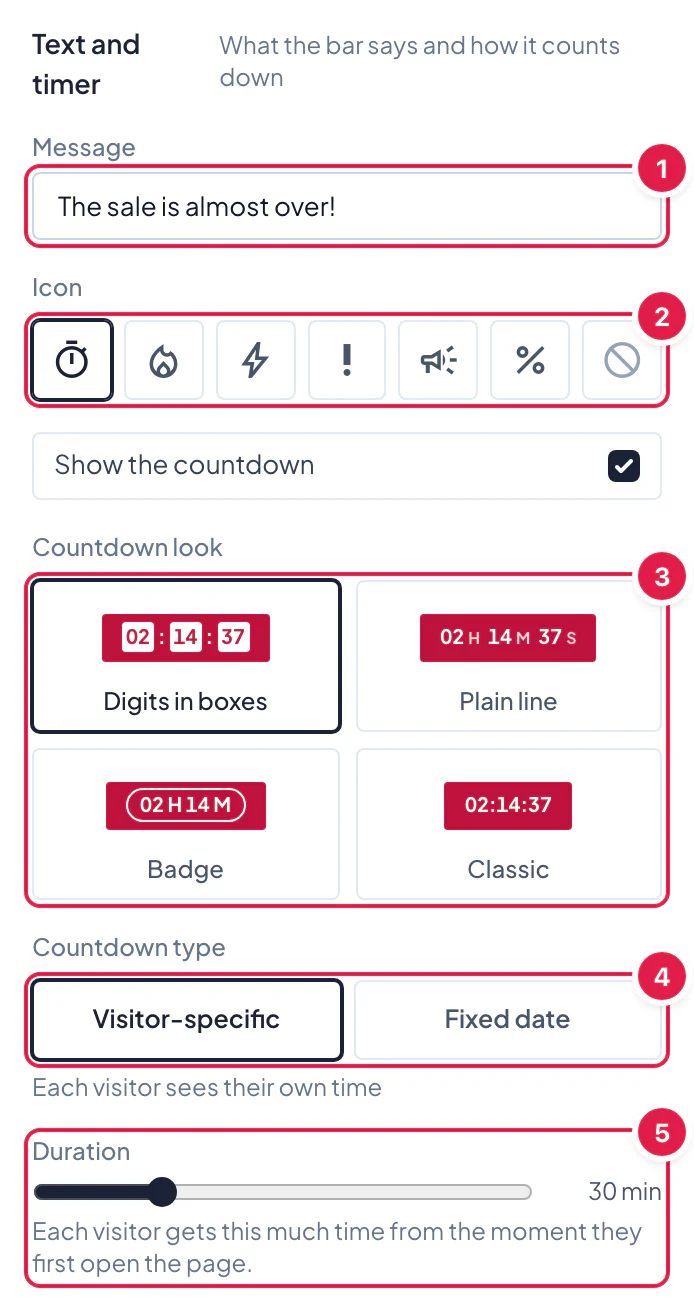
- Write the message shown in the bar.
- Choose the icon next to the message.
- Choose how the countdown looks.
- Choose visitor-specific or fixed date.
- Set the duration for the visitor-specific type. If you choose fixed date, the end date field appears here.
- Choose where a click goesIn the "Link and button" section, make the whole bar a link or add a button. The two are not shown together.
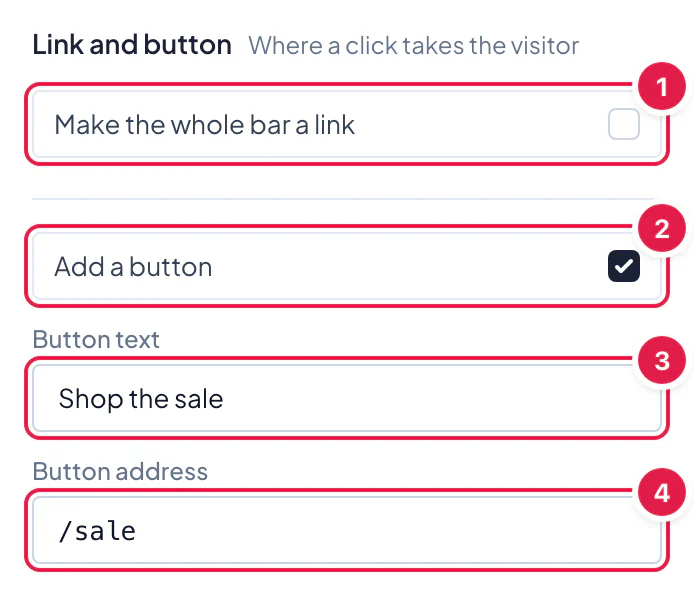
- Turn this on to make the whole bar clickable.
- Or turn this on to add a button to the bar.
- Enter the button text.
- Enter the address of the page the button opens.
- Pick the positionIn the "Position" section, choose whether the bar sits at the top, at the bottom or in the page. For a different layout on mobile, choose "Its own layout" on the Mobile tab.
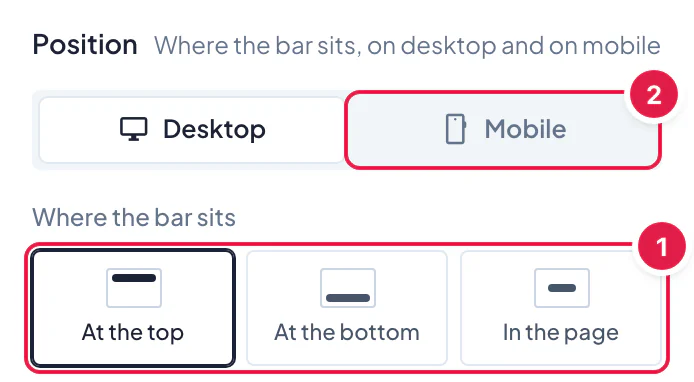
- Choose where the bar sits.
- For a different layout on phones, choose "Its own layout" on this tab.
- Choose the timing and pagesIn the "When it appears" section, choose when the bar shows up and what happens after a visitor closes it. In "Who sees it", choose the pages and visitors.
- PublishWhen the "Checklist" section says "Ready to publish", save and turn the widget on.

- Switch it to "Active", then press the Save button at the top right. The widget starts showing in your store.
Settings#
| Setting | What it does |
|---|---|
| Text and timer | Message, icon, the "Show the countdown" switch and the countdown look (Digits in boxes, Plain line, Badge, Classic). Countdown type: Visitor-specific (Duration) or Fixed date (Ends at). |
| Link and button | "Make the whole bar a link" with the link address and opening in a new tab. "Add a button" with the button text, address, colours and style (Filled, Outlined, Transparent). |
| Appearance | Background (solid colour or colour gradient), text colour, font, text size, inner spacing, corners, shadow, 3D effect and animation (Fade in, Slide in, Pulse, Scrolling text). |
| Position | Where the bar sits: At the top, At the bottom or In the page. How it behaves when the page scrolls (Fixed, Stick on scroll, Scrolls with the page), width (Full width, As wide as the text), alignment and the close button. Can be set separately for desktop and mobile. |
| Page element (CSS selector) | Only for the "In the page" position: the element the bar is placed next to, and whether it goes before, inside or after that element. In this position you also set the space around the bar. |
| When it appears | The moment the bar shows up: as soon as the page opens, a while after the page opens, or when the page is scrolled. "After a visitor closes it": show it again on the next page, hide until the visit ends, hide for 24 hours, or never show it again. |
| Who sees it | Which pages and which visitors the bar is shown to. |
Common situations#
The bar doesn't show in the store
With the fixed date type, the bar is not shown once the end date has passed. It also stays hidden if you chose the "In the page" position without naming a page element. The "Checklist" section in the editor points out both.
The countdown ended in my own browser and the bar doesn't come back
With the visitor-specific type, a visitor whose time has run out doesn't see the countdown again for 7 days. The time is stored in the browser, so you can try again in a private window or another browser.
I chose a fixed date but everyone sees a different time
If the end date is empty, the bar counts a separate time for each visitor. Enter the end date in the "Text and timer" section.
The button I added doesn't show
The button is not shown while "Make the whole bar a link" is on. Turn that switch off to use the button.
Clicking the bar doesn't go anywhere
The whole bar was made a link, but no link address was entered. Type the address in the "Link and button" section.
Tips#
For a sale with a set end day, use "Fixed date". That way the date in your message and the moment the countdown ends match. The end time is checked against the clock on the visitor's device.
If the bar sits on top of your store's fixed menu, try "Scrolls with the page" in the "When the page scrolls" setting.
In the preview, a countdown whose end date has passed is shown with an "Example time" note, but in the store the bar does not appear in this case. Check the "Checklist" section before you publish.
Works well with
Shipping Countdown
All plansCounts down to the same-day shipping cut-off and skips weekends and holidays by itself.
Open guideAnimated Announce Bar
All plansShows your announcements in a bar at the top or bottom of the page that scrolls or rotates through them.
Open guideStock Counter & Alert
All plansShows how many are left on the product page and on product cards when stock runs low.
Open guide