What it does#
The Animated Announce Bar gathers the short messages you want visitors to see on every page into one bar: a campaign announcement, shipping info, news about a new collection and so on. You can add several messages and give each one its own link.
Messages are shown in three ways: with scrolling text all messages flow one after another, and with the other two options the messages come one at a time, sliding or fading in, and take turns. The animation stops when the visitor moves the mouse over the bar.
Good to know: links in the messages open in a new tab. When a visitor closes the bar, the "How often for the same person" setting decides how long it stays closed.
Setup#
- Open the widgetIn the panel, choose Animated Announce Bar from the Widget Gallery.
- Write the messagesIn the "Messages" section, type the text of each announcement. Add a link if you like. "Add message" adds a new announcement. Empty announcements are not saved.
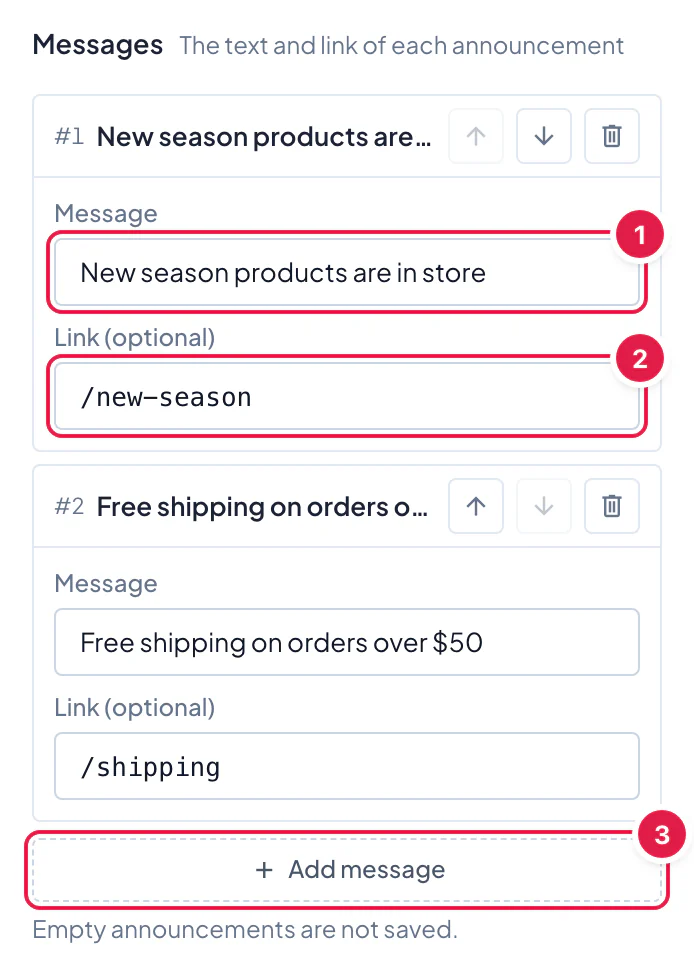
- Type the text of the announcement.
- If you like, type the address to open on click.
- Press Add message for a new announcement.
- Set the lookChoose the background and text colour, the animation, the text size, the animation duration and the bar height.
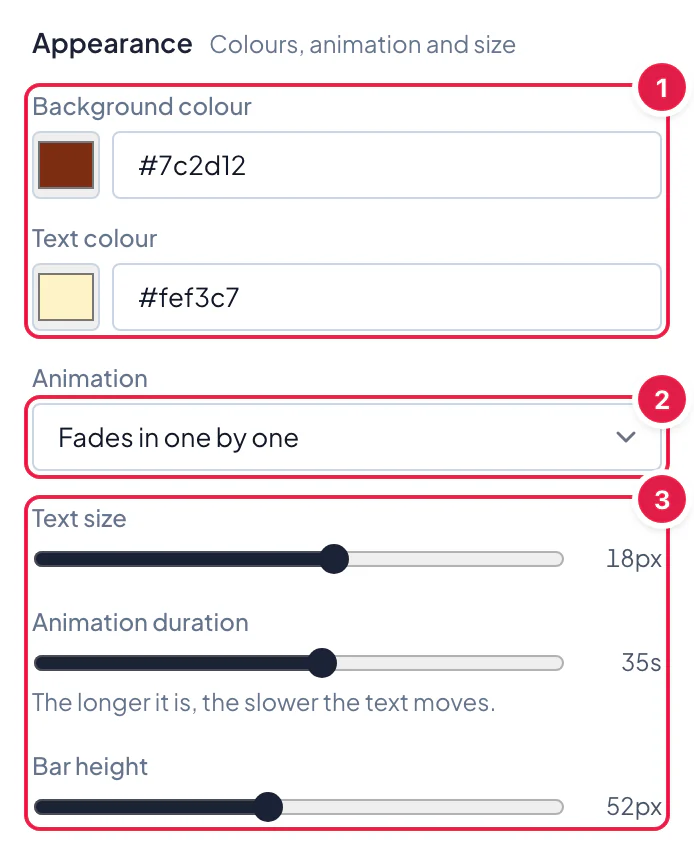
- Choose the background and text colour.
- Choose how the announcements come in.
- Drag the sliders to set the text size, the animation duration and the bar height.
- Choose the positionDecide whether the bar sits at the top or bottom and how it behaves when the page scrolls. If you want a different layout on phones, choose "Its own layout" in the mobile tab.
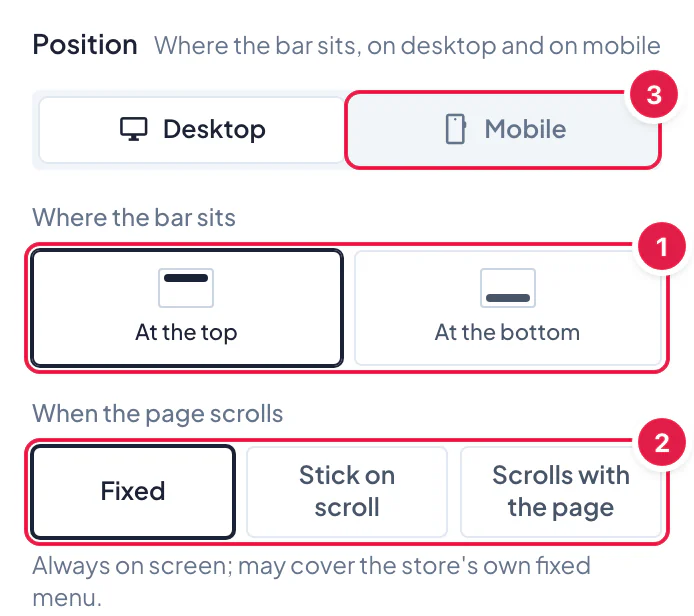
- Choose whether the bar sits at the top or bottom of the page.
- Choose what the bar does when the page scrolls.
- If you want a separate layout on phones, choose Its own layout in this tab.
- Decide who sees itIn the "When it appears" and "Who sees it" sections, choose the timing, frequency, pages and visitors.
- Go liveWhen the "Checklist" section says "Ready to publish", save and turn the widget on.

- Switch it to "Active", then press the Save button at the top right. The widget starts showing in your store.
Settings#
| Setting | What it does |
|---|---|
| Messages | The text of each announcement and an optional link. Messages are shown in list order. |
| Appearance | Background colour, text colour, text size (10-24 px) and bar height (30-80 px). |
| Animation | Scrolling text, slide in one by one or fade in one by one. The animation duration is between 5 and 60 seconds. The longer it is, the slower the text moves. Messages shown one by one change when this time is up. |
| Position | Whether the bar sits at the very top or very bottom of the page. You can choose separately for desktop and mobile. |
| When the page scrolls | Fixed: always stays on screen. Stick on scroll: sits at the top of the page and sticks to the top of the screen when the page is scrolled down (top position only). Scrolls with the page: moves away with the page. |
| Mobile layout | With "Same as desktop", the text on phones is at most 14 px. With "Its own layout" you set the position, scroll behaviour, height and text size for phones separately. |
| Close button | When it is on, visitors can close the bar. |
| When it appears | Whether the bar shows as soon as the page opens, after a while or when the page is scrolled down, and how often the same person sees it. |
| Who sees it | The show on mobile option, page rules and visitor rules. |
Common situations#
The bar looks empty in the store
If no announcement has any text, the bar looks empty. Type text into at least one message in the "Messages" section. The "Checklist" section shows this.
The bar covers my store's menu
If "When the page scrolls" is set to "Fixed", the bar always stays on screen and can cover your store's sticky menu. Try "Scrolls with the page" or, in the top position, "Stick on scroll".
The bar I closed doesn't come back
When a closed bar comes back depends on the frequency setting. With "At most once per visit" it stays closed until that visit ends, with "Once a day" for 24 hours, and with "Only once, never again" for good. With "On every page view" it shows again on the next page.
The text is smaller on phones than on desktop
With mobile set to "Same as desktop", the text is shown at most 14 px. For bigger text, choose "Its own layout" in the mobile tab and set the text size.
The bar never shows on phones
If "Show on mobile" is off in the "Who sees it" section, the bar is not shown on phones.
Tips#
Keep messages short. With the one by one animations, a long message may not fit the bar on a narrow screen. Scrolling text works better for long texts.
If you have several messages shown one by one, keep the animation duration short, because each message stays on screen for that long.
If your store's menu is sticky, "Stick on scroll" or "Scrolls with the page" keeps the bar from clashing with it.
Works well with
Free Shipping Bar
All plansShows how much is left for free shipping with a progress bar at the top or bottom of the page.
Open guideUrgency Timer
All plansShows your sale message in a bar with a countdown. The time is per visitor or ends on a fixed date.
Open guideDeals Corner
All plansLists your current campaigns and coupon codes in a panel that opens from a tab on the edge of the screen.
Open guide