What it does#
Shipping Countdown tells visitors when their order will ship. You enter the last order time for same-day shipping for each day of the week, and the countdown shows the time left until then.
Once that time has passed, the countdown counts to the next shipping day. It skips days with no shipping and the holidays you add. If shipping is more than one day away, it shows the shipping date. You can write a separate headline and message for today, tomorrow and a later date.
Good to know: the countdown only shows the calendar you enter. It does not ship the order by itself. Enter the calendar to match how you really ship, and remember to add public holidays to the "Holidays" list.
Setup#
- Open the widgetIn the panel, choose Shipping Countdown from the Widget Gallery.
- Enter the calendarIn the "Calendar" section, type the last order time for same-day shipping for each day. Untick the days no shipping goes out.
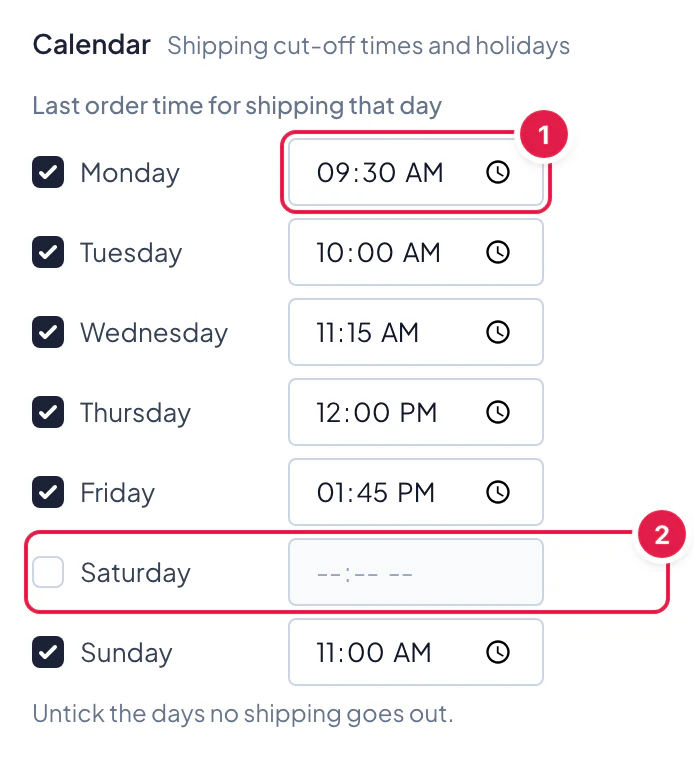
- Type the last order time for the order to ship that day.
- Untick a day with no shipping. Its time box turns off.
- Add holidaysUse "Add holiday" to enter the dates of special days with no shipping. The name is only for you and does not show in the store.
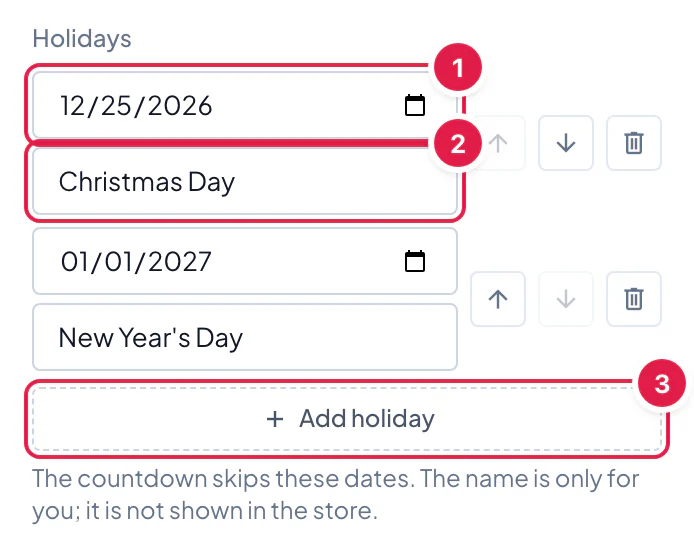
- Pick the date of a day with no shipping.
- Give the holiday a name. The name does not show in the store.
- Press to add another holiday.
- Edit the textsWrite the headlines and messages for shipping today, tomorrow and on a later date. Keep the {timer} variable in the "Ships today" message.
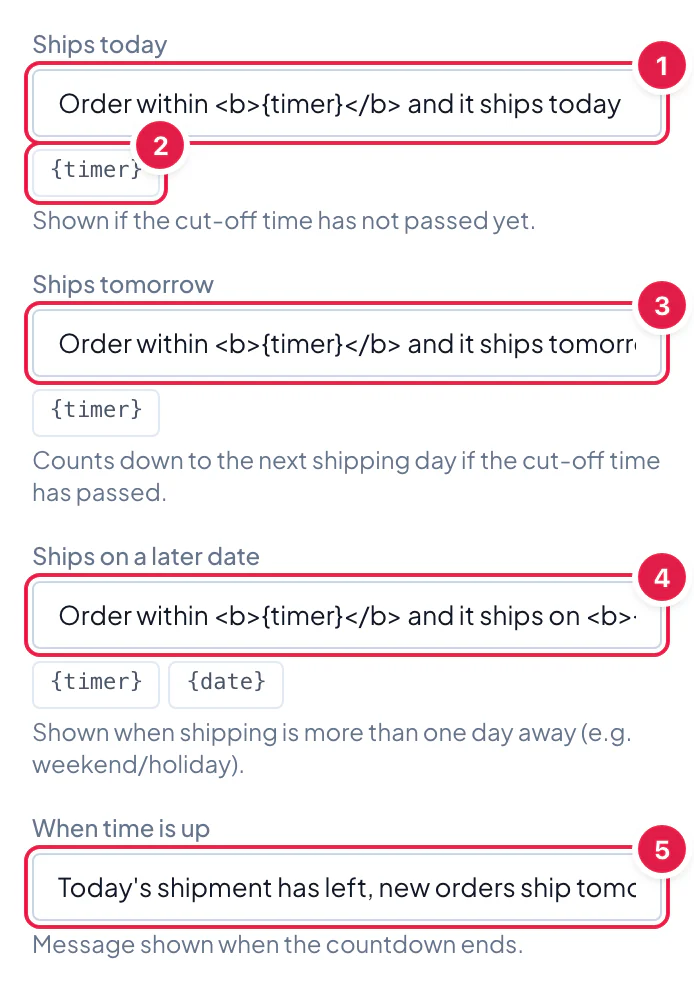
- Write the message shown before the cut-off time.
{timer}becomes the time left in your store. If you delete it, add it back with this button.- Write the message shown once the cut-off time has passed.
- Write the message shown when shipping is more than one day away.
{date}becomes the shipping date. - Write the message shown when the countdown ends.
- Choose the lookPick the template and the colours.
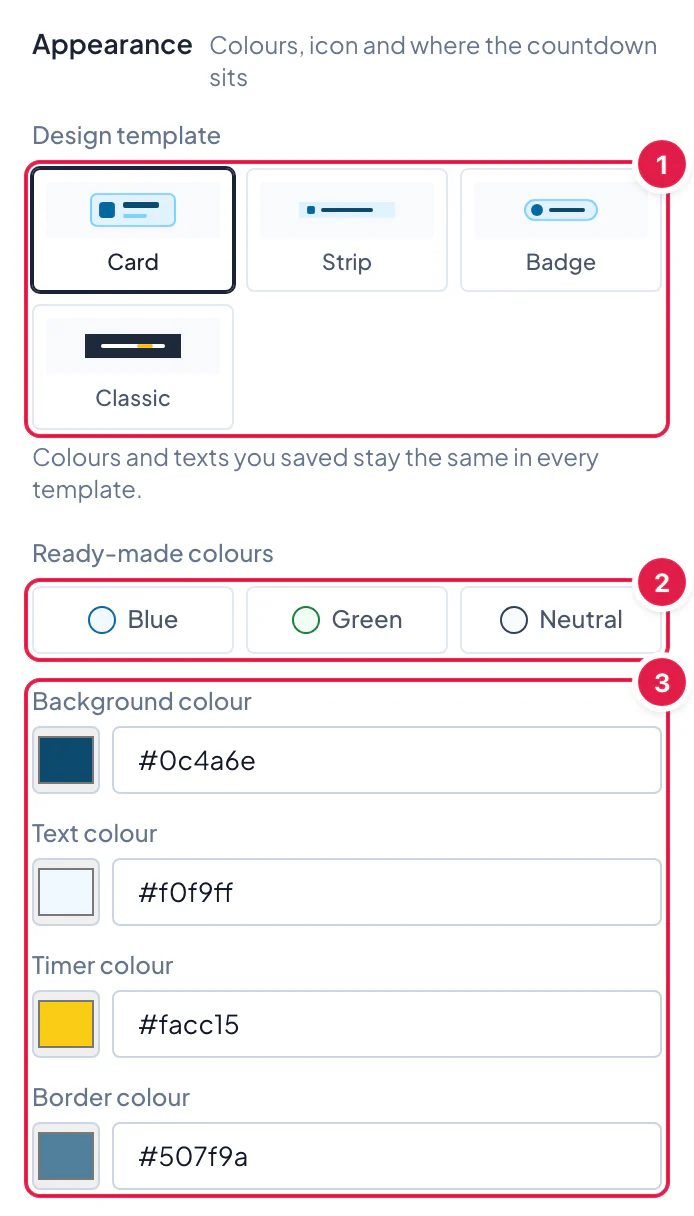
- Choose one of the four templates.
- Press one of the ready-made colours, or pick the colours yourself below.
- Set the background, text, timer and border colours.
- Choose the icon and positionPick the icon. Then decide whether the countdown sits at the very top of the page, at the very bottom or next to an element you choose in the page.
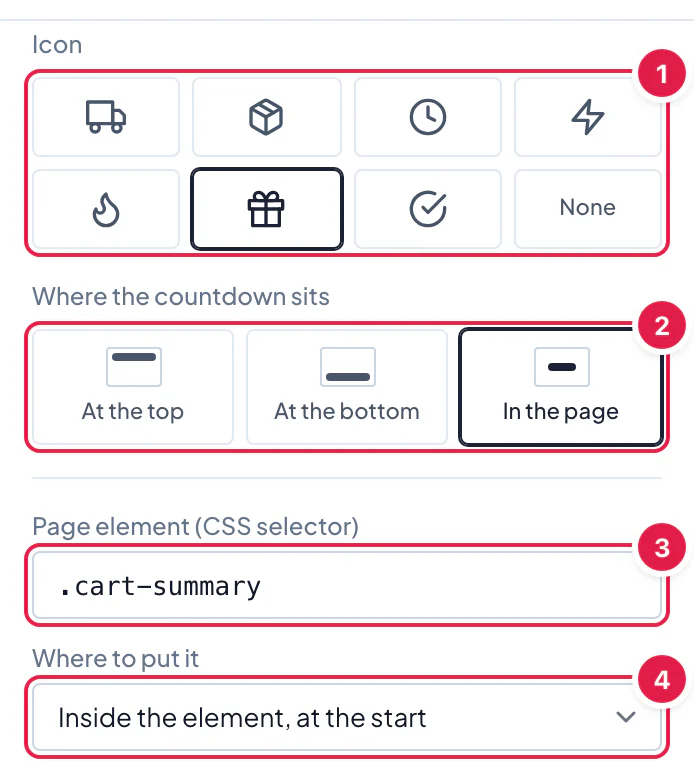
- Pick the icon next to the countdown, or choose "None".
- Choose whether the countdown sits at the top, at the bottom or in the page.
- If you chose "In the page", type the CSS selector of the element the countdown goes next to.
- Choose where the countdown goes in relation to that element.
- Go liveWhen the "Checklist" section says "Ready to publish", turn the widget on.

- Switch it to "Active", then press the Save button at the top right. The widget starts showing in your store.
Settings#
| Setting | What it does |
|---|---|
| Calendar: Last order time for shipping that day | A separate time for each day from Monday to Sunday. No shipping goes out on an unticked day, and the countdown skips it. |
| Calendar: Holidays | Special dates the countdown skips. |
| Texts: Headlines | A short headline above the message in the Card, Strip and Badge templates. You enter one each for today, tomorrow and a later date. Leave them empty if you only want the message. |
| Texts: Messages | The texts for ships today, ships tomorrow, ships on a later date and when time is up. Allowed formatting tags: b, strong, i, em, br. |
| Appearance: Template and colours | Card, Strip, Badge or Classic. Ready-made colours (Blue, Green, Neutral) or your own background, text, timer and border colours. |
| Appearance: How the time left is written | The "2 h 14 min" format updates every minute, the "02:14:37" format every second. |
| Appearance: Icon, Text size | Truck, package, clock, lightning, fire, gift, check mark or no icon. The text size is between 10 and 24 pixels. |
| Appearance: Where the countdown sits | At the very top of the page, at the very bottom or in the page. With "In the page" you set the page element (CSS selector), where to put it, the alignment and the spacing. |
| Who sees it | Pages and visitors. With the "Which addresses the countdown shows on" rules you can show the countdown only on certain addresses. It shows if any one of the rules matches. |
Message variables#
If you put the variables below in your headlines and messages, the countdown fills them in from the calendar at that moment.
| Variable | What it becomes |
|---|---|
{timer} | The time left until the cut-off (e.g. 2 h 14 min). Used in the messages. |
{date} | The shipping date. Used in the headlines and in the "Ships on a later date" message. |
Common situations#
The countdown does not show in my store
If you chose "In the page" without naming a page element, the countdown does not show. It also cannot find its place if the selector you typed is not in your theme. If you added address rules, check that the page you are on matches one of them.
The countdown has nothing to count to
If no day has a shipping time, there is no moment left to count to. In the "Calendar" section, tick at least one day and enter a time.
The message does not show the time left
If the "Ships today" text has no {timer}, visitors cannot see the time left. Add the variable back to the message.
On a public holiday the countdown says it ships today
The countdown only skips the dates you add to the "Holidays" list. Add public holidays and any special days you will not ship on.
Some formatting in the message disappeared
Only the b, strong, i, em and br tags are allowed in messages. Other tags are removed.
Tips#
Enter a last order time a little earlier than your carrier's pickup time, so you have time left to pack the order.
Use "In the page" to place the countdown near the add to cart button on the product page. That way visitors see it right where they decide.
At the start of each year, add that year's public holidays in one go, so the countdown never makes a wrong promise on a holiday.
Works well with
Stock Counter & Alert
All plansShows how many are left on the product page and on product cards when stock runs low.
Open guideUrgency Timer
All plansShows your sale message in a bar with a countdown. The time is per visitor or ends on a fixed date.
Open guideFree Shipping Bar
All plansShows how much is left for free shipping with a progress bar at the top or bottom of the page.
Open guide