What it does#
Social Proof Pro shows visitors browsing a product page the numbers for that product: how many people viewed it in the last 24 hours, how many added it to their cart, how many bought it in the time window you choose and how many added it to their favourites. It can also show customer reviews you write in the corner.
Each number can be shown in two ways: as a notification that pops up in the corner of the screen, or as a line inside the product page, for example under the price. A number only shows on products that reach the "Visibility threshold" you set.
Good to know: the widget only works on product pages. It shows nothing on the home page or category pages. Real numbers are calculated every hour, so after you turn on a display the first result appears within an hour.
Each display has a "Number source" setting: "Real data only", "Real data, simulated when it is too low" and "Always simulated". The editor shows this warning next to it: simulated numbers are not real but shoppers take them as real, so the store is responsible for any misleading advertising.
Setup#
- Open the widgetIn the panel, choose Social Proof Pro from the Widget Gallery.
- Turn on the displaysIn the "Numbers" section, turn on the cards you want to use: Visitors, Add to cart, Sales, Favourites and Customer reviews.
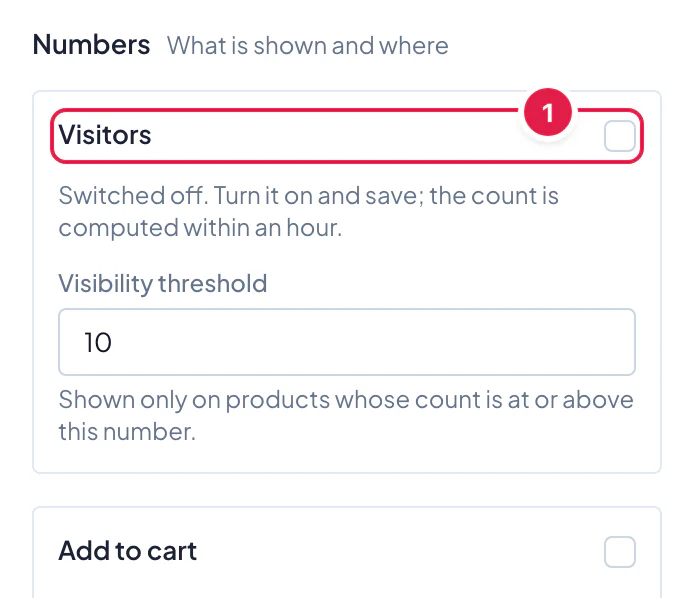
- Tick the box on the right to turn the card on. The other cards turn on the same way.
- Set the threshold and the textOn each card you turn on, enter the visibility threshold and the text. Write {count} where the number should go in the text.
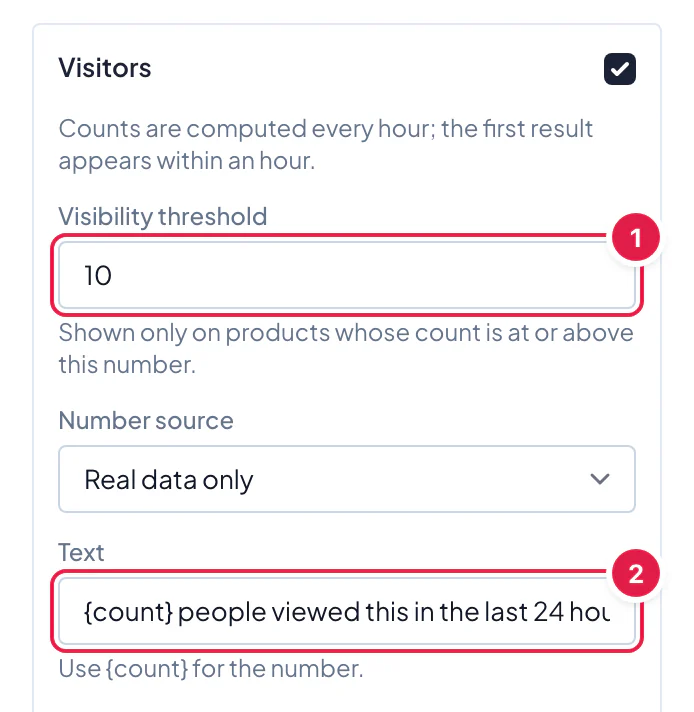
- If the number is below this value, the card does not show on that product.
- Write the text. Put
{count}where the number should go.
- Choose where it showsFor each card, tick "As a notification in the corner", "As a line on the product page" or both. For the line, choose its placement.
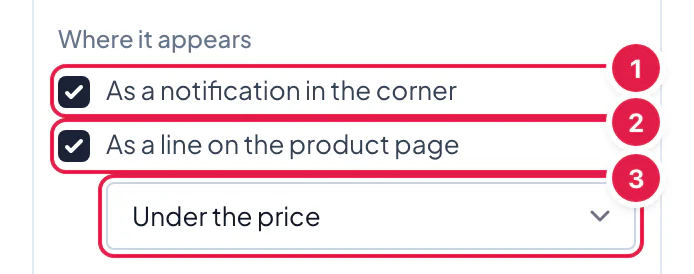
- Pops up as a notification in the corner of the page.
- Shows as a fixed line on the product page.
- Choose where the line sits on the product page.
- Set the timing and the lookIn the "Timing" section, set when the notification appears and how long it stays. In the "Appearance" section, set the colours and the corner on desktop and on mobile.
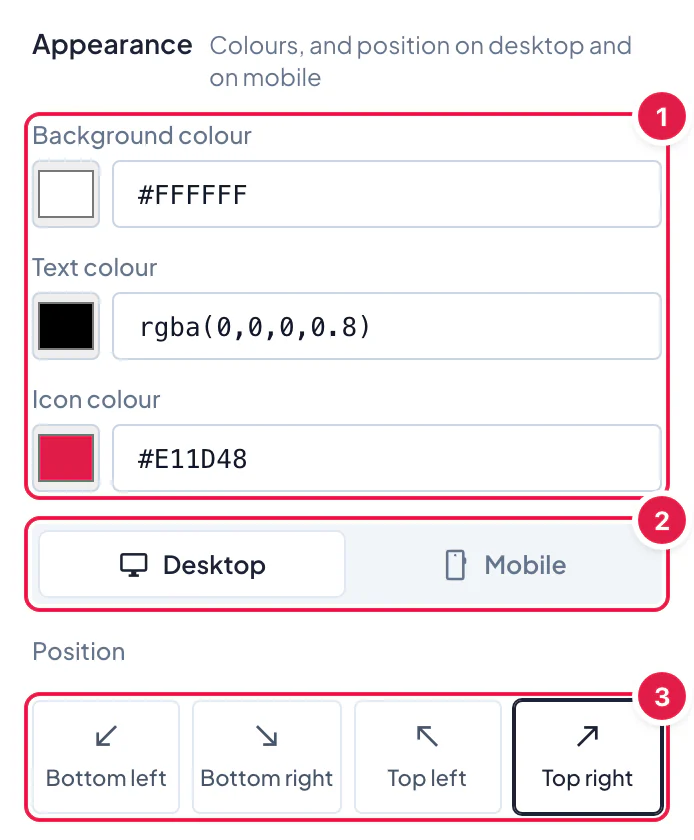
- Choose the notification's colours.
- If you want a different corner on mobile, switch to the Mobile tab.
- Choose the corner where the notification appears.
- Publish itWhen you see "Ready to publish" in the "Checklist" section, save and switch the widget on. Real numbers are calculated within an hour.

- Turn the switch to "Active", then click Save in the top right. The widget starts showing in your store.
Settings#
| Setting | What it does |
|---|---|
| Numbers | You turn the Visitors, Add to cart, Sales and Favourites displays on and off one by one. Each has its own visibility threshold, text, placement and page address filter. |
| Visibility threshold | The display only shows on products whose number is equal to or above this value. The threshold only applies to real numbers. |
| Number source | There are three options: "Real data only", "Real data, simulated when it is too low" and "Always simulated". For simulation you enter the "min" and "max" values. A product shows the same number all day and a new one the next day. |
| Time window and Count by | Sales display only: last 24 hours, last 7 days or last 30 days. It counts by people (orders) or by the number of items sold. |
| Where it shows | As a notification in the corner and/or as a line on the product page. Where the line goes: under the price, above the add-to-cart button, above the product description, in the reviews area or a custom selector. |
| Customer reviews | You add reviews made of a customer name, review text and stars, and they are shown as corner notifications. |
| Timing | First show, time on screen and wait between (seconds), plus "Shows per notification": Unlimited, Only once, 2, 3 or 5 times. Timing only applies to the corner notification. |
| Appearance | Background, text and icon colour, the corner and vertical gap on desktop, and the layer. For mobile you choose Same as desktop, Its own layout or Hidden. |
| Appearance and timing (inside a card) | If you untick "Use the shared settings", you can give that display its own colours, corner, timings and repeat limit. |
Message variables#
If you put the variable below in a display's text, the widget fills it in with that product's number.
| Variable | What it becomes |
|---|---|
{count} | The number shown for that product (e.g. 18 in the text "{count} people viewed this product in the last 24 hours"). |
Common situations#
Nothing shows in the store
If no display is turned on, nothing shows in the store. Even when one is on, the widget only works on product pages and only on products whose number reaches the threshold. The cards show how many products are above the threshold right now. If it is zero, try lowering the threshold.
I just turned it on and no numbers show
Numbers are calculated every hour. After you turn on a display and save, the first result appears within an hour.
The corner notification showed once and then stopped
If "Shows per notification" is limited, the notification stops for that product once the limit is used up. The counter is kept separately for each product and resets based on the "How often for the same person" setting. If you want it to keep showing, choose Unlimited.
The line on the product page does not show
Your theme may not have the placement you chose. Try another placement or point to the element on the page yourself with "Custom selector". If you entered an address in "Page address", the line only shows on product pages that match those addresses.
The "Checklist" section warns about reviews
The reviews that come built in are examples. Replace them with real customer reviews. If customer reviews are on but there are no reviews, the store shows an example review. The | character and line breaks cannot be used in review fields.
Tips#
Choose the threshold based on your products' real traffic. A threshold that is too high means the display hardly shows on any product. Adjust it by checking how many products are above the threshold on each card.
The corner notification appears and disappears, while the line on the product page stays as long as the page is open. For information close to the buying decision, it helps to put the line under the price or above the add-to-cart button.
If the corner notification clashes with your theme's bottom menu on mobile, increase the vertical gap for mobile in the "Appearance" section or choose another corner.
Works well with
Stock Counter & Alert
All plansShows how many are left on the product page and on product cards when stock runs low.
Open guideStore Reviews
Advanced and aboveA corner badge with your overall rating and review count. Clicking it opens your customer reviews.
Open guideUrgency Timer
All plansShows your sale message in a bar with a countdown. The time is per visitor or ends on a fixed date.
Open guide