What it does#
Store Reviews places a small badge with stars in a corner of the screen. The badge shows your store's overall rating and number of reviews. When a visitor clicks it, a window opens and lists the reviews you added, each with the customer's name, stars, date and review text.
The badge stays in its corner while the page scrolls, so visitors can reach your reviews at any point while they shop.
Good to know: the widget does not pull reviews from your store or any other site. You type the overall rating, the number of reviews and every review into the editor, and the badge shows them exactly as written. It is your responsibility that this information is based on real customer reviews.
Setup#
- Open the widgetIn the panel, pick Store Reviews from the Widget Gallery.
- Enter the rating and review countIn the "Appearance" section, type the overall rating (a number from 0 to 5, for example 4.8) and the number of reviews (for example 250+).
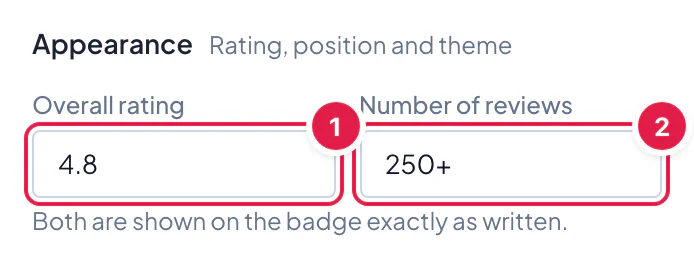
- Type the overall rating, for example 4.8.
- Type the number of reviews, for example 250+. Both appear on the badge exactly as you write them.
- Pick the corner and themeChoose the corner where the badge sits and a light or dark theme. If you want a different corner on phones, choose "Its own layout" on the Mobile tab.
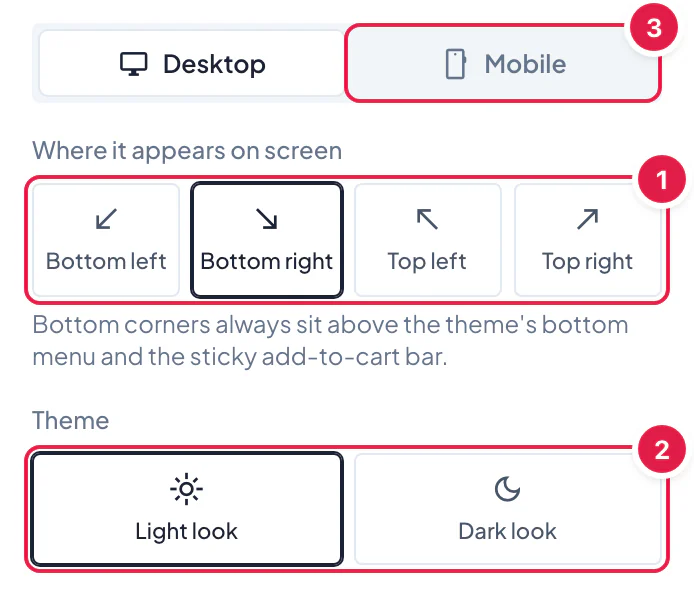
- Choose the corner where the badge sits.
- Choose the light or dark theme.
- For a different corner on phones, choose "Its own layout" on this tab.
- Add your reviewsIn the "Review list" section, replace the sample reviews with your real customer reviews: customer name, stars, date and review text.
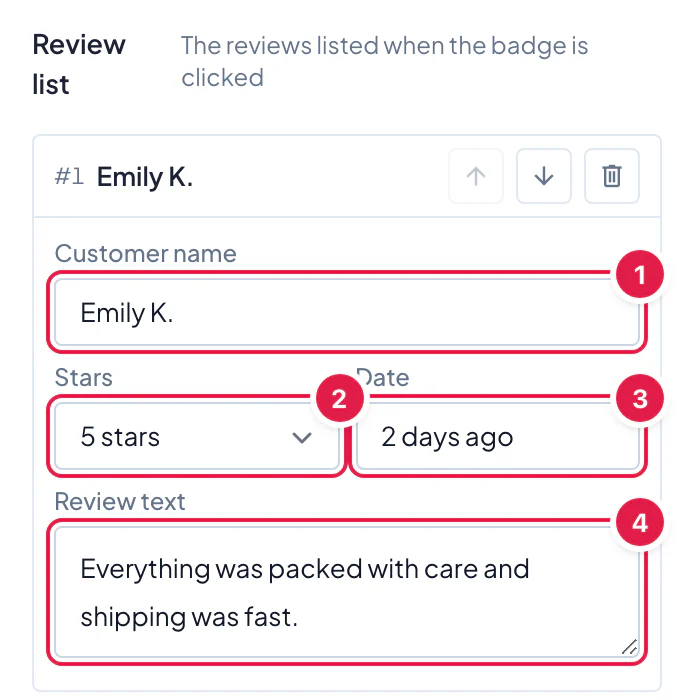
- Type the customer's name.
- Choose how many stars they gave.
- Type the date of the review, for example 2 days ago.
- Type the review text.
- Choose the timing and pagesIn the "When it opens" section, choose when and how often the badge appears. In "Who sees it", choose the pages and visitors.
- PublishWhen the "Checklist" section says "Ready to publish", save and turn the widget on.

- Switch it to "Active", then press the Save button at the top right. The widget starts showing in your store.
Settings#
| Setting | What it does |
|---|---|
| Overall rating | The rating shown on the badge. It must be a number from 0 to 5. The number of filled stars on the badge is this rating rounded. |
| Number of reviews | The number shown next to the rating on the badge. It appears exactly as you write it and can also be text like "250+". |
| Where it appears on screen | Bottom left, bottom right, top left or top right. The bottom corners sit above the theme's bottom menu and the sticky add-to-cart bar. You can pick a separate corner for mobile. |
| Theme | Light look or dark look. Sets the colours of the badge and the review window. |
| Layer | Whether the badge sits above everything else on the page or below the store's menus. |
| Review list | The reviews listed when the badge is clicked. Each review has a customer name, stars (1-5), a date and the review text. The date is free text (for example "2 days ago"). |
| When it opens | The moment the badge appears (as soon as the page opens, a while after the page opens, or when the page is scrolled) and how often the same person sees it. |
| Who sees it | Which pages and which visitors the badge is shown to. |
Common situations#
The badge shows on the first page and disappears on the next ones
If "How often for the same person" is set to "At most once per visit", "Once a day" or "Only once, never again", the badge does not come back for that period once it has been shown. If you want the badge on every page, choose "On every page view".
The "Checklist" section warns about the rating
The overall rating must be a number from 0 to 5. Type only the number instead of text like "4.8/5" or "very good".
There is a warning for one of the reviews
The name or the text of that review is empty. Fill in the missing field or delete the review.
On phones the badge overlaps the chat button
In the "Appearance" section, switch to the Mobile tab, choose "Its own layout" and pick a different corner for phones.
The badge covers the mobile menu
Choose "Below menus" in the "Layer" setting.
Tips#
The two reviews that come with the widget are examples. Before you publish, replace them with your own customers' reviews and enter your real rating and review count.
Pick short, specific reviews. A few reviews that talk about different things, such as shipping speed, product quality and returns, tell visitors more than many reviews that all say the same thing.
If your store has a WhatsApp or chat button, put the badge in the opposite corner so the two do not cover each other.
Works well with
Social Proof Pro
All plansShows view, add-to-cart, sales and favourite counts and customer reviews on the product page.
Open guideBrand Marquee
All plansShows brand and partner logos in a strip that scrolls without stopping on the page.
Open guideProduct FAQ
All plansShows frequently asked questions on the product page. You link question groups to a category, a brand or products.
Open guide