What it does#
When a visitor presses the button in the corner, a panel opens with your welcome message and your list of departments. Each department shows its name, a subtitle (for example your opening hours), a photo and a status dot. When the visitor clicks a department, WhatsApp opens in a new tab with that department's number.
If you answer sales, support and returns questions from different numbers, it sends visitors to the right team from the start. If you have a single number and only want a button, the WhatsApp Button widget is a better fit.
Good to know: the conversation happens in the visitor's own WhatsApp app, not in your store. The widget only starts the chat with the right number. You set each department's status (Online, Busy, Away) by hand. It does not change by itself based on the time.
Setup#
- Open the widgetIn the panel, pick WhatsApp Chat from the Widget Gallery.
- Enter your departmentsIn the "Departments" section, enter the department name, subtitle, WhatsApp number and status for each team. Write the number with the country code first, digits only (for example 1555...).
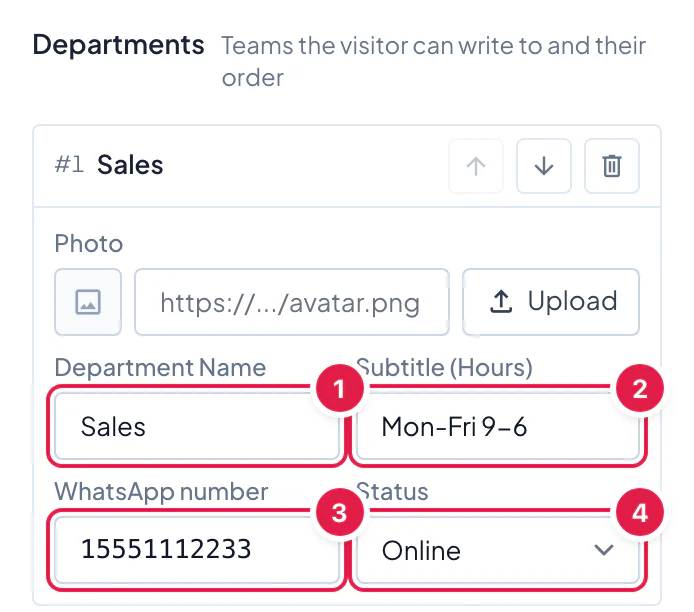
- Type the department's name.
- Type the short note shown under it, for example your opening hours.
- Write the number with the country code first, digits only.
- Choose the department's status.
- Write the welcome messageIn the "Greeting" section, write the first message shown in the panel. If you want the panel to open by itself when the page loads, turn on that switch.
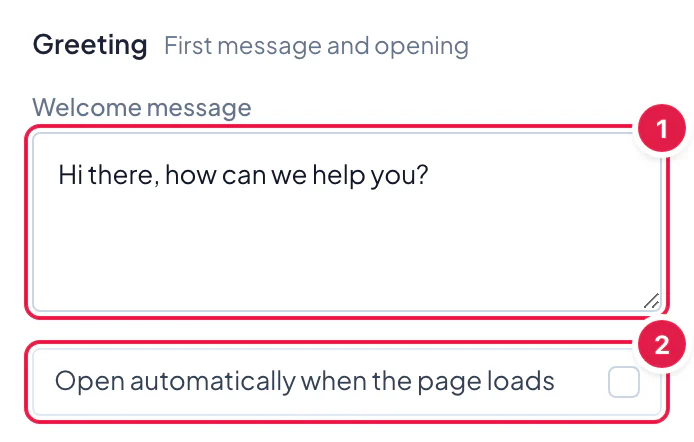
- Write the first message shown in the panel.
- Tick this if you want the panel to open by itself when the page loads.
- Pick the theme and positionChoose the theme and icon shape in the "Appearance" section, and the corner and side gaps for the button in the "Position" section. You can pick a separate layout for mobile or hide the button on phones.
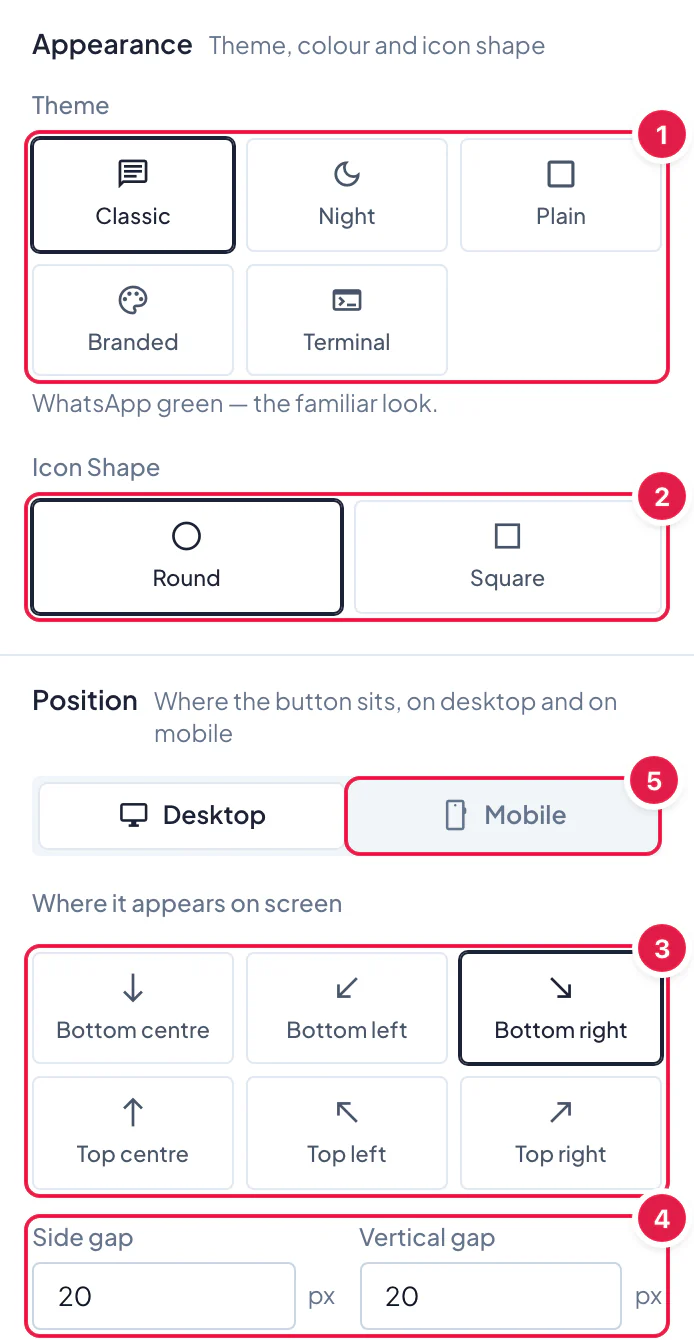
- Choose the theme.
- Choose the button's shape.
- Choose the corner where the button sits.
- Type how far from the edges it sits.
- For a different layout on phones, choose "Its own layout" on this tab, or "Hidden" to hide the button.
- PublishWhen there are no warnings left in the "Checklist" section, turn the widget on.

- Switch it to "Active", then press the Save button at the top right. The widget starts showing in your store.
Settings#
| Setting | What it does |
|---|---|
| Theme | Classic (WhatsApp green), Night (dark panel), Plain (white panel), Branded (the header and button take your own colour) or Terminal (console look). |
| Brand Color and Icon Shape | The colour used by the Branded theme. It must be a six-digit colour code (for example #25D366). The icon shape is round or square. |
| Position | The button's corner: left, centre or right on the bottom or top edge. Side gap and vertical gap can be set from 0 to 200. On mobile, choose "Same as desktop", "Its own layout" or "Hidden". |
| Welcome message | The message that greets visitors in the panel. The same text is also filled in as a ready message in WhatsApp's text box when the visitor clicks a department. |
| Open automatically when the page loads | When on, the panel opens shortly after the page loads, without the visitor pressing the button. |
| Departments | The teams visitors can write to and their order. Each has a photo (JPG or PNG), department name, subtitle, WhatsApp number and status. |
| When it appears | Whether the button appears as soon as the page opens, a while after, or when the page is scrolled. |
| Who sees it | Which pages and which visitors the button is shown to. |
Common situations#
Clicking a department opens WhatsApp, but with no one to write to
That department's WhatsApp number is empty. The "Checklist" section shows how many departments have no number. Enter the number with the country code, digits only.
My settings won't save
If the brand colour is not a six-digit colour code, the settings can't be saved. Enter the colour like #25D366. If your saved theme is no longer in the list, you also need to pick a theme before saving.
The button doesn't show on phones
If "Hidden" is selected on the Mobile tab of the "Position" section, the button is not shown on phones. Choose "Same as desktop" or "Its own layout".
The button covers another element
Change the corner or increase the side gap and vertical gap. If the phone has a bottom menu, choose "Its own layout" for mobile and raise the vertical gap.
A department photo won't upload
Only JPG and PNG files are accepted, and there is a file size limit. Make the image smaller and try again.
Tips#
The welcome message also goes into WhatsApp as a ready text, so pick a short sentence that still makes sense when the visitor sends it. For example: "Hi, I'd like some information."
Put your opening hours in the subtitle (for example "Mon-Fri 9-6") and set the status to "Away" outside those hours. That way visitors know when to expect a reply.
If you use a single number, or want the button on the product page, in the cart or in a strip, or want it to look closed outside your working hours by itself, choose WhatsApp Button. Don't run both widgets together in the same corner.
Works well with
WhatsApp Button
All plansA WhatsApp button for one number. It can sit in a corner, in a strip, on the product page or in the cart.
Open guideSocial Side Tabs
All plansShows your social media and contact links as tabs fixed to the edge of the screen.
Open guideProduct FAQ
All plansShows frequently asked questions on the product page. You link question groups to a category, a brand or products.
Open guide