What it does#
Exit Intent Popup opens when a visitor is about to leave the page: on desktop when the pointer heads for the browser tabs, on phones on a fast scroll up or when they switch to another tab. The popup has a title, a description, an optional image and a button.
With Ask for an email turned on, the visitor leaves their address and sees the coupon code after sending it. You can also ask for their name and mobile phone, and show a yes/no question before the form. The addresses people leave appear in the Collected emails list in the editor and can be downloaded as a CSV file.
Good to know: the popup only shows the coupon code. It does not apply the discount by itself. The code you type, or the codes you upload to the pool, must be set up in your store's coupon settings.
Setup#
- Open the widgetIn the panel, choose Exit Intent Popup from the Widget Gallery.
- Choose the lookIn the Appearance section, pick one of the ready-made looks. If you like, change the theme, the layout and the colours separately.
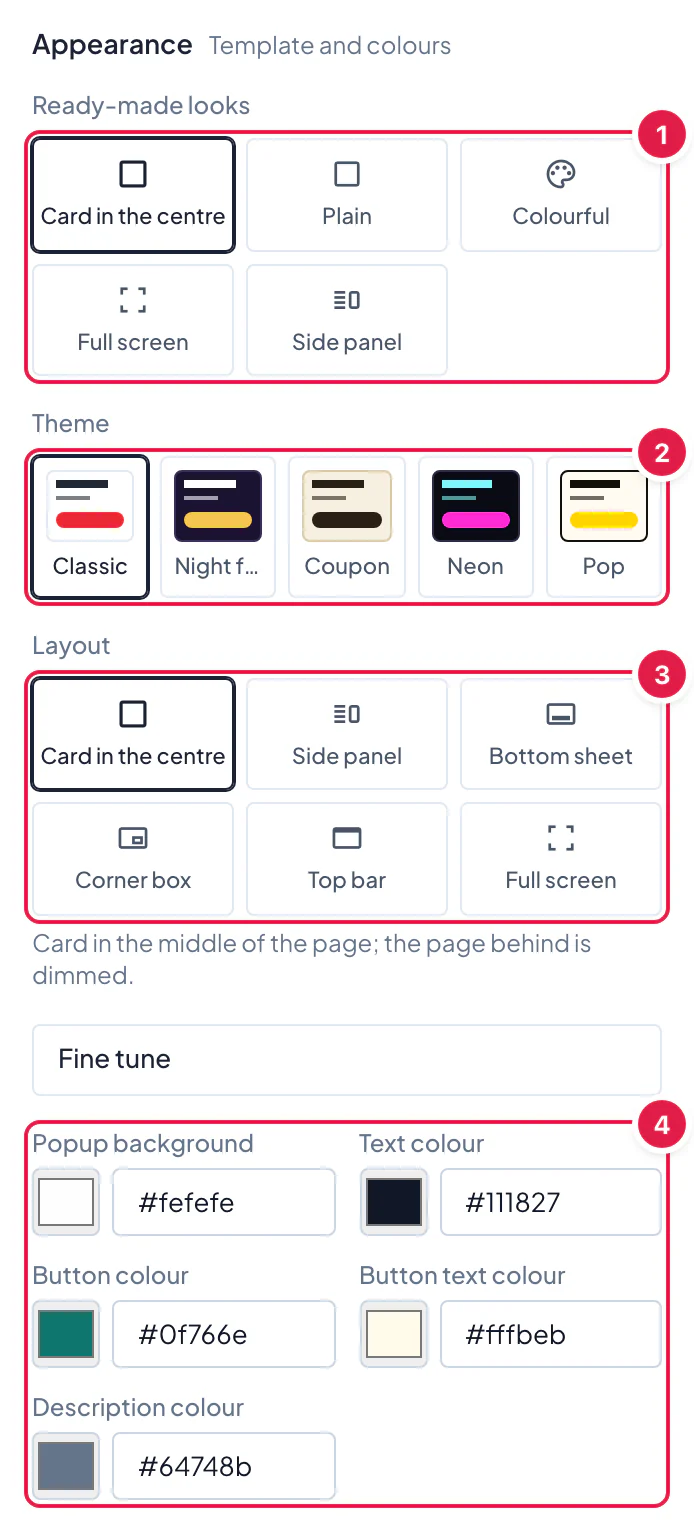
- Pick one of the ready-made looks.
- Change the theme separately if you like.
- Change the layout separately if you like.
- Set the background, text, button and description colours.
- Enter the textsIn the Texts section, write the title, the description, the button text and the message shown after sending. In the preview, check the opening screen and the screen after sending one by one.
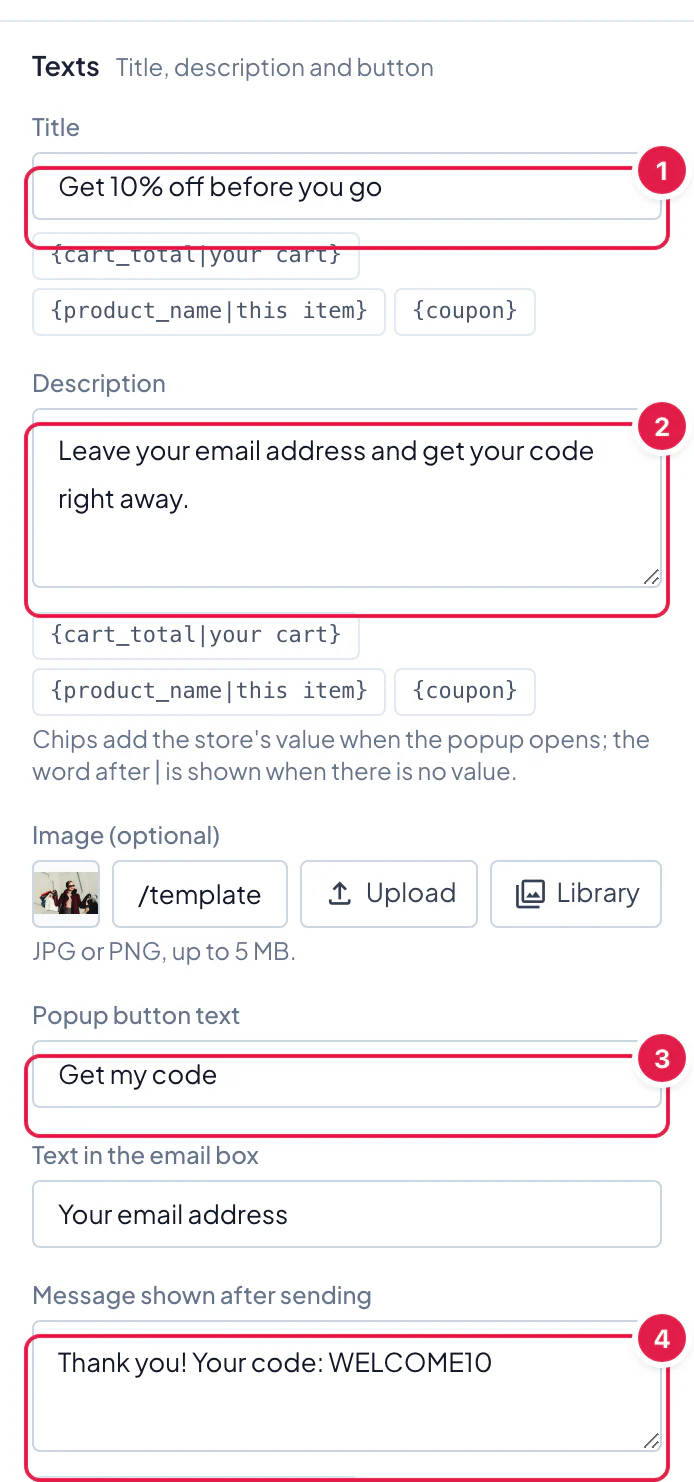
- Write the title.
- Write the description. The chips below it add the store's value when the popup opens.
- Enter the button text.
- Write the message shown after the form is sent.
- Set up the email and couponIn the Email and coupon section, turn on "Ask for an email" and type the coupon code, or upload your code file for personal codes. Set up the same codes in your store's coupon settings.
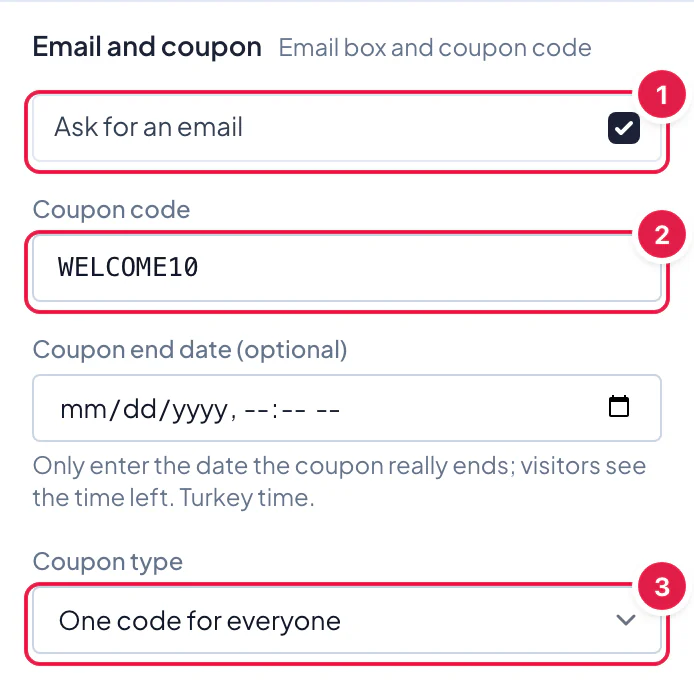
- Tick "Ask for an email" to collect emails.
- Type the coupon code shown to everyone.
- For personal codes, choose "A personal code from a pool", then upload your code file.
- Set how often and for whomIn the When it opens section, choose how often the same person sees it. In the Who sees it section, choose which pages it opens on and for whom.
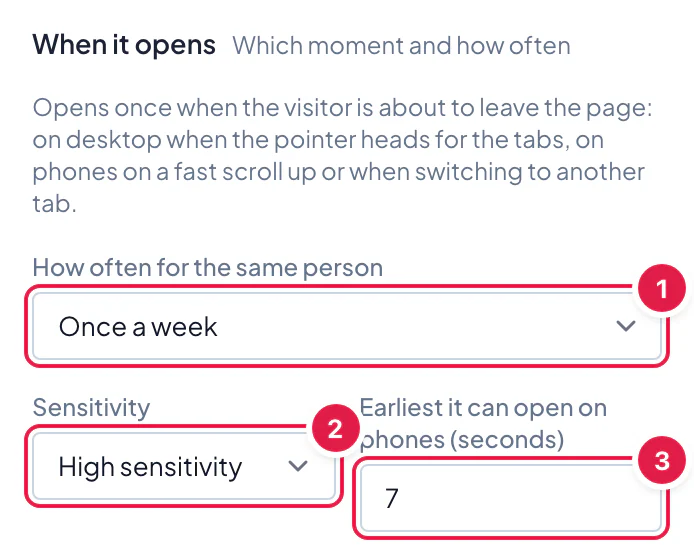
- Choose how often the same person sees it.
- Choose how sensitive the exit detection is.
- Type the earliest second the popup can open on phones.
- Go liveWhen you see "Ready to publish" in the Checklist section, save and turn the widget on.

- Switch it to "Active", then press the Save button at the top right. The widget starts showing in your store.
Settings#
| Setting | What it does |
|---|---|
| Appearance | Ready-made looks, theme (Classic, Night fair, Coupon, Neon, Pop), layout (card in the centre, side panel, bottom sheet, corner box, top bar, full screen), layout on phones, colours and fine tuning (font, corners, shadow, width, image). |
| Motion | The entrance animation and an attention move that plays on the button or the whole popup after it opens. |
| Texts | Title, description, image (JPG or PNG, up to 5 MB), button text, the text in the email box, the message and description shown after sending, and the go to cart link. |
| Email and coupon | The "Ask for an email" switch, the coupon code, an optional coupon end date and the coupon type: "One code for everyone" or "A personal code from a pool". Here you also choose whether to show no code or the single code when the pool runs out. |
| Flow | A yes/no question before the form, name and mobile phone fields (do not ask, optional, required) and the SMS/WhatsApp permission text. |
| When it opens | How often the same person sees it (at most once per visit, on every page view, once a day, once a week, only once ever), the sensitivity and the earliest second it can open on phones. |
| Tab | A small tab that stays on screen before the popup or after it is closed: its text, position, how many days it stays and its attention move. |
| Who sees it | Page rules and page types, audience rules, only new or only returning visitors, cart status and cart total, where the visitor came from and UTM parameters. |
| A/B test | Title, description, button text, coupon code, message, theme, layout and entrance animation for version B. Also the share of visitors who see B and the results table. |
Message variables#
You can add the variables below to the title, the description and the message shown after sending. The store's value is filled in when the popup opens. If there is no value, the word after the | sign is shown, so you can change it to your own wording.
| Variable | What it becomes |
|---|---|
{cart_total|your cart} | The cart total (e.g. $1,240.00). If the total cannot be read, "your cart" is shown. |
{product_name|this item} | The product name on product pages. On other pages "this item" is shown. |
{coupon} | The coupon code. |
Common situations#
The popup never opens
If the coupon end date has passed, the popup does not open, and the Checklist section warns you about it. Update the date or clear it. The frequency setting may also keep it from showing to the same person again, so use a private window when you test.
A visitor who left an email sees no code
If "Ask for an email" is on but the coupon code is empty, no code is shown. If the coupon type is "A personal code from a pool", the pool may have run out. Upload new codes or choose "Show the single code above" in the "When the pool runs out" setting.
I chose personal codes but they do not work
A personal code needs an email. If "Ask for an email" is off, no code is given from the pool, so turn the switch on. Each code in the pool goes to one email, and the same email gets the same code again.
The code in the message is not the code given
If you typed the code into the message shown after sending and changed the coupon code later, the two no longer match, and the Checklist section warns you. Use the {coupon} variable instead of typing the code into the message.
The cart total rule never matches
The cart total is read from the cart data your store keeps on the page. If it cannot be read in your store, the cart rule does not match, and the Checklist section tells you. In that case, remove the cart total rule.
Tips#
A full screen popup on phones can lower your Google ranking. Choose the bottom sheet in the "Layout on phones" setting. The bottom sheet rises from the bottom and closes when dragged down.
"One code for everyone" can get passed around. If you want a code to stay with the person who left their email, give personal codes from a pool and watch the "Only ... codes are left in the pool" warning in the Checklist section.
In an A/B test, the results table fills in once each version has been shown at least 50 times. When the test is over, use "Make B permanent" or "Restart the test". Both take effect when you save.
Works well with
Spin to Win
All plansVisitors spin the wheel and get the coupon code of the slice they win. You can collect their email first.
Open guideCart Reminder
All plansShows returning visitors a card that reminds them of the products left in their cart, with a coupon if you want.
Open guideTab Recovery
Pro and aboveChanges the tab title and icon when a visitor switches tabs, to bring them back to your store.
Open guide