What it does#
Visitors often leave your store open and switch to another tab. At that moment Tab Recovery shows the messages you wrote in the tab title. If you like, it also changes the tab icon or puts a red number badge on it. When the visitor comes back to the tab, the title, icon and colour return to normal.
Messages can be shown in three ways: messages that change in turn, scrolling text that runs one character at a time, or a blinking title that alternates with the page title.
Good to know: the widget does not show anything inside the page. It only changes the browser tab, and only while the visitor is on another tab. That is why the preview in the editor is a simulation. To see the real result, open your store and switch to another tab.
Setup#
- Open the widgetIn the panel, pick Tab Recovery from the Widget Gallery.
- Write your messagesEnter at least one message in the "Messages" section. If you add more than one, they show in the tab title in turn.
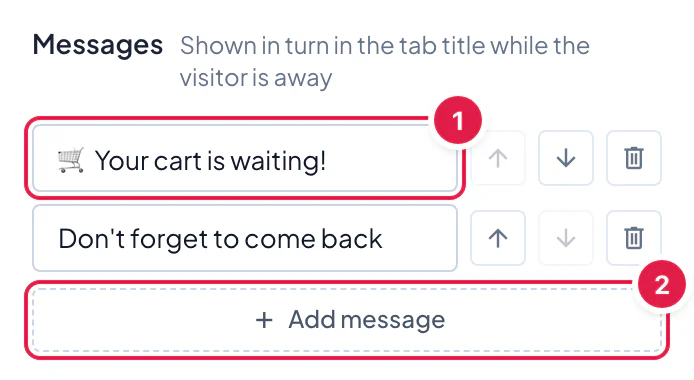
- Type the message to show in the tab title.
- Press this to add another message row.
- Pick the title effect and speedChoose messages in turn, scrolling text or blinking, and set how fast the messages change.
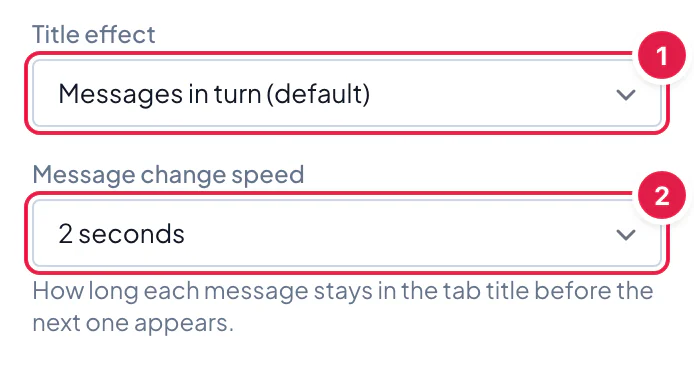
- Choose how the title changes.
- Choose how long each message stays on screen.
- Set up the iconIn the "Appearance" section you can upload a tab icon, turn on the number badge and pick the mobile browser colour.
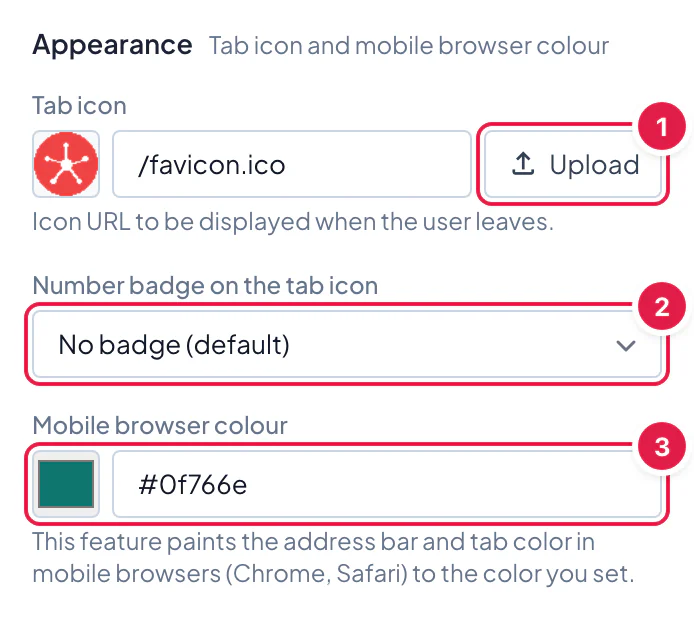
- Upload the tab icon here.
- Choose a badge to show a fixed number or the number of items in the cart on the icon.
- Pick the colour of the address bar and tab in mobile browsers.
- Try it in the simulationPress the "In another tab" button above the preview to see how the title and icon will change.
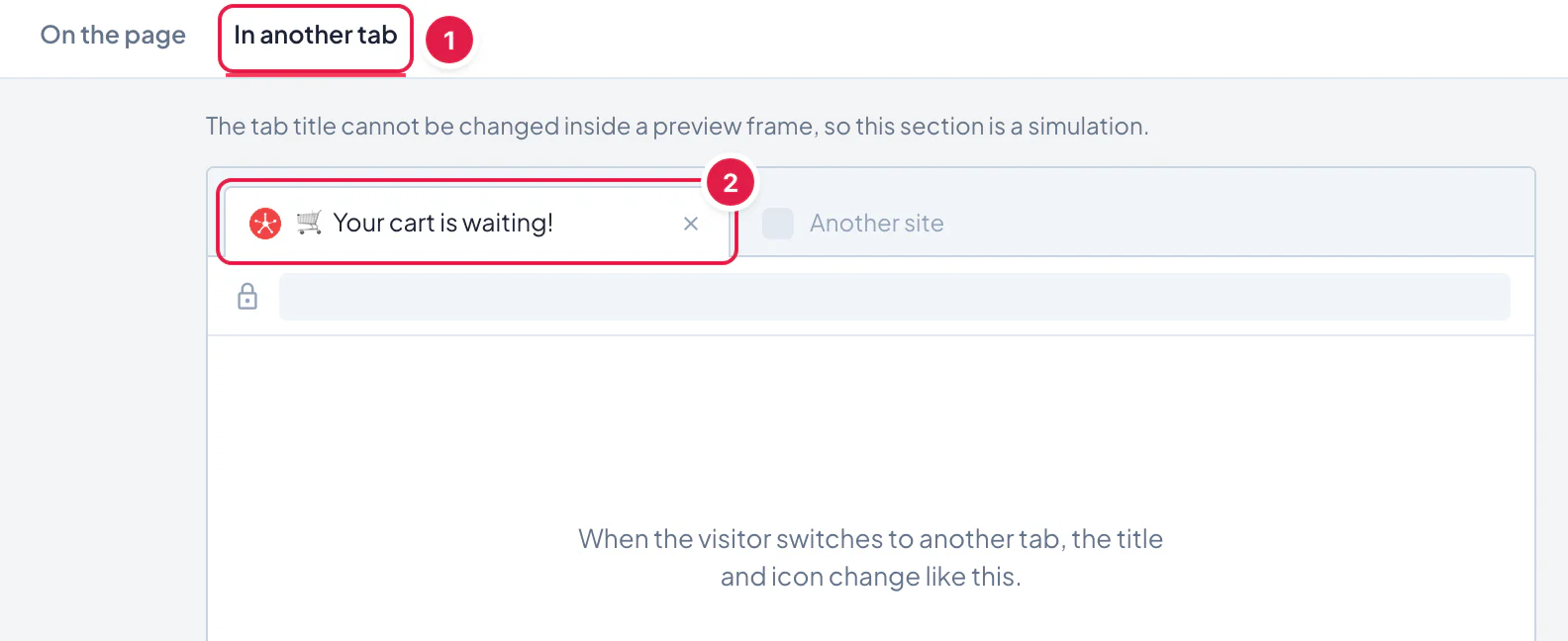
- Press this to see it as if the visitor were on another tab.
- The tab title and icon change here.
- PublishWhen the "Checklist" section says "Ready to publish", save and turn the widget on.

- Switch it to "Active", then press the Save button at the top right. The widget starts showing in your store.
Settings#
| Setting | What it does |
|---|---|
| Tab icon | The icon shown while the visitor is on another tab. You can upload a JPG or PNG or type its address. If you leave it empty, your store's own icon stays. |
| Number badge on the tab icon | No badge, a red badge with a fixed number, or a red badge with the cart item count. The badge number is between 1 and 99. If the store does not provide the cart count, the fixed number is shown. |
| Mobile browser colour | Paints the address bar and tab in mobile browsers (Chrome, Safari) in the colour you choose. |
| Messages | The messages shown in the tab title while the visitor is on another tab. Add more with "Add message". There must be at least one message. |
| Title effect | Messages in turn (default), Scrolling text or Blinking. |
| Message change speed | Between 0.5 and 10 seconds, 1 second by default. In messages in turn mode it is how long each message stays in the title. In scrolling text it is the time between two steps. |
| When it runs | How long after the page opens the widget takes effect: as soon as the page opens, a while after the page opens, or when the page is scrolled. |
| Who sees it | Which visitors the widget works for. |
Common situations#
The tab title does not change in the editor preview
The tab title cannot be changed inside a preview frame, so the preview is a simulation. To see the real behaviour, publish the widget, open your store and switch to another tab.
Scrolling text runs slower than the speed I chose
Browsers slow down timers in background tabs to about one step per second. This is how browsers work. Short messages read better as scrolling text.
I can't make the blinking faster
In blinking mode the title never changes faster than once a second. Even if you pick a shorter speed, one second is used.
The badge shows a fixed number instead of the cart count
If the store does not provide the number of items in the cart, or the cart is empty, the number you typed in the "Badge number" field is shown.
The "Checklist" section shows a message warning
The warning appears when there are no messages or a message row is empty. Fill in or delete the empty row. At least one message must remain.
Tips#
Keep messages short. Browser tabs are narrow, and only the first few words of a long message are visible.
Two or three messages are enough. Messages that change too fast, or too many of them, go by unread. Leave the speed at the default value and try that first.
The badge with the cart item count is a good fit for reminding visitors who left items in their cart and switched to another tab.
Works well with
Cart Reminder
All plansShows returning visitors a card that reminds them of the products left in their cart, with a coupon if you want.
Open guideExit Intent Popup
Advanced and aboveOpens when a visitor is about to leave, collects their email and can give them a coupon code.
Open guideUrgency Timer
All plansShows your sale message in a bar with a countdown. The time is per visitor or ends on a fixed date.
Open guide