What it does#
Smart Search opens a search window when visitors click your store's search box. Before they even start typing, they see their recent searches, the popular searches you set, featured products and campaign images.
When "Show results while typing" is on, results are listed in the window once the visitor types at least two letters. Pressing Enter takes the visitor to your store's search page. The window also opens with Ctrl+K on the keyboard.
Good to know: the widget uses your store's own search, and the results come from your store platform. Showing results while typing works on Shopify, WooCommerce, IdeaSoft and TSoft. With "Custom / Other" selected, no instant results are shown and visitors are sent to the search page.
Setup#
- Open the widgetIn the panel, choose Smart Search from the Widget Gallery.
- Choose where search opens fromIn the "Search box" section, choose "The site's search box" or "Floating button". If you leave the search box selector empty, your store platform's own search box is used.
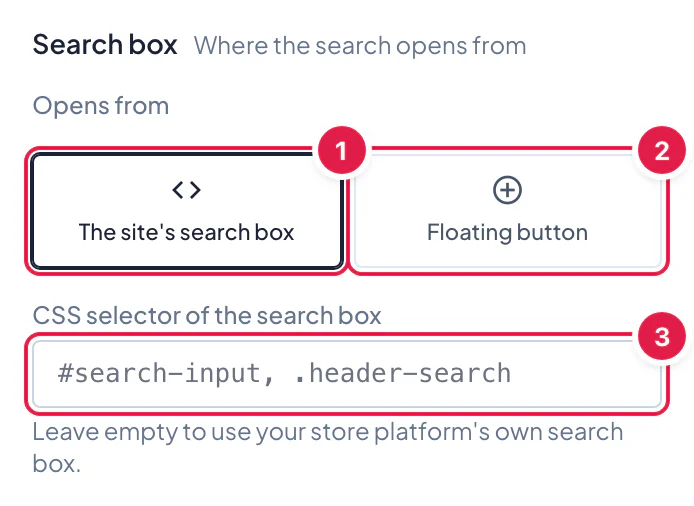
- Choose this to open search from your store's own search box.
- If there is no search box, choose a button that sits in a corner of the screen.
- In most stores this can stay empty. When it is empty, your platform's own search box is used.
- Check your store platformIn the "Search page" section, choose your platform. The search address and instant search are set up automatically based on it.
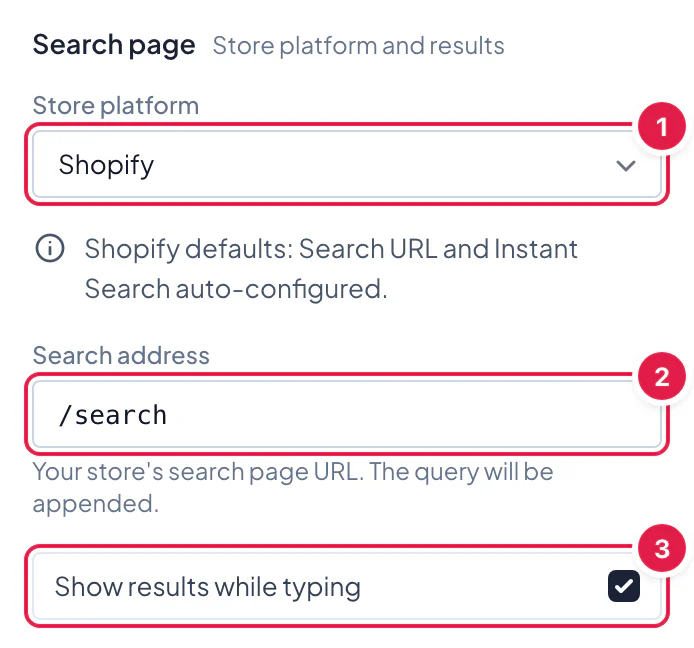
- Choose your store's platform.
- The search address is filled in based on the platform. Change it if needed.
- When it is on, visitors see results as they type.
- Fill in the contentAdd popular search tags, featured products and campaign images. All of them are optional.
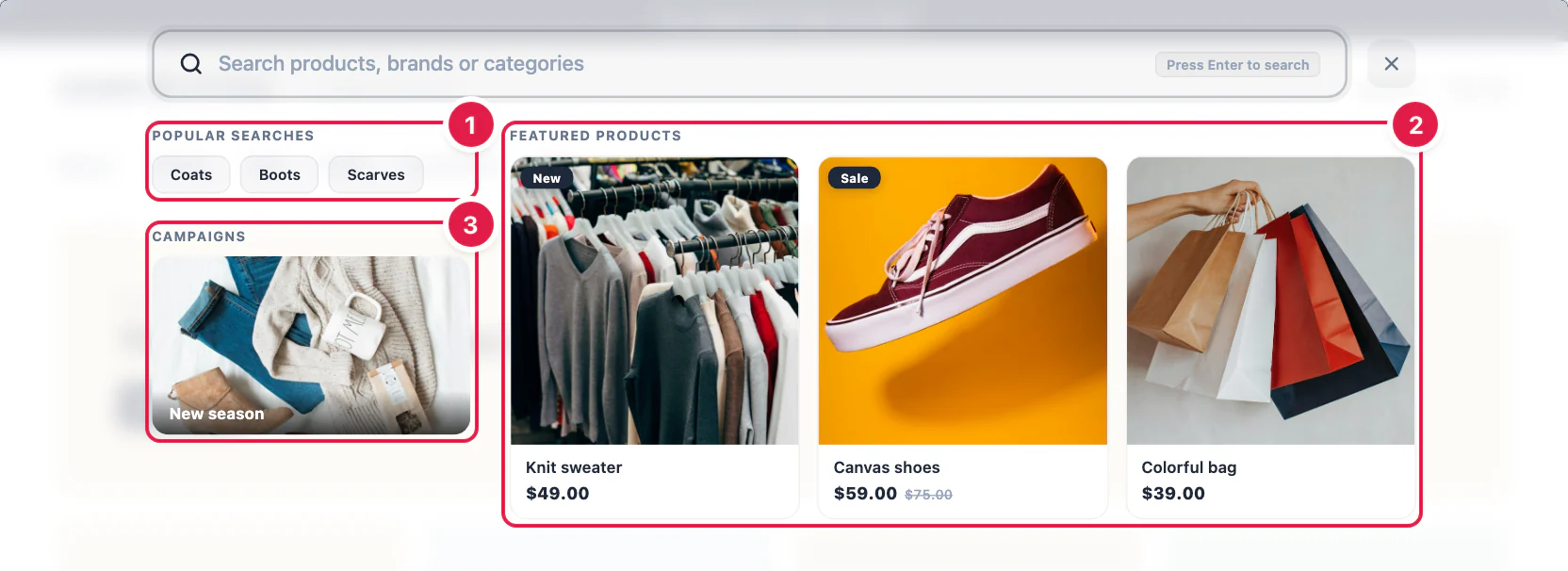
- The tags you add in the "Popular searches" section.
- The products you add in the "Featured products" section.
- The images you add in the "Campaigns" section.
- Choose the lookIn the "Appearance" section, set the layout (full screen, below the box, window in the middle), the colours and how the page behind looks. Use the "Search open" button in the preview to see the window.
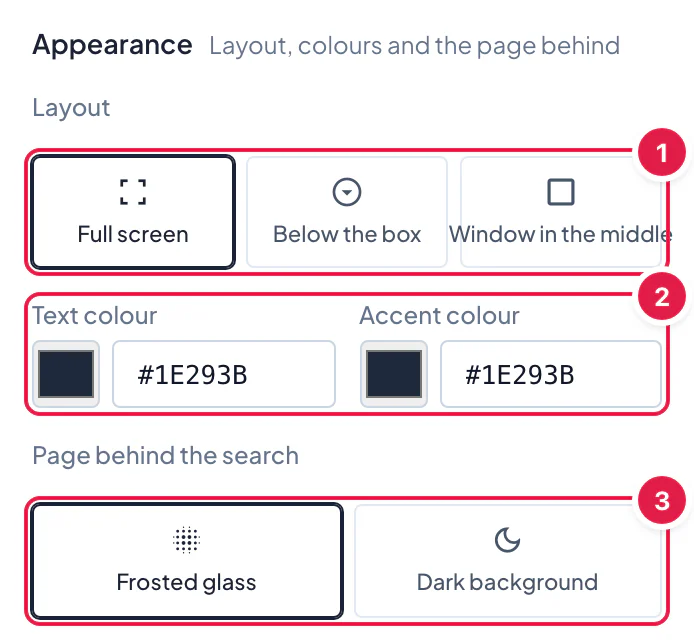
- Choose the layout of the search window.
- Choose the text and accent colour.
- Choose whether the page behind looks like frosted glass or dark while the window is open.
- Publish itWhen the "Checklist" section shows no warnings, save and switch the widget on.

- Turn the switch to "Active", then click Save in the top right. The widget starts showing in your store.
Settings#
| Setting | What it does |
|---|---|
| Search box | Where search opens from: the site's search box (with a CSS selector if you like) or a floating button in one of the four corners of the screen. |
| Texts | The text in the search box. If the site's search box is used, messages typed into the box letter by letter, one after another (up to 10), plus the message colour and weight. |
| Search page | Store platform, search address, the "Show results while typing" option and the number of results to show (3-50). |
| Appearance | Layout (full screen, below the box, window in the middle), text and accent colour, the page behind (frosted glass or dark) and the background blur. |
| Popular searches | Tags shown before the visitor types. With an address the tag opens that page, without one it searches for the tag. |
| Featured products | Up to 8 products in the search window. If your catalog is connected, you add products from the catalog. If not, you enter the name, price, old price, address and image by hand. Each product can get a badge (Best Seller, New, Sale). |
| Campaigns | Up to 6 campaign images (16:9) with titles and addresses. The layout is side by side or a slider. The slider can auto-scroll every 5 seconds. |
| Who sees it | Visitor rules. |
Common situations#
I click the search box and the window does not open
If the search box CSS selector is invalid or the box cannot be found, the window only opens with Ctrl+K. Fix the selector, leave it empty to use the platform's own box, or switch to "Floating button".
No results while typing
"Show results while typing" must be on and the store platform must be chosen correctly. If the platform is "Custom / Other", no instant results are shown. Results appear after the second letter.
I cannot save, there is a warning about the number of results
The number of results to show must be between 3 and 50. A value outside this range blocks saving.
A featured product does not show in the window
If a product added from the catalog is out of stock or no longer in the catalog, the store does not show it. The "Checklist" section tells you how many products are affected.
The messages typed into the box do not show
Messages typed one after another only work when "The site's search box" is selected, and they are typed into your store's own search box. The floating button does not have this feature.
Tips#
Put your most searched categories in popular searches and give them an address. That way visitors go straight to the category page instead of a search result.
Add featured products from the catalog. Price and stock come from the catalog, so you do not need to update them by hand.
When you change the platform, run a search in your store to check that the search address is right.
Works well with
Mobile Menu Bar
Pro and aboveAdds a fixed, app style menu bar to the bottom of the screen on phones.
Open guideDeals Corner
All plansLists your current campaigns and coupon codes in a panel that opens from a tab on the edge of the screen.
Open guideProduct Badge
All plansAdds a badge with your own text, such as "Best Seller" or "New", to the cards of the products you choose.
Open guide