What it does#
Product Badge places a short badge in one corner of the product card so certain products stand out in your product lists. You choose the text, the colour, the look and the corner. You decide which products get the badge by typing product numbers, SKUs, categories or brands.
Good to know: if you leave every field in the "Which products" section empty, the badge appears on every product. To highlight only certain products, fill in at least one field.
Setup#
- Open the widgetIn the panel, choose Product Badge from the Widget Gallery.
- Write the badge textIn the "Appearance" section, type the badge text. For example Best Seller, New or On Sale.
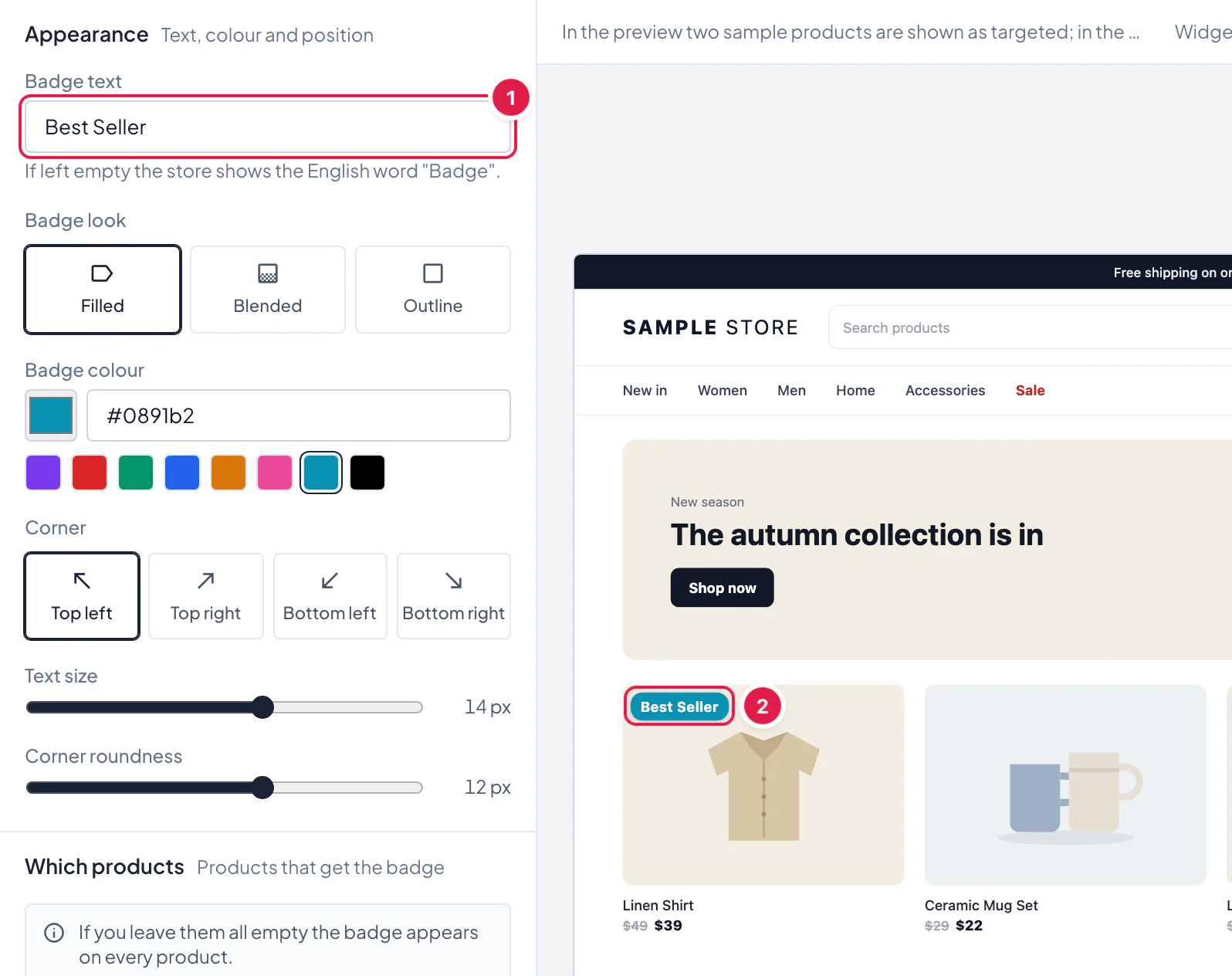
- Type the text that appears on the badge.
- Your text shows up on the product card in the preview.
- Choose the look and the cornerChoose the look (Filled, Blended or Outline), the badge colour and the corner where the badge sits. Set the text size and corner roundness with the sliders.
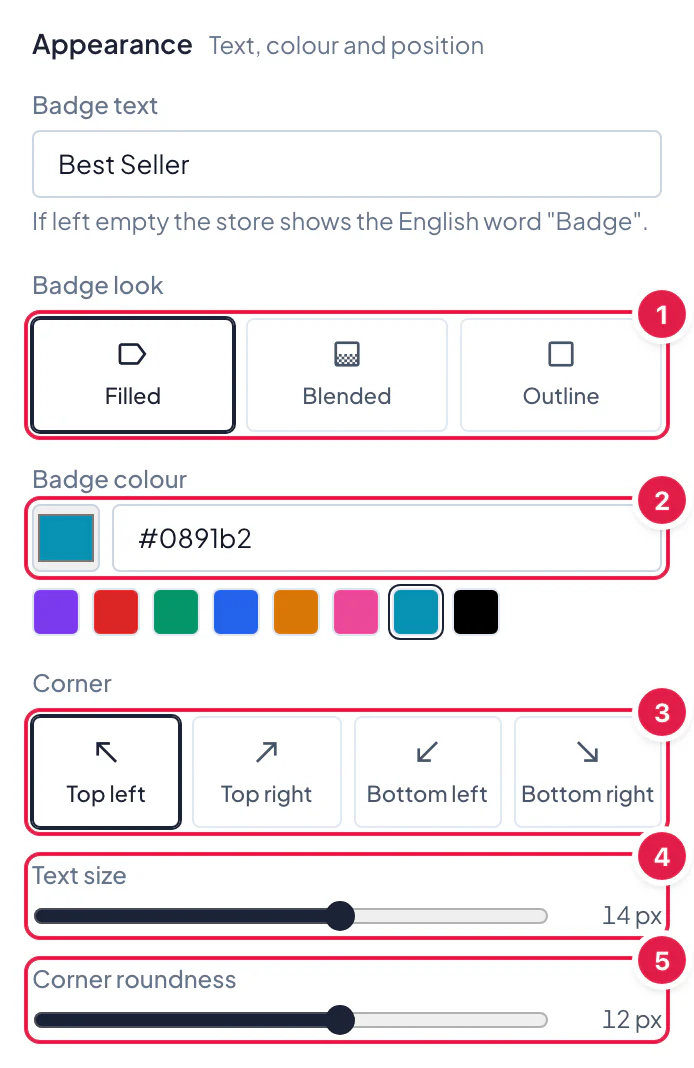
- Choose Filled, Blended or Outline.
- Type a badge colour or tap one of the ready-made colours below it.
- Choose which corner of the product card the badge sits in.
- Set the text size with the slider.
- Set the corner roundness with the slider.
- Pick the productsIn the "Which products" section, type product numbers, SKUs, categories or brands, separated by commas or one per line.
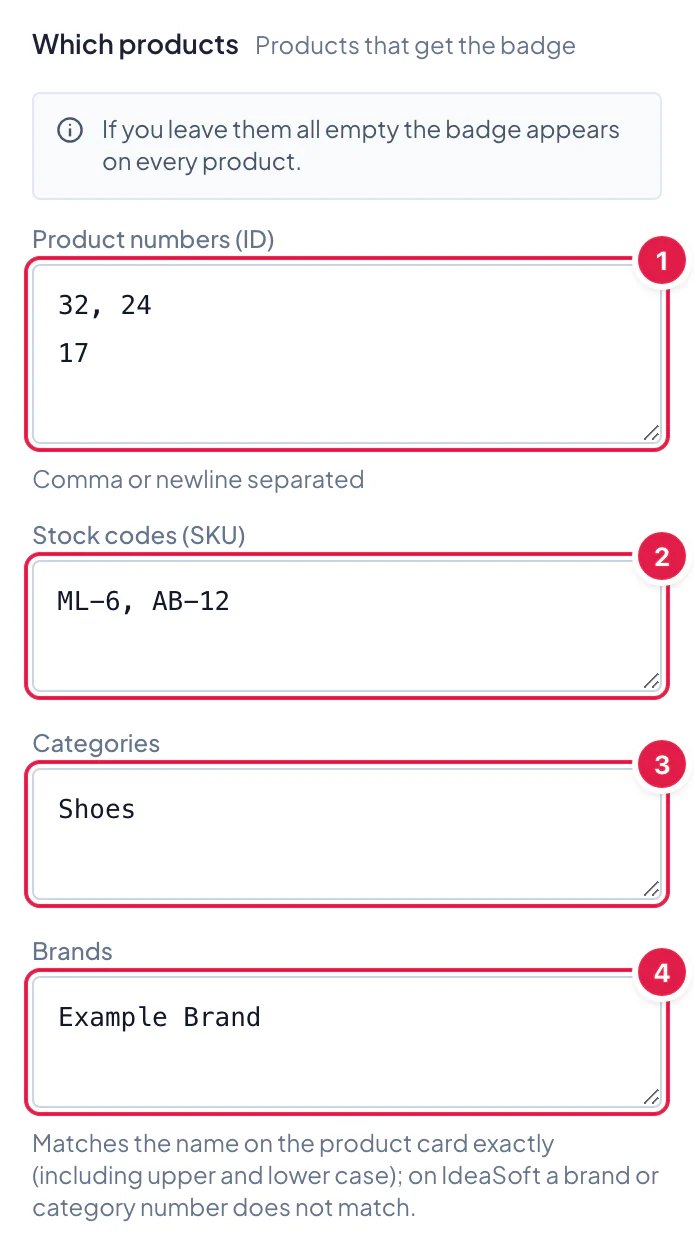
- Type product numbers, separated by commas or one per line.
- Type the stock codes (SKU).
- Type the category names.
- Type brand names exactly as they appear on the product card.
- Go liveWhen the "Checklist" section shows no warnings, turn the widget on.

- Set the switch to "Active", then press the Save button at the top right. The widget starts showing in your store.
Settings#
| Setting | What it does |
|---|---|
| Badge text | The text on the badge. If you leave it empty, the store shows the word "Badge". |
| Badge look and Badge colour | A Filled, Blended or Outline look and the colour of the badge. |
| Corner | The corner of the product card where the badge sits: top left, top right, bottom left or bottom right. |
| Text size and Corner roundness | How big the badge text is and how rounded the badge edges are. |
| Product numbers (ID) and Stock codes (SKU) | The products that get the badge. Separate them with commas or put one per line. |
| Categories and Brands | The categories and brands that get the badge. The name must match the product card exactly, including upper and lower case. |
| Card selector (CSS) | The product card element on the page. Leave it empty and it is found automatically. Only fill it in if the badge does not show up with your theme. |
| When it appears and Who sees it | When the badge shows, on which pages and to which visitors, plus the "Show on mobile" switch. |
Common situations#
The badge says "Badge"
The badge text was left empty. Type the text in the "Appearance" section and save.
The badge shows on every product
If every field in the "Which products" section is empty, the badge is added to every product. Enter a product number, SKU, category or brand.
I typed a category or brand, but no badge appears
The name must match the way it is written on the product card exactly. A difference in upper or lower case also breaks the match. On IdeaSoft, brand and category numbers do not match, so type the name.
No badges appear in the store at all
If the card selector is not a valid CSS selector, no badges appear. Clear the field and the card is found automatically. If badges are missing on phones, check that "Show on mobile" is on.
The products in the preview are different from my store
The preview shows two sample products as if they were targeted. In your store the badge only appears on the products you entered.
Tips#
Keep the badge text to a word or two, because long text covers the image on small product cards.
If your theme shows its sale label in one corner, pick a different corner for the badge, since two labels in the same spot are hard to read.
Use the badge on only a few products. When every product has the same badge, none of them stands out.
Works well with
Stock Counter & Alert
All plansShows how many are left on the product page and on product cards when stock runs low.
Open guideUrgency Timer
All plansShows your sale message in a bar with a countdown. The time is per visitor or ends on a fixed date.
Open guideSocial Proof Pro
All plansShows view, add-to-cart, sales and favourite counts and customer reviews on the product page.
Open guide