What it does#
Treasure Hunt hides small pieces on different pages of your store. On the first page, the visitor sees a short welcome. A button in the bottom corner of the screen shows how many pieces they have found and the clues for the rest. Visitors collect pieces by tapping them as they browse, and the hunt carries on across pages until every piece is found.
A visitor who finds every piece types their email address and gets a coupon code. The code can be a personal one from a pool you upload, or the same code for everyone. You can see who left their email with the Collected emails button in the editor.
Good to know: the widget only hands out the code. It does not apply the discount itself. The codes you upload to the pool, or the code you give everyone, must exist in your store's coupon settings.
Setup#
- Open the widgetIn the panel, pick Treasure Hunt from the Widget Gallery.
- Place the piecesAdd 3 to 5 pieces in the Hidden pieces section. For each piece, choose the page type and write the clue the visitor will see.
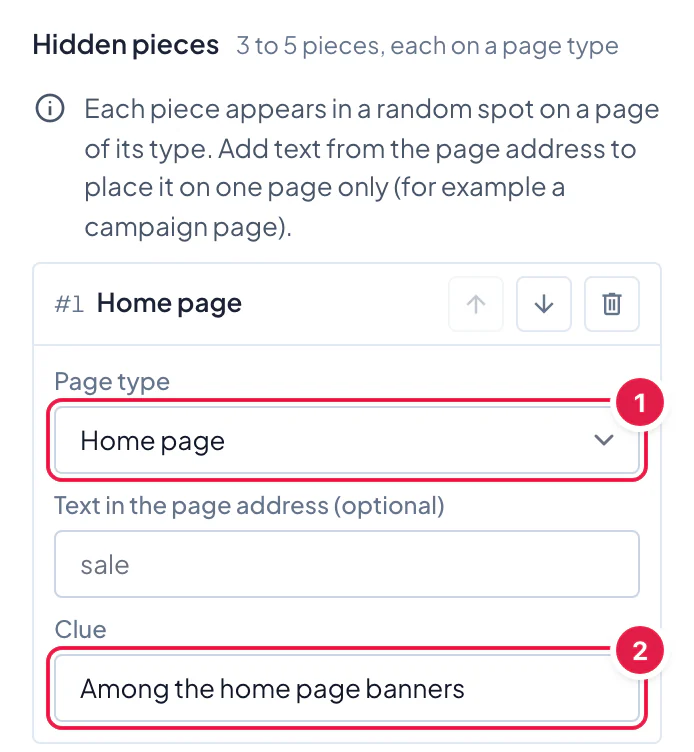
- Choose the type of page where the piece appears.
- Write the clue the visitor will see.
- Set the rewardChoose the coupon type in the Reward section. For personal codes, upload a CSV or TXT file with one code per line. To give everyone the same code, choose "One code for everyone" and type the code.
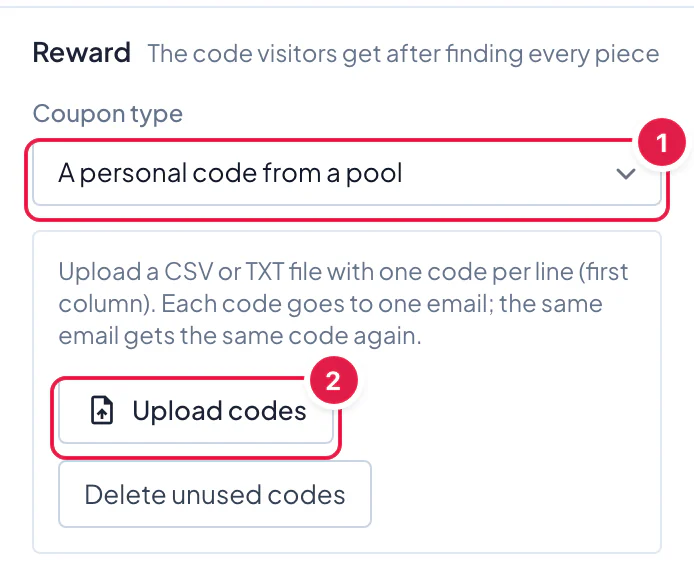
- Choose between a personal code from a pool and one code for everyone.
- Upload the file with your personal codes here.
- Create the coupons in your storeCreate the codes you uploaded or typed in your store's coupon settings, spelled exactly the same way.
- Set the look and textsChoose the set of pieces visitors look for, the button position and the colour theme. If you leave the texts empty, the default texts are used.
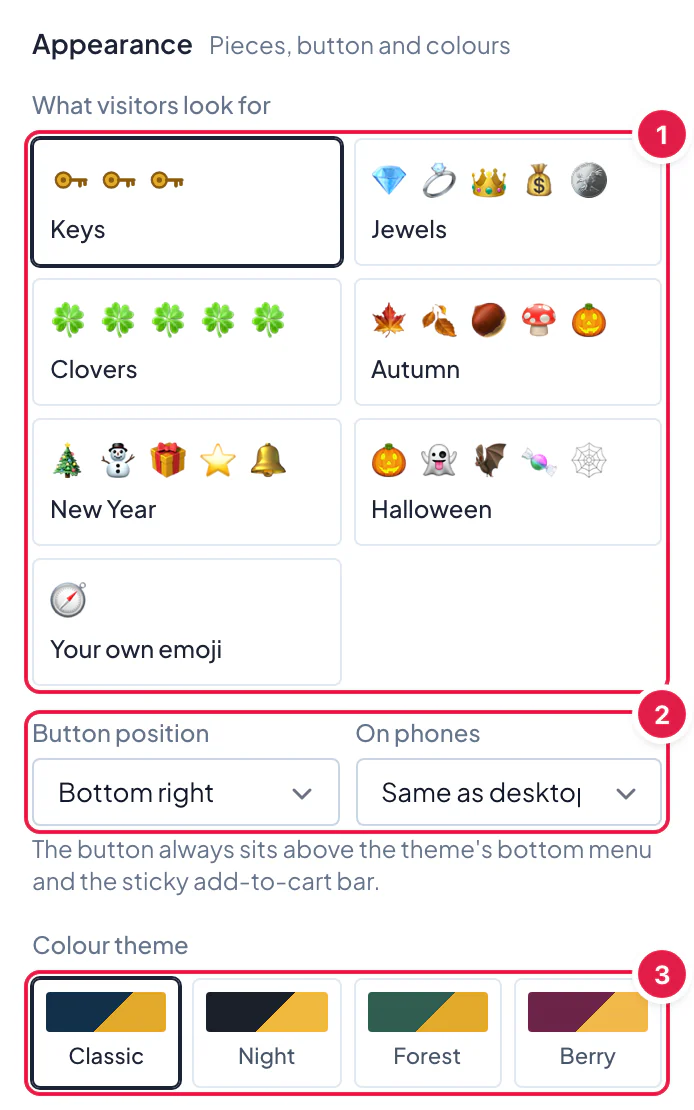
- Choose the set of pieces visitors look for.
- Choose the corner for the button. For a different corner on phones, use the "On phones" field.
- Choose the colour theme.
- PublishWhen the Checklist section says "Ready to publish", save and turn the widget on.

- Switch it to "Active", then press the Save button at the top right. The widget starts showing in your store.
Settings#
| Setting | What it does |
|---|---|
| Appearance | The set of pieces visitors look for (Keys, Jewels, Clovers, Autumn, New Year, Halloween or your own emoji), the button position (bottom left or bottom right, with a separate choice for phones) and the colour theme (Classic, Night, Forest, Berry). |
| Hidden pieces | 3-5 pieces. Each piece has a page type (home page, category page, product page, cart or any page), an optional "Text in the page address" and a clue. |
| Reward | Coupon type: "A personal code from a pool" or "One code for everyone". What happens when the pool runs out (show no code, or give everyone the same code) and the discount and validity text shown under the code. |
| Texts | The welcome title and text, the text shown when a piece is found, the win title and text, and the text shown when codes run out. |
| Timing | Has no settings and explains the rules: the hunt starts as soon as the visitor opens a page, pieces found less than 3 seconds apart do not count, and the code is given no sooner than 5 seconds per piece after the hunt starts. |
| Who sees it | Page rules (show on this page, hide on that page) and audience rules (such as device, total visits or segment). |
| Checklist | Lists what to fix before publishing. The "Fix" link takes you to the right section. |
Common situations#
A visitor found every piece but didn't get a code
If the coupon type is "A personal code from a pool" and the pool is empty, and "When the pool runs out" is set to "Show no code", the visitor is told the codes have run out. Upload new codes to the pool, or choose "Give everyone the same code" and type a code. You get a notification in the panel when the codes run out.
I uploaded the code file but some lines were not added
After the upload you see how many codes were added, how many duplicates were skipped and how many lines were invalid. Codes must be in the first column, one per line. A code must start with a letter or digit, be 3-64 characters long and contain only letters, digits, hyphens and underscores.
Visitors find every piece on a single page
This happens if you put more than 2 pieces on the same page type, and the Checklist section warns you about it. Spread the pieces across different page types.
A visitor taps a piece but it doesn't count as found
To stop shortcuts, pieces found less than 3 seconds apart do not count. If the visitor waits a few seconds and taps again, the piece counts.
A message says enough codes were claimed from this device today
At most 10 codes can be claimed from the same connection in one day. If you hit this limit while testing, try again the next day.
Tips#
To put a piece on one specific page, such as your sale page, type part of that page's address in the "Text in the page address" field. This is a way to lead visitors to the pages you want them to see.
"One code for everyone" can be shared, so people who never played can use it too. If you don't want the code passed around, give personal codes from a pool. Each code in the pool goes to one email address. If the same email comes back, it gets the same code.
Use the last 30 days summary in the editor to see how many people started, found at least one piece, finished the hunt, and how many codes were given. If few people finish, make your clues clearer.
Works well with
Spin to Win
All plansVisitors spin the wheel and get the coupon code of the slice they win. You can collect their email first.
Open guideSeasonal Effects
All plansShows effects such as snow, hearts or confetti on the dates you set, and celebrates add to cart and orders.
Open guideExit Intent Popup
Advanced and aboveOpens when a visitor is about to leave, collects their email and can give them a coupon code.
Open guide