What it does#
Seasonal Effects decorates your store for special days. A period is an effect that plays between two dates: snow at New Year, hearts on Valentine's Day, confetti on a national holiday and so on. You set up the periods once. When the date arrives, the effect starts by itself, and it stops when the period ends.
Separately from the periods, you can also turn on two "sales moments": a short burst from the button when a visitor adds a product to the cart, and a celebration on the order success page. These play whether or not a period is on that day.
Good to know: visitors who have "reduce motion" turned on in their device settings see no effects. The days of religious holidays change every year, so you need to enter the dates of those periods yourself.
Setup#
- Open the widgetIn the panel, choose Seasonal Effects from the Widget Gallery.
- Add a periodIn the "Periods" section, pick a period from the "Pick a ready-made period" list, or use "Add period" to enter the effect, start date and end date yourself. If it should play on the same days every year, turn on repeating.
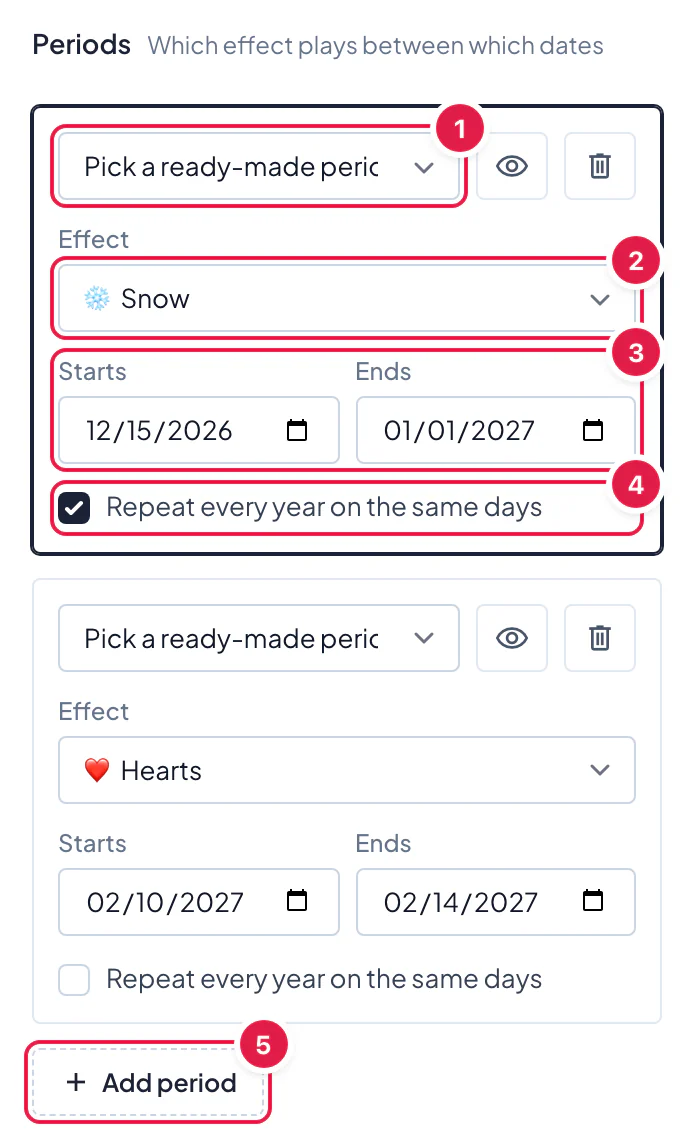
- Pick a ready-made period and the effect and dates fill in by themselves.
- Use this list to choose the effect yourself.
- Enter the start and end date.
- Tick this if it should play on the same days every year.
- Press this to add a new period.
- Set up the lookChoose how much of the effect shows, how fast it moves, where on the screen it appears and its colours. This is also where you choose a lighter effect on phones or turn it off there.
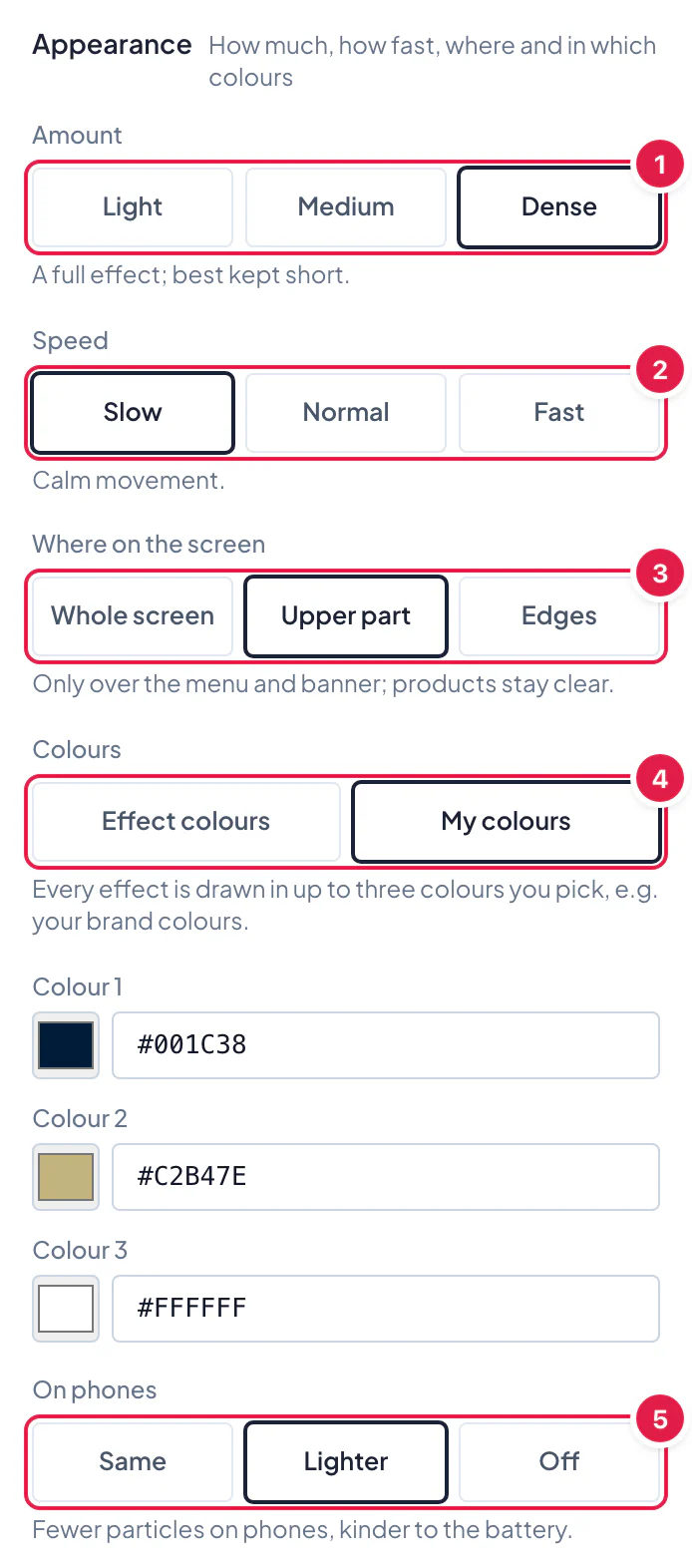
- Choose how dense the effect is.
- Choose the speed.
- Choose where on the screen the effect appears.
- Choose the effect's own colours or your own colours.
- Choose whether it stays the same, gets lighter or turns off on phones.
- Set the behaviourChoose how many seconds the effect plays and how often it runs. We recommend leaving the "Turn off effects" button and the option to hide it on the checkout page turned on.
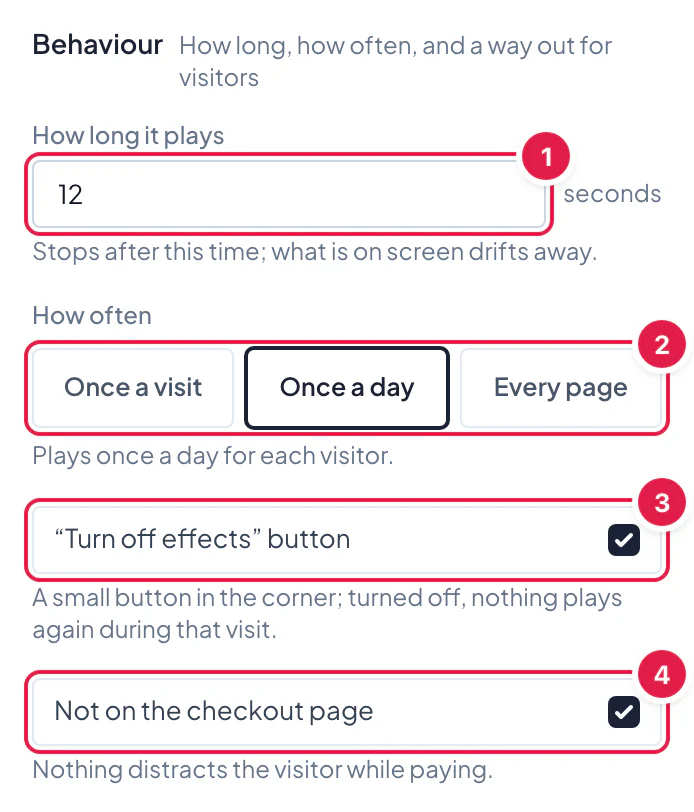
- Enter how many seconds the effect plays.
- Choose how often the effect runs.
- Leave on the button visitors can use to turn off the effect.
- Leave this on to show no effect on the checkout page.
- Turn on sales momentsIf you like, turn on the add to cart and after order celebrations in the "Sales moments" section and choose their effects.
- Go liveThe "Checklist" section shows which effect plays today. When no warnings are left, save and turn the widget on.

- Set the switch to "Active", then press the Save button at the top right. The widget starts showing in your store.
Settings#
| Setting | What it does |
|---|---|
| Periods | Which effect plays between which dates. Each period has an effect, a start, an end and the "Repeat every year on the same days" option. If two periods overlap, the one higher in the list plays. |
| Pick a ready-made period | Ready-made periods such as New year, Valentine's Day, Mother's Day, Halloween, back to school, 11.11, Black Friday and Turkish national holidays. Those on fixed days come with their dates filled in. For Ramadan, the religious holidays, Holy night (kandil), National match day and Store birthday, you enter the dates yourself. |
| Appearance | Amount (light, medium, dense), speed (slow, normal, fast) and where on the screen it appears: the whole screen, only the upper part, or only the left and right edges. |
| Colours | With "Effect colours" selected, each effect is drawn in its own colours. With "My colours", the effect is drawn in up to three colours you choose. |
| On phones | Same: the same amount as on desktop. Lighter: fewer particles. Off: no effect on phones. |
| How long it plays | How many seconds the effect plays (up to 120). When the time is up, it stops and what's on screen fades away. If you enter 0, it plays the whole time the visitor is on the page. |
| How often | Once a visit (only on the first page of the visit), once a day or on every page. |
| Turning off and the checkout page | The "Turn off effects" button shows a small button in the corner. If the visitor turns the effects off, nothing plays again during that visit. With "Not on the checkout page" on, no effect plays during checkout. |
| Sales moments | A short burst when something is added to the cart, and a celebration on the order success page once per order. You choose the effect for each one separately. |
Common situations#
The effect doesn't show in my store
Check the effect that plays today in the "Checklist" section. The effect doesn't play if no period covers today, if a period is missing its start or end date, if the end is before the start, or if the period is over and doesn't repeat.
I saw the effect once and then it stopped showing
With "Once a visit", the effect only plays on the first page of the visit. With "Once a day", it plays once a day. If you pressed the "Turn off effects" button in the corner, it won't show again during that visit. To test, open a new private window or set the frequency to "Every page" for a while.
No effect on phones, or fewer particles
If "On phones" is set to "Off", no effect shows on phones. If it's "Lighter", fewer particles are drawn. If "reduce motion" is on in the device settings, no effect shows at all.
A different effect plays than the one I expected
If two periods cover the same day, the one higher in the list plays. Change the dates so they don't overlap, or add the period you want to come first earlier in the list.
A religious holiday period is stuck on last year's dates
The days of religious holidays change every year. Don't use repeating for these periods and enter the dates again each year.
Tips#
Use a dense effect only for a short time. For long periods, the "Upper part" or "Edges" placement keeps your products easy to see.
Use "My colours" to match the effect to your brand colours.
If a period falls on November 10, the editor warns you, since it's a day of remembrance in Turkey and showing effects that day is not recommended.
Works well with
Animated Announce Bar
All plansShows your announcements in a bar at the top or bottom of the page that scrolls or rotates through them.
Open guideUrgency Timer
All plansShows your sale message in a bar with a countdown. The time is per visitor or ends on a fixed date.
Open guideAdded to Cart Panel
All plansOpens when a product is added to the cart and shows the added product, what is left for free shipping and the products you suggest.
Open guide