What it does#
Product Recommendation Quiz shows a short quiz in the middle of the screen at the moment you choose. The visitor starts on the start screen, answers the questions one by one and finally sees one of the results you prepared. Use it to guide visitors who can't decide which product to pick to the right collection or product.
You give each answer points for the results. The visitor's points are added up and the result with the most points is shown. You can also send an answer straight to a result or to a later question. When Ask for an email before starting is on, the visitor's address is collected before the quiz starts.
Good to know: the quiz doesn't pick products from your catalog by itself. You write the results: title, description, image, the address to go to and a coupon code if you want one. The quiz only shows the coupon code, so the same code must be set up in your store's coupon settings.
Setup#
- Open the widgetIn the panel, choose Product Recommendation Quiz from the Widget Gallery.
- Write the resultsStart in the Results section and add the results visitors will see at the end: a title, a description, an optional image and coupon code, and the text and address of the result button.
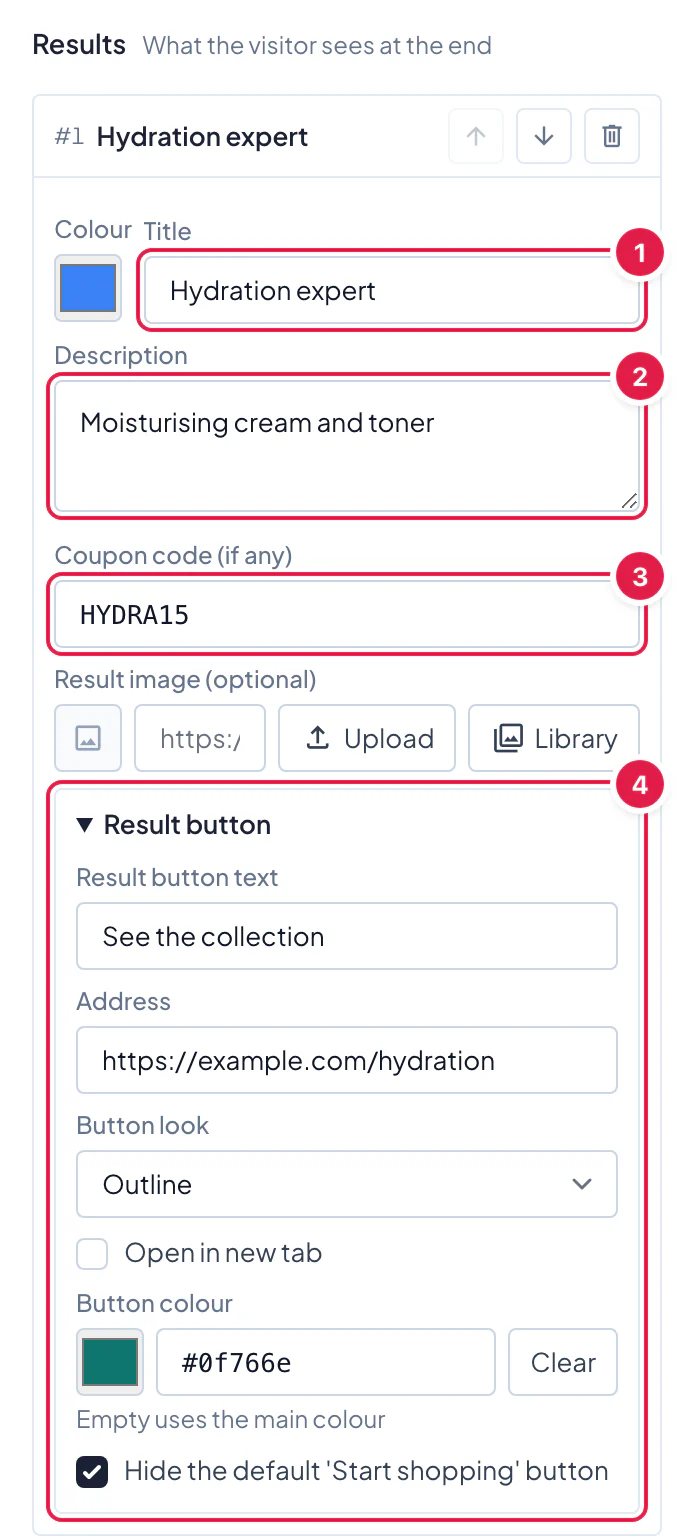
- Type the result's title.
- Briefly describe what you recommend to the visitor.
- If you like, enter a coupon code just for this result.
- Type the result button's text and the address it goes to.
- Add questions and answersIn the Questions section, write the answers for each question. For each answer, enter the points it gives the results and choose where it leads in the "Then" field.
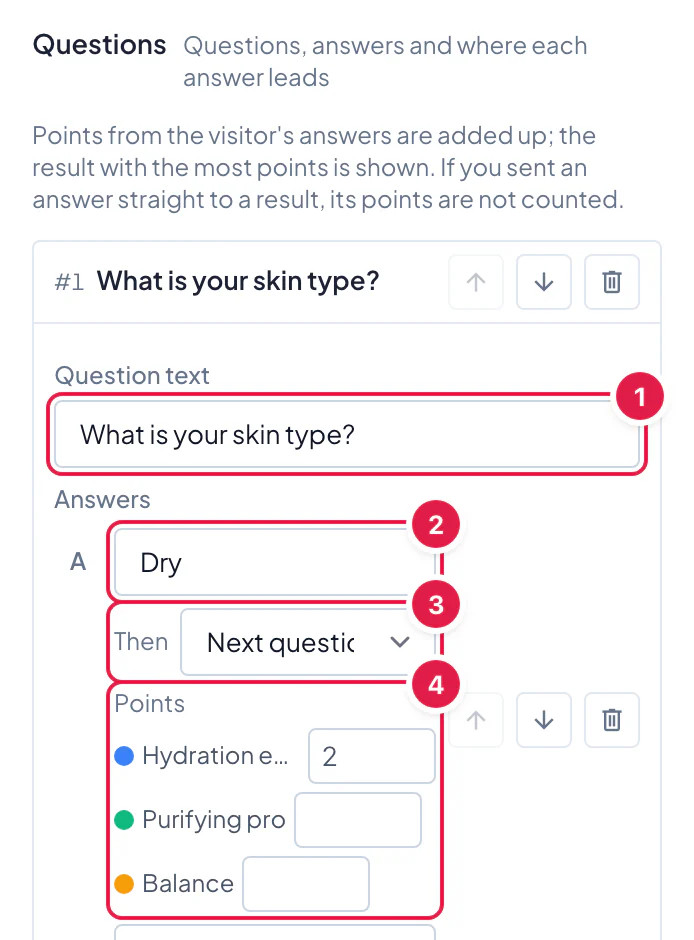
- Type the question.
- Type the answer.
- Choose whether this answer leads to the next question or straight to a result.
- Enter how many points this answer gives each result.
- Set up the start screen and lookEnter the badge, title, description and button text, then choose the main colour and button colour.
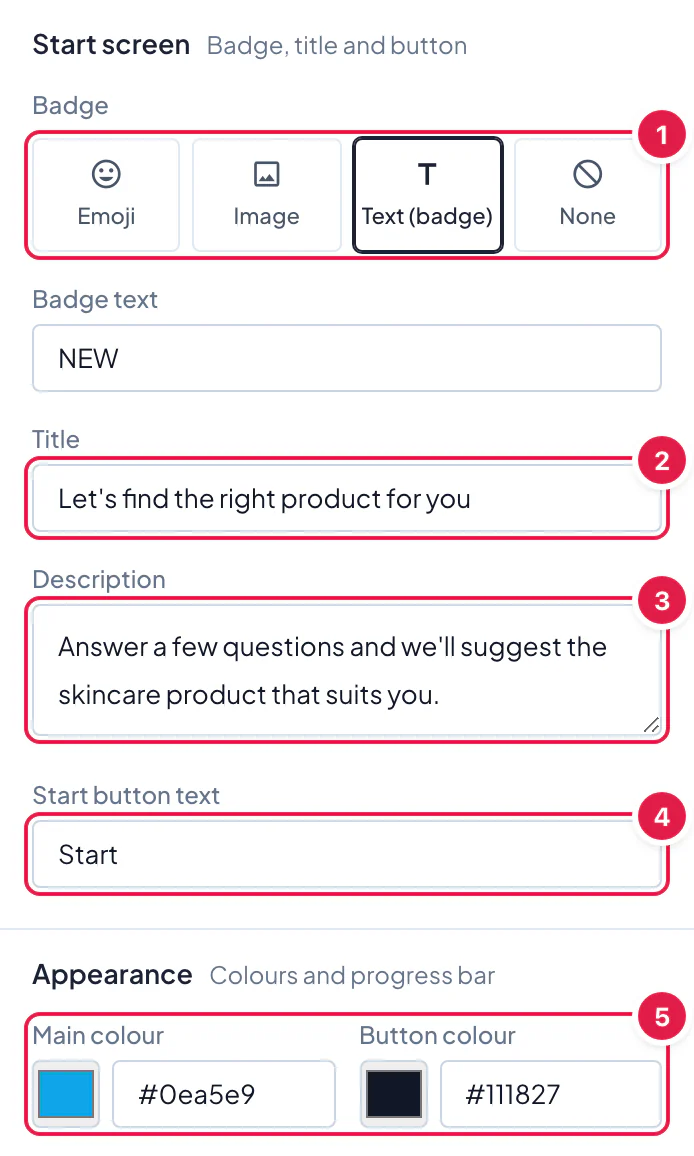
- Choose the badge type: emoji, image, text or none.
- Type the title of the start screen.
- Write a short description.
- Enter the text of the start button.
- Choose the main colour and the button colour.
- Choose when it opensIn the When it opens section, choose the moment the quiz appears and how often the same person sees it.
- Go liveTry the questions from start to finish in the preview. When you see "Ready to publish" in the Checklist section, save and turn the widget on.

- Set the switch to "Active", then press the Save button at the top right. The widget starts showing in your store.
Settings#
| Setting | What it does |
|---|---|
| Start screen | Badge (emoji, image, text or none), title, description and button text. |
| Appearance | Main colour, button colour and whether a progress bar shows during the questions. |
| Questions | The question text and answers. For each answer, "Then" (next question, jump to a certain question, show a result or end the quiz) and the points it gives the results. |
| Results | For each result, a title, description, colour, optional coupon code and image. The result button's text, address, look (filled button, outline, link only), colour and whether it opens in a new tab. |
| The "Ask for an email before starting" switch and the list of collected emails. | |
| When it opens | The moment it opens: when the visitor is about to leave, a while after the page opens, when the page is scrolled or as soon as the page opens. This is also where you choose how often the same person sees it. |
| Who sees it | Page rules (show on this page, hide on that page) and audience rules (such as device, total visits or segment). |
| Checklist | Lists gaps such as an empty question or answer text, a result without a title, or an answer that leads to a question or result that no longer exists. |
Common situations#
I get the same result whatever I answer
If you didn't give the answers any points and didn't send them to a result, the first result is shown. The Checklist section lists answers that don't affect the result. Give each answer points for the matching result, or choose a result in the "Then" field.
I sent an answer back to an earlier question and it doesn't work
Answers can only lead to later questions. A jump to the same or an earlier question is ignored in your store and the quiz moves on to the next question.
My button doesn't show on the result screen
The result button only shows when both the button text and the address are filled in. Fill in both.
Two buttons show on the result
Under your own result button, the default button that closes the window also shows. If you don't want it, tick "Hide the default 'Start shopping' button" for that result.
I deleted a question or result and the Checklist shows a warning
Answers that led to the deleted question or result are no longer valid. Use the "Fix" link in the Checklist section to go to that answer and choose the "Then" field again.
Tips#
Keep the quiz short. In each question, only include answers that really change the result.
When you send an answer straight to a result, its points are not counted. Handle clear-cut questions (for example "who are you buying for") with a jump, and finer differences with points.
Set the result button's address to the matching category or collection page. That way the visitor reaches the products with a single tap after reading the recommendation.
Works well with
Size Advisor
Pro and aboveShows your size chart on the product page and recommends a size from the visitor's measurements.
Open guideSmart Search
All plansTurns your search box into a window with popular searches, featured products and campaigns.
Open guideExit Intent Popup
Advanced and aboveOpens when a visitor is about to leave, collects their email and can give them a coupon code.
Open guide