A campaign can have several variations. Each variation has its own design and a traffic share. Visitors who see the campaign are split between the variations based on these shares. This way you compare two headlines, two offers or two designs at the same time, under the same conditions.
The comparison is based on click-through rate: a variation's clicks divided by its impressions.
A/B testing is available on Pro and higher plans. On Pro a campaign can have 2 variations, and on Advanced and Enterprise the number of variations is unlimited.
- Add a variationOn the campaign page, press Add variation in the Design and variations section. The new variation is added as a copy of the selected variation, with a 0% traffic share.
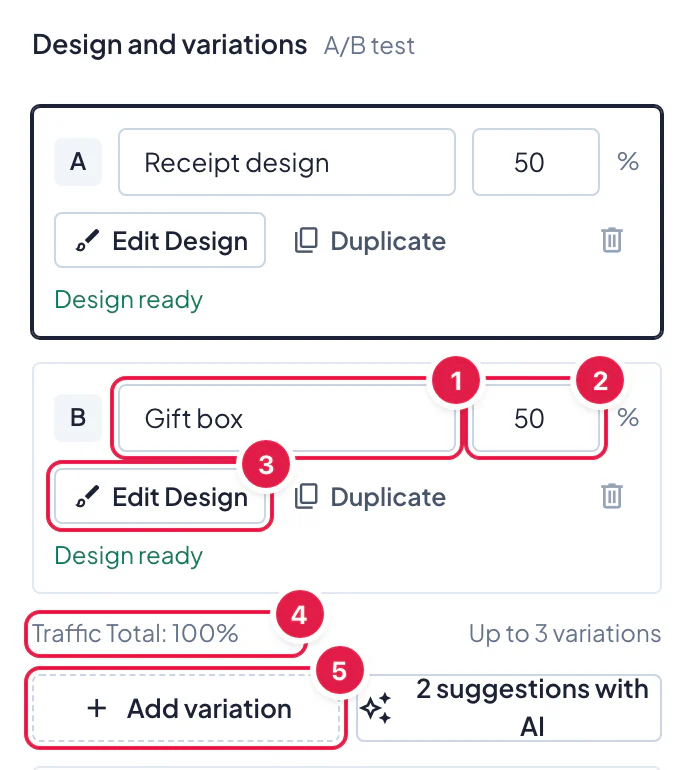
- Type the variation's name.
- Enter the traffic share as a percentage.
- Open the variation's design in the studio.
- The shares must add up to 100%.
- Add a new variation here.
- Name itGive the variation a name that says what you are testing. This name shows in the reports.
- Change the designOpen the studio with the Create Design button on the variation card and change only the thing you want to test. On saved variations this button is called Edit Design.
- Enter the traffic sharesType each variation's share in the percentage field next to it. With two variations, when you change one the other fills in by itself. The Traffic Total must be 100%.
- Save and publishPress Save. If the campaign is active, the test starts right away.
This setting shows in the "Same visitor" field when the campaign has more than one variation. With the first option, "Sticky Duration" sets how long the assignment lasts: Indefinite, Session Based, 24 Hours or 7 Days.
| Option | How it works |
|---|---|
| Always sees the same variation | The visitor is given a variation on their first visit and sees the same one on later pages. This is the right option for measuring. |
| A different variation on each page load | A variation is picked again on every page load, based on the shares. Use it to show a few messages in turn. It is not suited to measuring a comparison. |
| Only the winning variation | Everyone sees the variation with the highest traffic share. Use it after the test is over. |
When Pick the winner automatically is on, the system checks the test every hour. If a variation is ahead with enough confidence, all traffic goes to it: the winner's share becomes 100% and the others become 0%. The other variations and their statistics are not deleted, and you get a notification in the panel. The check runs only for active campaigns.
Three conditions must be met together for a decision: every variation has reached the minimum number of impressions, the test has run for the minimum number of days, and the leading variation's chance of being the best is above the confidence threshold. This chance is the same value you see on the Bayesian Analysis card on the analytics page.
The status line tells you where the test stands: "Collecting data" (who is ahead, by what percentage, and the threshold), that the winner was selected automatically, or that all traffic is on one variation so there is nothing to compare.
Good to know: this feature is on by default for new campaigns with two or more variations. If you want to decide yourself, turn the switch off. These settings are saved the moment you change them and do not wait for the Save button on the page.
These three settings are under Advanced settings on the "Pick the winner automatically" card.
| Setting | Starting value | Options |
|---|---|---|
| Confidence threshold | 95% | 90%, 95% or 99%. A higher threshold means a surer but later decision. |
| Min. impressions | 1,000 | Between 100 and 1,000,000. Required for each variation separately. |
| Min. days | 7 | Between 1 and 90. |
- Open the analytics pagePress the Detailed analysis link on the campaign page, or Analytics in the menu in the list.
- Look at the numbersVariant Performance shows each variation's impressions, clicks and click-through rate. Statistical Confidence and Bayesian Analysis show how reliable the difference is.
- Pick the winnerOn the campaign page, set the winning variation's traffic share to 100% and the others to 0%, then save. If you want to delete the losing variations, use the trash icon on their cards.
- Start a new testTo test again after the automatic pick has decided, press Restart the test: traffic is split evenly, the decision is cleared and the test counts data from that day on.
A "Not saved" warning appears
The traffic shares of the variations do not add up to 100%. The Fix link in the warning takes you to the shares. Make the total 100% and save again.
It has said "Collecting data" for days
One of the conditions has not been met yet. Below the status line you see the impressions needed per variation and the number of days passed. If your traffic is low you can lower the Min. impressions value, but a decision made with little data is less reliable.
I changed the shares after the automatic pick
Your choice is kept and the system does not apply its decision again. The status line shows a note that you changed the traffic shares afterwards.
Does a variation with a 0% traffic share take part in the test
No. A variation with a zero share is not shown to visitors and is not counted in the automatic pick.
I deleted a variation and its numbers are gone
When a variation is deleted, its statistics are deleted too. If you want to keep the numbers, set its share to 0% instead of deleting it.
I see a locked button instead of "Add variation"
A/B testing is not in your plan, or you have reached your plan's variation limit.