Campaign Studio is where you design the banner and popup campaigns shown in your store and decide who sees them and when. In the panel, open it from the Campaign Studio link under Tools in the left menu.
Every campaign has four parts: where it sits in the store (placement), its design, who sees it and its status. The design is done on a separate screen, the design studio. The other settings are on the campaign page.
Campaigns are separate from the widgets in the Widget Gallery. For a campaign to show in your store, its status only needs to be Active. You do not need to turn on a widget as well.
Good to know: how many campaigns and variations you can create, and some features, depend on your plan. The details are in the "Plans and limits" chapter.
- Open the studioGo to Campaign Studio in the left menu and press the New campaign button at the top right.

- Press New campaign.
- Choose how to startUnder "How do you want to start?" there are three ways: Start from a template, Create it with AI and Start from blank. A template is the fastest way for a first campaign. These steps follow the blank start.

- See templates for ready-made designs.
- Start with AI to have AI suggest a headline and text.
- The way this guide follows: Choose where it shows.
- Enter the placement and the nameChoose Start from blank, pick the placement under "Where should customers see it?", type the Campaign Name and press Create and Design. Only you see the name, in the panel.
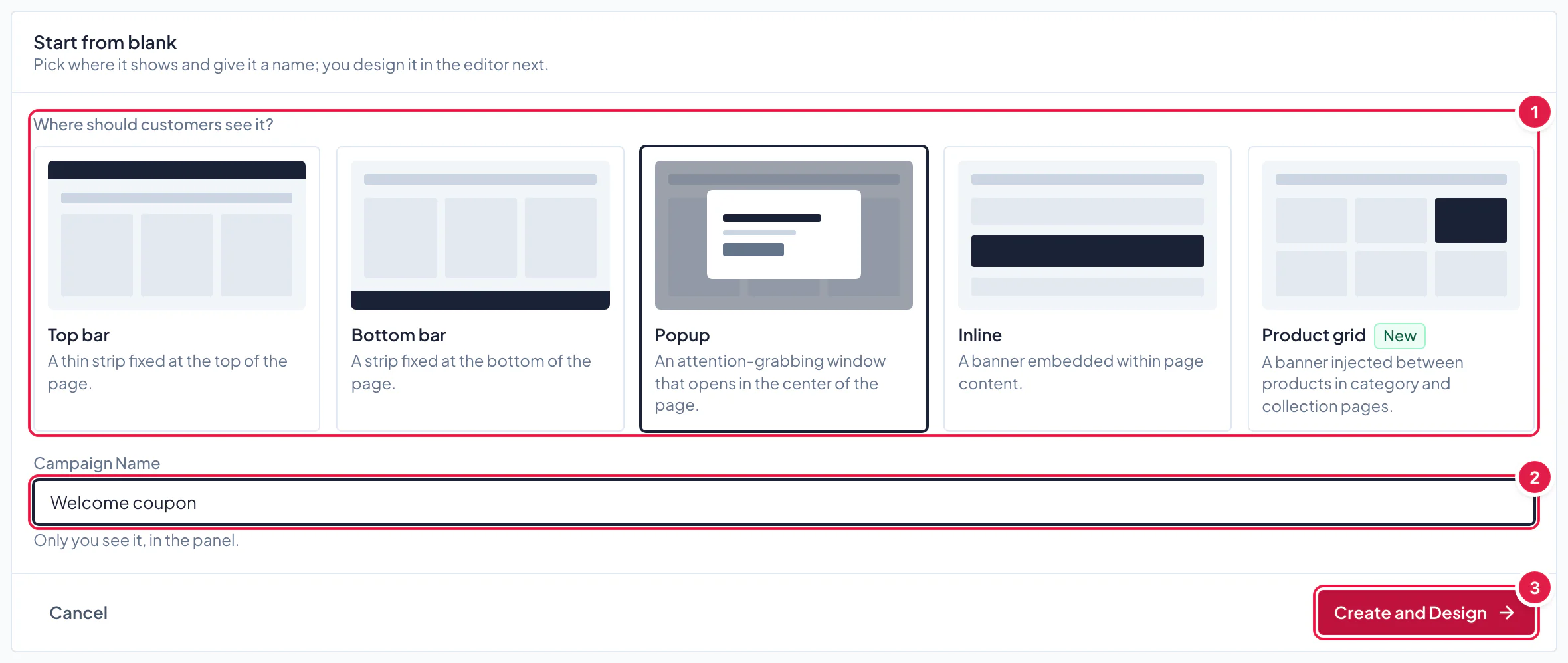
- Choose the placement. Popup is selected in the image.
- Type the campaign's name.
- Press Create and Design.
- Make the designOn the campaign page that opens, the Edit Design button in the Design and variations section opens the design studio in a new tab. Add elements, write your text and press Save.
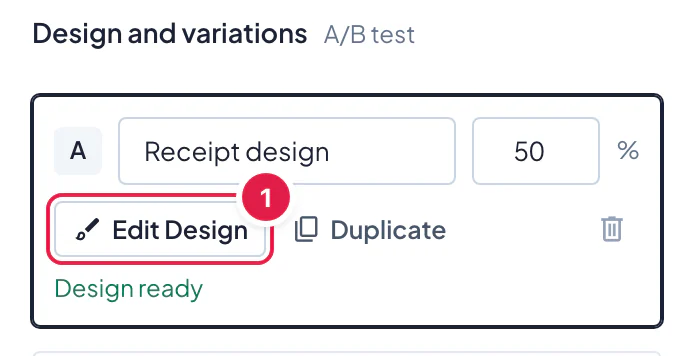
- Press Edit Design to open the design studio.
- Decide who sees itGo back to the campaign page. In the Who sees it section, use Add Page Rule to enter the pages where the campaign shows. If you add no rule, the campaign shows on every page.
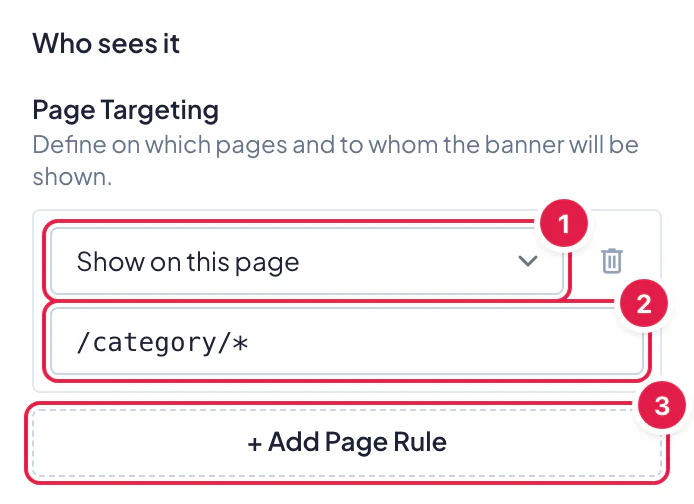
- Choose whether the campaign is shown or hidden on this page.
- Type the page address.
/category/*covers every category page. - Add a new rule for another page.
- For a popup, choose when it opensPopup campaigns also have a When it opens section. Choose here when the window opens and how often the same person sees it.
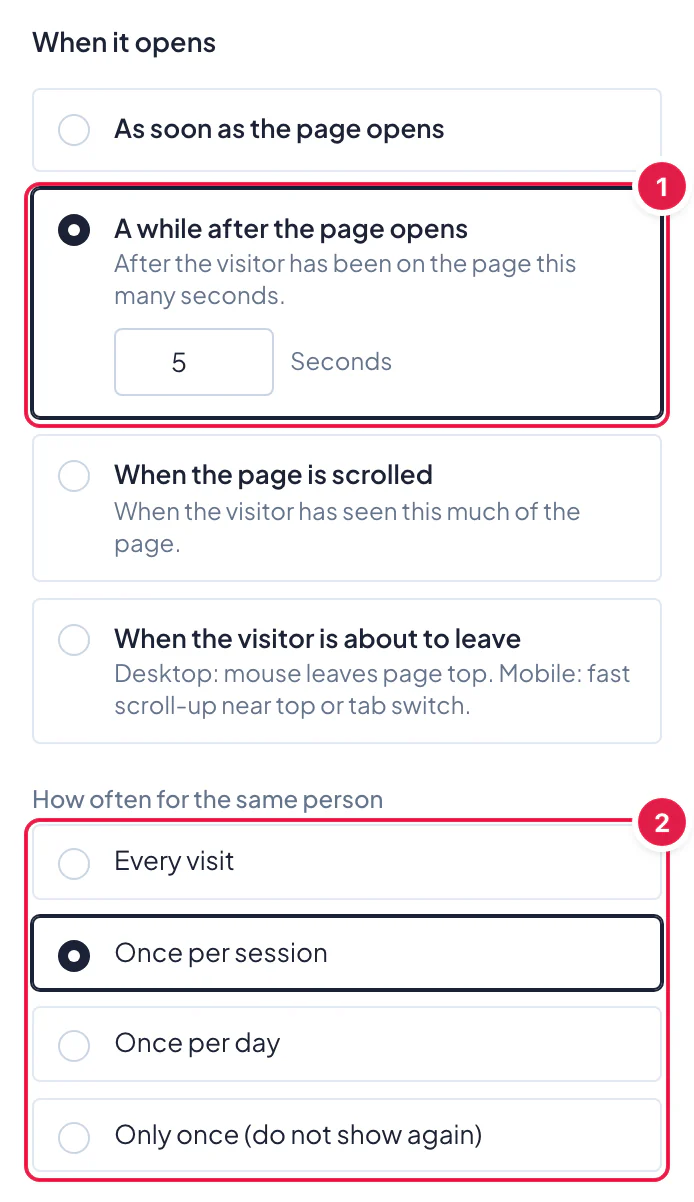
- Choose when the window opens. In the image it opens 5 seconds after the visitor lands on the page.
- Choose how often the same person sees it.
- Save and try it on your storeSave the settings with Save at the top right. The Try on your store button shows the campaign on your own site in a new tab, before you publish it.
- Press Try on your store to see the campaign on your own site.
- Save the settings with Save.
- Publish itWhen no warnings are left in the Checklist section, turn the switch in the header to Active. From then on the campaign shows in your store.

- Turn the switch to "Active".
The strip at the top of the page sums up impressions, clicks and click-through rate for the period you pick. At the top right are the Active switch and the History, Try on your store and Save buttons.
| Section | What you do there |
|---|---|
| Design and variations | Opens the design studio. The variation name, traffic share and A/B test settings are here. |
| Appearance | Position, animation, width and ways to close, depending on the placement. |
| When it opens | Shows only for popup campaigns: the moment it opens and how often it shows. |
| Who sees it | Page rules, advanced targeting, segments and Targeting Simulation. |
| Scheduling | Smart Scheduling: days, hours and automatic ending. |
| General | Campaign name and status. |
| Checklist | Shows three things before you publish: whether the traffic shares add up to 100%, whether every variation has a design and whether the campaign is live. |
You can change the status in three places: the switch in the campaign list, the switch in the campaign page header and the Status field in the General section.
| Status | Meaning |
|---|---|
| Draft | Every new campaign starts as a draft. It does not show in the store. |
| Active | The campaign shows in the store. Targeting and scheduling rules still apply. |
| Paused | It stops showing, but the design, settings and statistics are kept. An automatic ending rule also puts the campaign in this status. |
The first page of the studio lists all your campaigns. The tabs at the top filter them by status (All, Active, Paused, Draft). The search box searches by name. Each row shows total impressions, clicks, click-through rate and an impression line for the last 7 days.
The switch at the end of a row publishes or pauses the campaign. The Edit button opens the campaign page. The menu next to it has Analytics, Duplicate and Delete. A duplicated campaign is created as a draft.
When you tick several campaigns, the Activate, Pause and Delete buttons appear above the list.
Good to know: a deleted campaign is removed for good, together with its variations and statistics, and this cannot be undone.
Try on your store asks for an address, then opens the campaign on that page in a new tab. In the preview the campaign shows even if its status is Draft and even if the targeting rules do not cover that page. A popup opens right away, without waiting for its opening moment or frequency setting. The preview link works for about 30 minutes and only the person who opens that link sees the campaign.
History lists the copies taken each time you press Save on the campaign page. The last 5 versions are kept. Restore brings the campaign's name, designs and its appearance, timing and targeting settings back to that version.
Good to know: restoring creates the variations again as they were in that version, so the statistics the variations collected up to then are reset. If an A/B test is running, write down the numbers before you restore.
The New campaign button has a lock icon
You have reached your plan's campaign limit. Draft and paused campaigns count toward the limit too. Delete a campaign you do not use or upgrade your plan.
I activated the campaign but it showed up empty or with sample text
The campaign's design has not been made. Do not publish the campaign until the "Every variation has a design" line in the Checklist section is green.
Buttons do not respond and the page says "You are in view-only mode"
Your account has member access. Only admins and the account owner can change campaigns.