Targeting settings are in the Who sees it section of the campaign page. If there are no rules, the campaign shows on every page to every visitor.
The "hide" rules are checked first: if the page matches one of them, the campaign is not shown. Then the "show" rules are checked: if there is at least one "show" rule, the page must match one of them.
Once the page rules pass, the other groups (device, traffic source, visitor type, country, UTM, segment) are checked one by one and all of them must match. If you tick several options inside one group, one of them matching is enough. For example, ticking Mobile and Tablet together means "mobile or tablet". Choosing Mobile and United Kingdom together means "on mobile and from the United Kingdom".
Press the "Add Page Rule" button under Page Targeting, choose the rule type ("Show on this page" or "Hide on this page"), type the part of the address after the domain and save with Save at the top right. A star (*) means "anything can be here". The rule is compared with the whole address after the domain, including the part after a question mark.
| Pattern | What it matches |
|---|---|
/ | Only the home page. |
/cart | Only the page whose address is exactly this. |
/product/* | Every page whose address starts with /product/. |
*sale* | Every page with "sale" anywhere in its address. |
/category/shoes* | The category page and its versions with paging or filter additions. |
These groups are open on the Advanced and Enterprise plans and show as locked on the other plans.
| Group | Options | How it is decided |
|---|---|---|
| Device Targeting | Mobile Devices, Tablet Devices, Desktop Computers | The device type reported by the visitor's browser. |
| Traffic Source | Direct Traffic, Search Engines, Social Media, Email Campaigns, Referral | Where the visit came from. |
| Visitor Type | New Visitors, Returning Visitors | Whether the visitor's browser holds a record from an earlier visit. |
| Location Targeting | Countries chosen from the list | The country found from the visitor's internet address. If the country cannot be found, the campaign is still shown. |
| UTM Parameters | utm_source, utm_medium, utm_campaign | The UTM values in the page address. An empty field is not checked. You can use a value with a star, such as google*. |
When you use Traffic Source and UTM rules together, both must match. The panel reminds you of this with the "Warning: Narrow Targeting" message. If you are not sure, use only one of them.
The UTM value is read from the address of the page the visitor has open at that moment. When the visitor moves to another page after arriving from an ad, the UTM is no longer in the address and the rule does not match on that page.
Tip: the most reliable way to show a special message to people who come from an ad or an email campaign is a UTM rule. Add UTM to your links and show the campaign on the landing page.
Under Segment Targeting you can limit the campaign by the visitor's stage: New Visitor, Browsing, High Intent, Customer, Loyal Customer, Churned. If your account has active segments, they are listed in the same place. If you choose none, no segment filter is applied.
If there is no record about a visitor yet, their stage counts as New Visitor. If you chose a segment, a visitor with no record does not see the campaign.
You can also use segments at the variation level: the Segment button on a variation card shows that variation only to the segments you choose. This button shows when your account has at least one active segment.
- Save firstThe simulation tests the saved rules. To try a rule you just added, press Save first.
- Open the simulationClick the Targeting Simulation heading at the end of the Who sees it section.
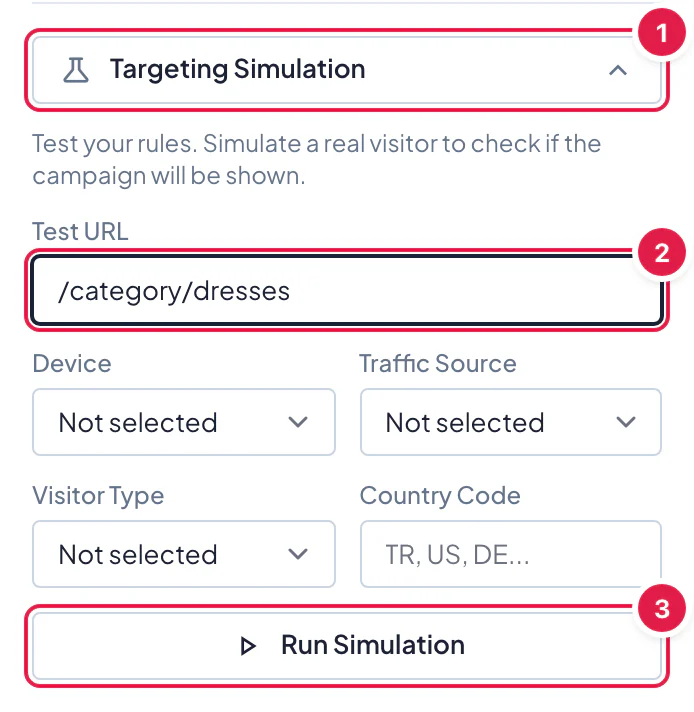
- Click the Targeting Simulation heading.
- Type the address of the page you want to test.
- Press Run Simulation.
- Describe the sample visitorType the address you want to test in the Test URL field. If you like, choose a device, traffic source, visitor type and country code.
- Run itPress Run Simulation. The result says "Campaign WILL BE SHOWN" or "Campaign WILL NOT BE SHOWN". Below it, you see which rules passed and which one stopped it.
I wrote the rule but the campaign does not show on that page
You may have typed the address with the domain. Type only the part after the domain. If the address gets an addition that starts with a question mark, put a star at the end of the rule.
I want the campaign only on the home page, but visitors from ads do not see it
Ad links add something to the end of the address. Add two rules for the home page: one with / and the other with /?*.
The simulation says it will be shown, but I cannot see it in the store
The simulation only tests the page, device, source, visitor type, country and UTM rules. Also check the campaign's status, the segment choice, Smart Scheduling and the popup's frequency setting.
I got a "not in your plan" warning when saving
You are trying to save a campaign with advanced targeting rules on a plan that does not include this feature. Remove the advanced choices or upgrade your plan.