AI shows up in four places in your campaign work: the Build with AI wizard that makes suggestions from scratch, the AI Text panel in the design studio, the 2 suggestions with AI button on the campaign page and the Quick campaign assistant that reads the announcement you write.
All four use the same daily credits. Creating with AI is available on the Advanced and Enterprise plans. The Quick campaign assistant also works on the other plans. There it reads what you write with simple rules and uses ready-made text.
Good to know: the text AI writes is a suggestion. Check the discount rate, the date and the conditions yourself before you publish. AI does not know your store's real campaign, it uses only what you tell it.
- Open the wizardPress Build with AI in the campaign list, or Create it with AI on the New campaign page.
- Choose the goalDiscount Campaign, Email Collection, Announcement, Seasonal Campaign or Flash Sale. AI writes the headline and the button for this goal.
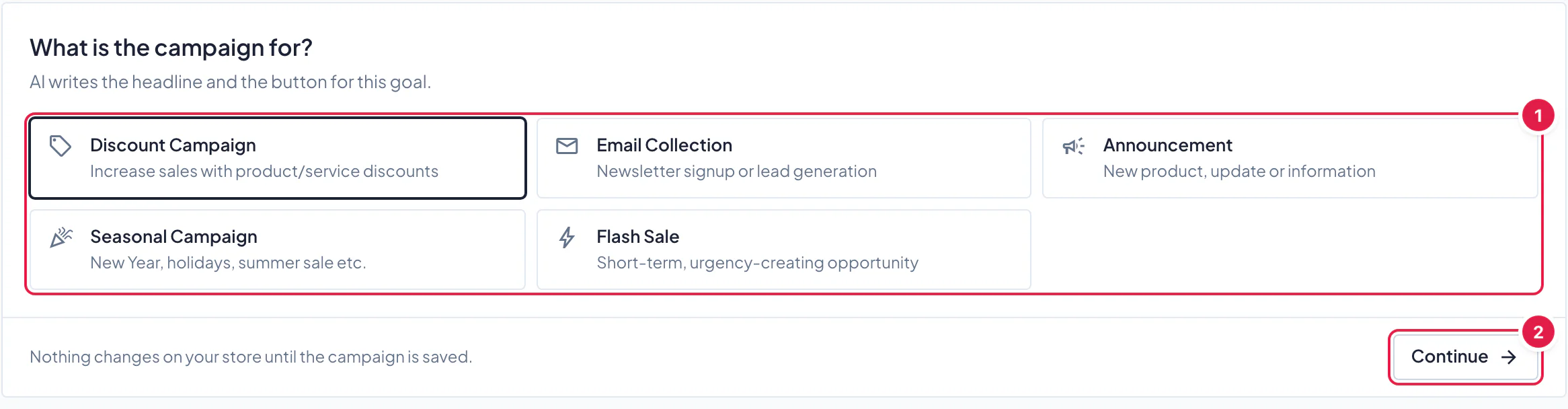
- Choose the campaign's goal.
- Go to the next question with Continue.
- Choose the placePopup, Top Bar, Bottom Bar or Inline Banner.
- Write the detailsThe discount, the discount code, the end date and, if there is anything else AI should know, a note of up to 500 characters. All of them are optional. AI uses what you fill in as it is.
- Choose the toneProfessional, Friendly, Urgent or Fun. Each option is shown with a sample sentence. Your store's industry comes from your account settings and you can change it here.
- Ask for a suggestionPress Generate suggestion. If you do not like it, you can ask for up to 3 suggestions with One more suggestion.
- Create the campaignCreate with this suggestion saves the selected suggestion as a draft and opens it in the design studio. Nothing changes on your store until the campaign is saved.
The wizard does not create product grid campaigns.
| Part | Description |
|---|---|
| Headline, subtext and button text | Based on the goal and tone you chose and the details you wrote. |
| Colors | A color set for the background, text and button. Shown on the suggestion card as small color boxes. |
| Image | A few stock photos are suggested for popups and inline banners. You can pick one or go on with No image. No images are suggested for bars. |
| Layout | For popups and inline banners: Split Image, Stacked, Full Image or Centered. |
| Preview | The selected suggestion is shown over a sample store page, in Desktop and Mobile view. |
If you have several suggestions, a Compare in an A/B test box shows on each suggestion card. When you tick 2 or 3 suggestions and press Create as an A/B test, a single campaign is created. Each suggestion becomes a variation and the traffic is split evenly.
This works when your plan includes A/B testing and has enough variation room. After the campaign is created, the campaign page opens. From there you can edit each variation's design.
AI Text: in the design studio, select a heading, paragraph or button, open AI Text from the left tools and pick a style: Short, Urgent, Friendly or Professional. The selected text is rewritten in that style. Your remaining credits for the day show at the bottom of the panel.
2 suggestions with AI: shows on the campaign page on plans with A/B testing. It takes the first variation's saved design and creates two new variations by changing its text. The new variations are added with a 0% traffic share. To include them in the test, you give them their shares.
Each suggestion in the wizard, each AI Text rewrite, each "2 suggestions with AI" request, and each announcement the Quick campaign assistant reads with AI or design it makes uses 1 credit. Credits renew every day at 00:00. If AI cannot produce a response, no credit is used for that request.
| Plan | Daily credits |
|---|---|
| Basic | No creating with AI |
| Pro | No creating with AI |
| Advanced | 15 |
| Enterprise | 100 |
It says "Today's AI credits are used up"
Your daily credits are used up. They renew the next day at 00:00. Until then you can start from the template gallery.
I see an "Advanced Package Required" warning
Creating with AI is not in your plan. Templates and the Quick campaign assistant can be used on every plan.
I got an "AI could not generate a response" error
The request could not be completed, but no credit was used. Try again a little later.
"2 suggestions with AI" asks for a design
This button uses the text in the first variation's saved design. Design and save the first variation first.
AI wrote the wrong discount rate
If you type the rate in the Discount field in the details step, AI uses it as it is. You can always fix the text yourself in the studio.