You can start a campaign in five ways: with a single template from the template gallery, with the quick start packs in the campaign list, with the Quick campaign assistant in the bottom right corner of the panel, with AI or from a blank canvas.
Whichever way you choose, the campaign is created as a Draft. You change the text, colors and links in the design studio and publish it when you are ready.
Good to know: the discount rates, coupon codes and shipping amounts in templates are examples. Replace all of them with your store's real terms before you publish.
- Open the galleryOn the New campaign page, press See templates on the Start from a template card.
- FilterThe tabs at the top filter by goal: Welcome coupon, Discount, Countdown deals, Shipping and trust, Newsletter, New season, Announcement, Special days. With the fields next to them you can choose a Template type, Design style and Industry, and search by name.

- Filter by goal. Welcome coupon is selected in the image.
- Search for a template by name.
- Choose the placement, for example Popup or Top bar.
- Choose the design style.
- Choose your industry.
- Look at the previewEach card shows the template where it will sit in the store. The tags under the card show the placement, the design style and the goal.
- Use the templateThe Use This Template button creates a draft campaign with the template's name and opens the design studio.
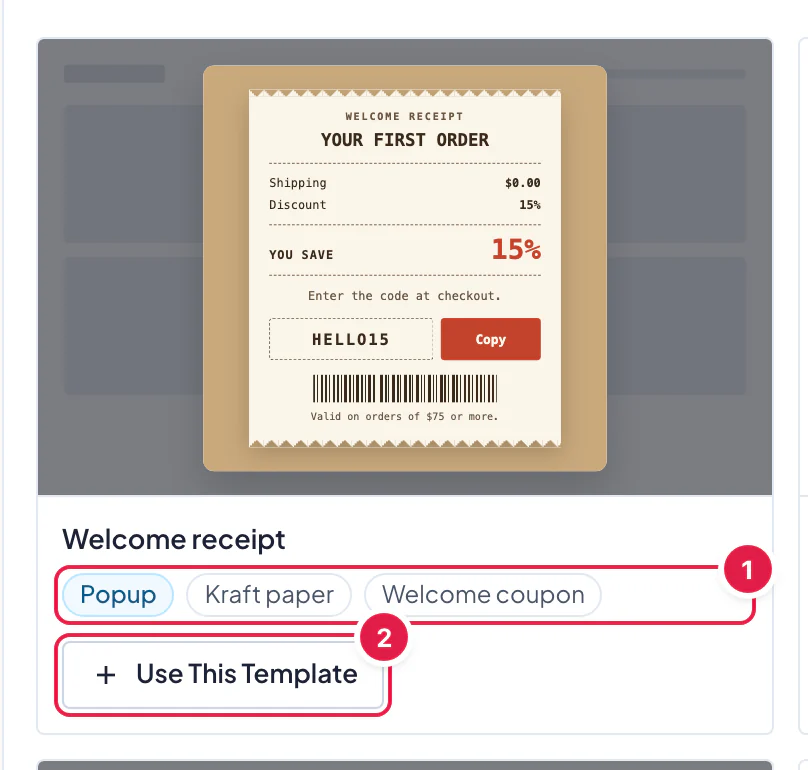
- The tags show the placement, design style and goal.
- Press Use This Template.
- Edit and saveChange the text, colors and button links, press Save, then go back to the campaign page to set the targeting and publishing options.
Packs sit at the top of the campaign list, in the "Quick start packs" card. A pack sets up several campaigns that work together, with their timing and page rules, as drafts in one go. During its season, the Black Friday kit is shown in its own card at the very top of the page.
| Pack | What it sets up | When it is offered |
|---|---|---|
| Welcome pack | A newsletter popup that opens once, 5 seconds after the visitor lands on the page, and a shipping and returns bar. | Always |
| Flash sale pack | A countdown popup that opens once a day on product and category pages, and a sale bar. | Always |
| Exit intent pack | A coupon popup for visitors about to leave the site, and a reminder bar on the cart page. | Always |
| Trust pack | A shipping and returns bar, and a payment information card in product lists. | Always |
| Black Friday kit | An announcement bar, a countdown popup, an exit coupon popup and a cart countdown bar. | 20 October to 30 November |
| New Year pack | A delivery countdown popup and a gift wrap bar. | 1 to 31 December |
| Valentine's Day pack | A gift coupon card and a gift wrap bar. | 25 January to 14 February |
| Mother's Day pack | A coupon bar and a delivery bar. | 25 April to 14 May |
| Father's Day pack | A countdown popup and a shipping bar. | 1 to 21 June |
| Summer sale pack | A cover banner and a shipping bar. | 15 June to 31 August |
| Back to school pack | A countdown bar and a cover banner. | 15 August to 20 September |
| Bayram pack | An Eid coupon banner and an Eid shipping announcement. | During Ramadan and in the two weeks before Eid al-Adha |
- Pick a packThe card lists each campaign the pack will set up: in which placement, on which pages, when and how often.
- Type your discount codeIf the pack has a design with a coupon box, the "Your discount code (optional)" field appears. The code can only contain capital letters and numbers, up to 16 characters. If you leave it empty, the sample code stays in the design.
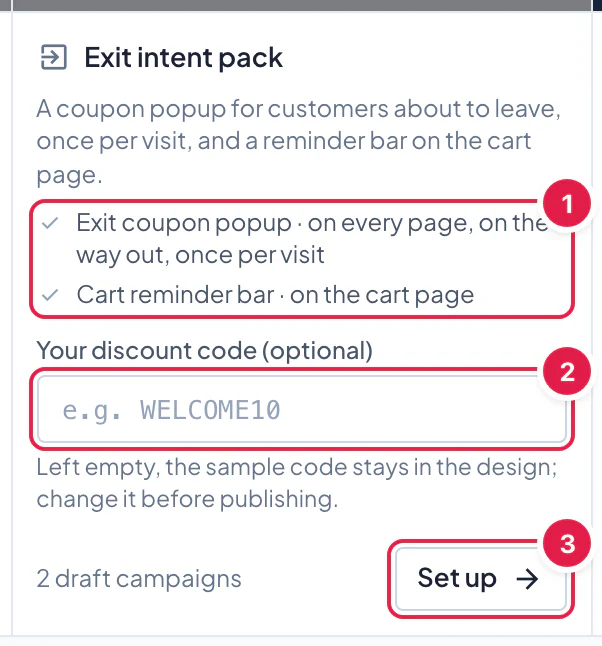
- The campaigns the pack sets up are listed here.
- Type your discount code.
- Press Set up.
- Press Set upThe Set up button (Set up the kit for the Black Friday kit) creates the campaigns as drafts and the list refreshes.
- Check and publishOpen each draft, check the text and the code, then activate them one by one or all at once.
- Open the assistantPress the Quick campaign button in the bottom right corner of the panel. The button shows on panel pages for admins and account owners.
- Answer the questionsThe assistant asks in turn for the goal (discount, collecting email addresses, shipping information, countdown, new season, special day), the format (Popup, Top bar, Bottom bar), the pages and, for a popup, when it opens and how often. For the shipping information goal it also asks for your free shipping threshold. For the email goal it does not ask for a format and uses a popup.
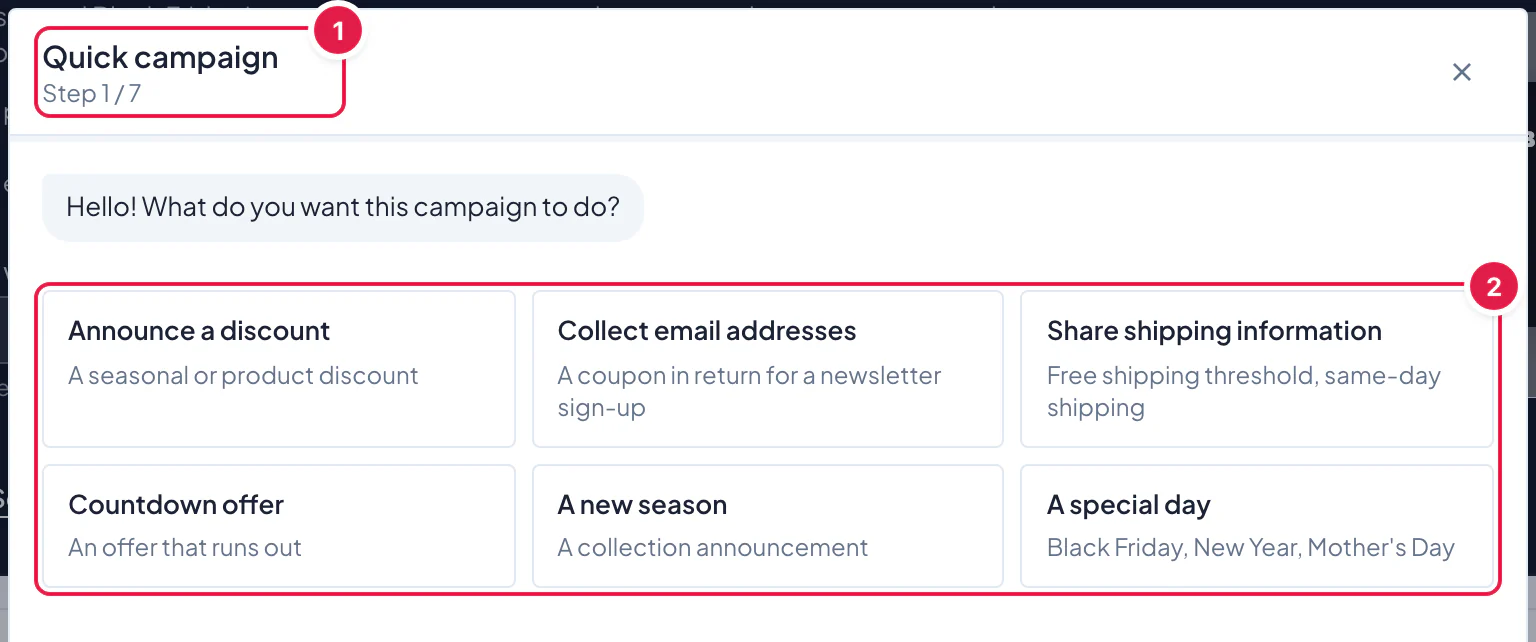
- Shows which step you are on.
- Press the option that fits your goal.
- Write what you are announcingWrite it in your own words and add your discount code if you have one. You can skip this step with Skip, use ready-made words.
- Choose the designThe assistant shows templates that fit. If you like, Design one for me has it make a new design, and if you do not like it, Another one asks for a new one. Up to 5 designs are made in one conversation.
- Create the draftThe Create the draft and open the studio button creates the campaign with the timing and page settings you chose and opens the design studio.
Start from blank only asks for the placement and the name. You make the design from scratch in the design studio. The Parts tab in the studio's Add panel adds ready-made blocks, such as a coupon box or an email form, with one click. This is the fastest way to move forward on a blank canvas.
In the design studio, the Templates tab of the Add panel lists templates that fit your campaign's placement. A template you pick here replaces the whole current design, and this cannot be undone. Pick the template first, then edit it.
A template has a Pro badge and a lock
Templates with a Pro badge, and packs that include them, can be used on Pro and higher plans. Templates without the badge are open on every plan.
The pack does not set up and says it needs free campaign slots
A pack needs as many free slots as the number of campaigns in it. Delete campaigns you do not use or upgrade your plan.
The assistant says "This design has no code box"
The template you picked has no coupon box. Pick another design or add the code in the studio with the Coupon element.
A "This design has expired" warning appeared
A design made by the assistant is kept for two hours. Start over and ask for a new design.
I cannot see a seasonal pack in the list
Seasonal packs are only offered in their own date range. You can always reach the same designs in the template gallery, in the "Special days" tab.